Filmora alternatives start with one question
On Oct. 9, 2026, a PR Newswire release datelined Vancouver, BC, said Wondershare had officially launched Filmora 16. A new version is a good moment to look at Filmora alternatives. The usual assumption is that the alternative must be another desktop editor: a different timeline for the same job.
That only holds if the next video starts with footage. Often it does. But a product marketer with a SaaS launch, or a founder who needs a demo for buyers, may have nothing recorded at all, only a product they want shown.
So one question sorts the rest of this page: does your next video start from footage you recorded, or from a product you want shown? We have not tried Filmora 16. Everything said about it here comes from Wondershare's own pages and the launch press releases, each with its date.
Before sorting the shortlist, it's worth being fair to the tool you'd be leaving.
Why people look for a Filmora alternative (and what Filmora 16 does well)
Start with what Filmora does well, because the list is long. On Wondershare's own pages, checked on 2026-10-17, Filmora 16 can capture your screen, camera, microphones and system audio at the same time. It keeps each source available for independent editing, so your voice and your screen don't have to be fixed as one take.
Here is what Wondershare documents, and where:
| What you get | What the page says | Source |
|---|---|---|
| Multi-source recording | Screen, camera, microphones and system audio at once, each source kept for independent editing | Filmora homepage, 2026-10-17 |
| Color correction | LUTs, white balance, HSL, RGBY curves and color wheels, plus Color Mask for one part of the frame | Wondershare color correction guide, 2026-10-17 |
| Keyframes | Scale, position, rotation, compositing and opacity, plus colors and audio | Wondershare keyframing guide, 2026-10-17 |
| AI Media Analysis | Identifies subjects, scenes, locations and actions, then turns them into keywords, descriptions, ratings and editing suggestions | AI Media Analysis page, 2026-10-17 |
| Captions | Not documented in the pages we checked | None |
The press release says Filmora 16 also brings Camera Tracking, Smart Text Correction and 360-degree Video Reframing (openPR release, 2026-10-15). We haven't matched those against Wondershare's own pages, and we haven't tried Filmora 16.
So why look elsewhere? Not because any of this falls short. It's a different job. Every row in that table works on footage that already exists. A hands-on desktop editor is built to cut and shape what you recorded, down to the frame.
A demo of your SaaS for buyers may start with no footage at all. You have a product at an address, a launch date and a landing page with an empty slot. Someone still has to plan the walkthrough, write the narration and record clean screens. When the settings page moves, they record again. The editor makes that recording look good. It doesn't make the recording.
If that stays the order, the demo stays the last launch asset to be finished, waiting on a product ready to film and words that are right.
Moving away from Filmora means giving up that frame-level control. Whether that's a loss depends on one thing: does your next video start from footage, or from the product itself?
Four options answer that question in different ways. Here is where each one fits.
Camtasia: when you want to edit by hand and have the script and voiceover generated
uscale is our product. We've put it where we think it fits, and said where others fit better. The options below run from the one closest to a finished, narrated product demo to the most hands-on.
Camtasia's Create plan puts a generated script and voiceover inside a desktop editor that you still run yourself. That is how TechSmith's Camtasia store page describes it on October 17, 2026. Everything we say about Camtasia here comes from that page.
| Plan | Price on TechSmith's store | What the store page lists with it |
|---|---|---|
| Camtasia Starter | $39.00 per year billed yearly | Camtasia Editor (watermarked) |
| Essentials | $179.88 per year billed yearly | Not covered in what we captured |
| Create | $249.00 per year billed yearly | AI script generation and voiceover generation |
What the AI features change, and what they don't
A generated script and a generated voice do not remove the editing. They speed up the writing and the narration, and you still decide what goes on screen and in what order. If that control is what you want, it is the reason to buy, not a cost to put up with. You can ask the same thing of any tool on this list: which step does it hand back to you, and do you want that step?
Best for
Camtasia fits someone who wants to stay in a desktop editor, perhaps coming from Filmora's timeline, and wants the plan to write and voice the script. For that person, Camtasia Create is a better pick than uscale. If you budget from the lowest price, note that the store page lists Camtasia Starter's editor as watermarked.
We only cover the plan names, the prices and the features in the table. Anything else is not covered in what we captured. Check TechSmith's page for the current list, or read our Camtasia alternative page for a fuller comparison.
Camtasia vs uscale: Camtasia keeps the edit in your hands. uscale films the product from its address, and you ask for changes in a chat with the director. Most readers can place themselves on one side of that split: editing what they recorded, or starting from the product itself.
uscale: when you have a product, not footage
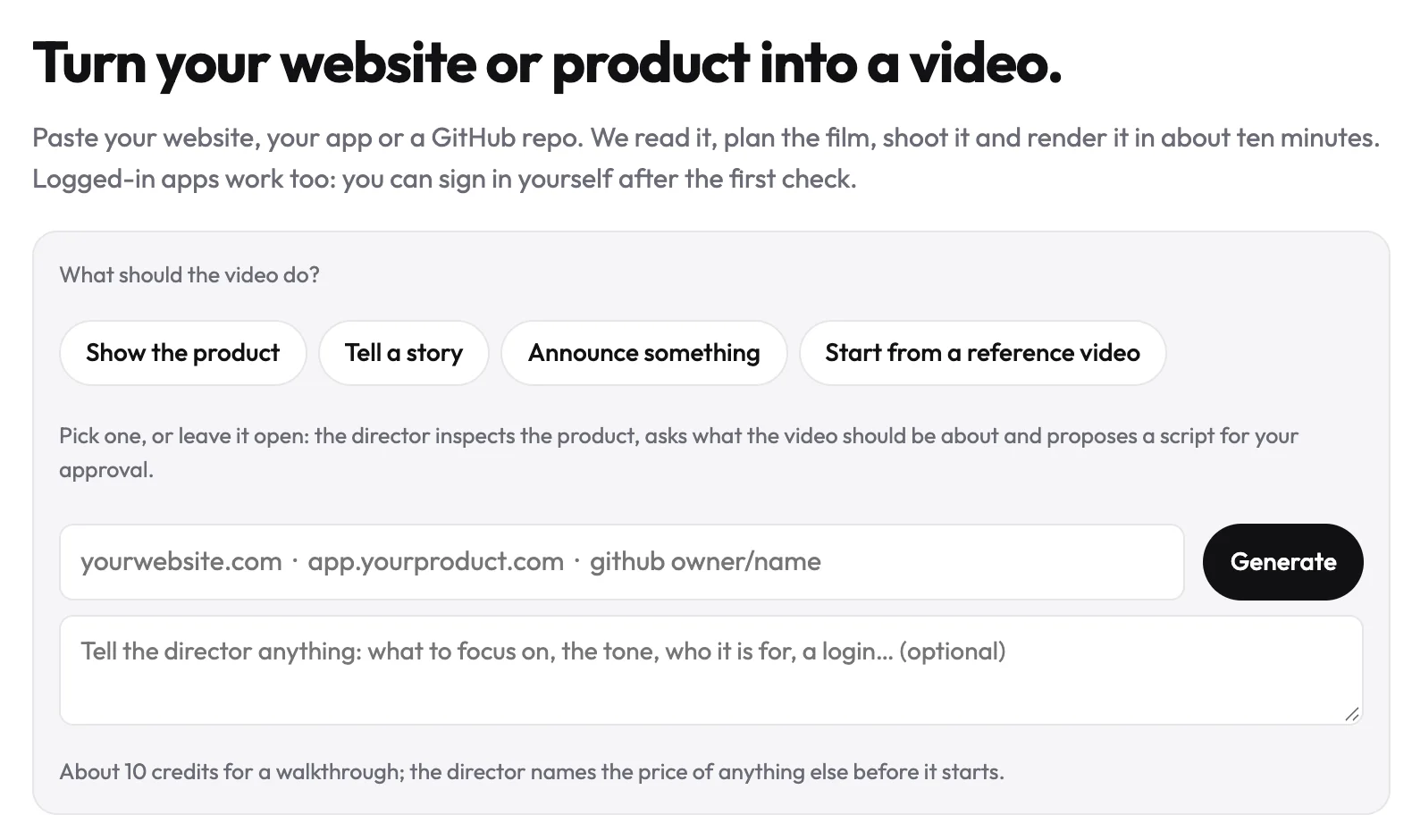
If your starting point is a product rather than a recording, uscale turns its address into a narrated demo. You paste a website, a web app address or a GitHub repo, and you record nothing. uscale opens the live site or app, clicks through it like a careful user and films each screen. For screens behind a sign-in, you sign in once yourself, in a browser streamed into the page. With a GitHub repo connected, the director plans a film of the project even before there is a live site to film.
Most people try to fix a demo after it is made. Here the words come first. Before anything is filmed, you approve a storyboard with every narration line.
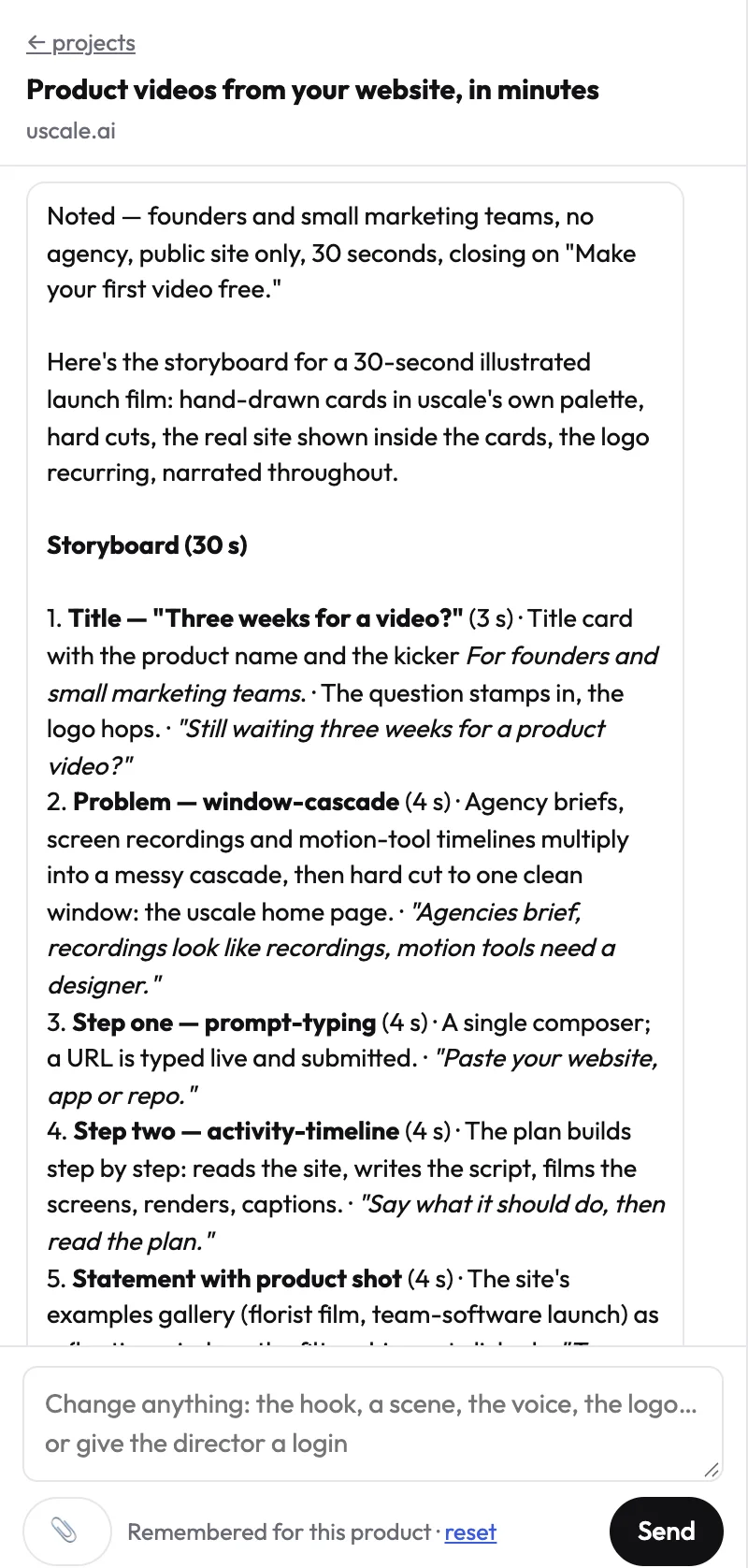
A wrong sentence is cheapest to catch while it is still a sentence, not a rendered scene. Changes go through a free chat with the director, not a timeline. A natural voice reads the script, captions follow every word, and music sits under it. The film uses the logo, colours and fonts from your live site, in any of 21 languages. See what a product demo video made with uscale covers.
What it costs
A new account starts with 10 credits, 20 with a work email, and no card needed. After that, you buy credits once, with no subscription.
| Pack | Price | Credits | Per credit | Roughly |
|---|---|---|---|---|
| Lite | $29 | 25 | $1.16 | 2 product walkthroughs |
| Starter | $49 | 50 | $0.98 | 5 product walkthroughs |
| Growth | $129 | 150 | $0.86 | 15 product walkthroughs |
The director names the price of every step before it starts. The full list is on uscale's pricing page.
What it isn't built for
uscale doesn't cut footage you shot. It doesn't do frame-level edits such as keyframes or color masks. Films use uscale's voices, not your own, and captions are always burned in.
Filmora gives you control of every frame. uscale gives you a finished narrated film without a recording session. If you have footage and want frame-level control without paying up front, the next option has a free version.
Try it: make a product demo video: paste your product's address and approve every narration line before filming.
DaVinci Resolve: when you want a free editor, Linux included
DaVinci Resolve is the editor here that Blackmagic Design lists with a free version for Linux. Blackmagic's page, as we captured it on 2026-10-17, says Resolve comes in free and paid versions for Mac, Windows and Linux. The same page lists DaVinci Resolve Studio at $295 to buy online.
| What Blackmagic Design's page lists (2026-10-17) | DaVinci Resolve |
|---|---|
| Versions | Free and paid |
| Platforms | Mac, Windows and Linux |
| Paid version | DaVinci Resolve Studio, $295, buy online |
| Editing and color features | Not described in what we captured |
| What the free version leaves out | Not described in what we captured |
The page we saved tells us only what is in the table. It does not describe Resolve's editing tools or its color features, so we won't list them from memory. For those, and for the differences between the free version and Studio, read Blackmagic Design's DaVinci Resolve page before you plan around it.
The platform line matters more than it looks. Filmora's system requirement pages list Windows and macOS: Windows 11, 10, 8.1 or 7 on x64, Windows 11 or 10 on ARM, and macOS from 10.15 (Catalina) to macOS 26 (Tahoe). If your team edits on Linux, check Resolve first, because Blackmagic's page names Linux.
A reason you can reuse: sort editors by what they run on and what they cost to start before you compare features. A long feature list is no help if the app won't install on the machine you edit on.
Best for
Resolve fits someone who already has footage, such as a recorded walkthrough, a customer interview or a conference talk, and wants a desktop editor that is free to start. It also fits anyone who works on Linux. For footage you shot yourself, choose Resolve over uscale. uscale films a product from its address and isn't built to cut a recording you already have.
Resolve vs uscale: Resolve has a free version for footage you already have, while uscale starts from the product's address, with no footage needed.
That leaves the option this page started from: not switching at all.
Staying on Filmora 16: when the new release covers your list
If you already record and cut your demos in Filmora, the new release may be reason enough to stay. Wondershare's Filmora pricing page says upgrades "like Filmora 16 release" are included in the subscription with "no extra fees added". A current subscriber gets the new version without buying anything.
The case for staying rests on what you keep: your projects, your timeline habits and the recordings already on disk. A new tool earns its place when it changes what the video starts from. If your videos still start from footage you shot, that hasn't changed.
| What to check | What Wondershare says (2026-10-17 unless noted) |
|---|---|
| Advanced plan | US$59.99 per year, 1,000 Filmora AI Credits a month, used for 20+ AI features |
| Monthly plan (Windows store) | $19.99 per month |
| Basic and Perpetual plans | Prices not documented in what we captured; see the Filmora plans page |
| Free version (download page, 2026-10-14) | "can be downloaded and used for free, though all exported videos will contain a watermark unless a subscription plan is purchased." |
| Free export | "Each Wondershare ID has one (1) free export without a watermark. After redeeming the free export, please complete your video export in 3 days or the offer will expire." |
| AI credits per task | The press release (2026-10-15) says AI Media Analysis shows the required credits before generation begins. Credits per analysis are not documented |
| Windows hardware | 8 GB RAM minimum. For HD and 4K, an Intel 9th Gen or newer CPU, 16 GB RAM and 4 GB VRAM are recommended |
| Mac hardware | 16 GB RAM for HD and 4K |
| 360° editing | Its own requirements on both Windows and Mac |
Before you renew or start, note that the free version lets you try the editor, not get clean files. You get one watermark-free export per Wondershare ID, and the rest carry a watermark. Then check your machine against the HD and 4K lines above.
Best for: teams who already edit their own recordings in Filmora and want the new release without changing how they work. If that describes your team, switching tools changes the least for you.
That makes four options. Side by side, the split between them is easier to see.
Filmora alternatives compared side by side
The table sets the four options against the questions that sort them: the job each is built for, how you work, what you can do for free, what the first paid step costs, and where it runs. Every cell comes from each tool's own page. Where a page is silent, the cell says so.
| Tool | Best for | How you work | Free option, as documented | Paid entry price | Platforms, as documented |
|---|---|---|---|---|---|
| Camtasia | Editing by hand, with the script and voiceover generated | In the Camtasia Editor, on your footage; the Create plan adds AI script and voiceover generation | Not documented | Starter, $39.00 per year billed yearly (editor watermarked) | Not documented |
| uscale | A narrated demo of a website, web app or GitHub repo, with no footage | Paste an address or repo, approve the storyboard, ask for changes in a chat | 10 credits on a new account, 20 with a work email, no card needed | Lite, $29 for 25 credits, pay once | Not documented as a system list; also works from Claude, ChatGPT, Cursor or VS Code through its MCP server |
| DaVinci Resolve | A free editor for footage you have, Linux included | Editor on your footage | Free version | DaVinci Resolve Studio, $295 to buy online | Mac, Windows, Linux |
| Filmora 16 | Teams who already edit their own recordings in Filmora | Editor on your footage, with recording built in | Free to use, but exports carry a watermark unless you buy a plan; one free export without a watermark per Wondershare ID | $19.99 per month (Windows monthly plan); Advanced, US$59.99 per year | Windows 11, 10, 8.1, 7 (x64) and 11, 10 (ARM); macOS 10.15 to macOS 26 |
Sources: TechSmith's store, Blackmagic Design and Wondershare's pricing, store and system requirement pages, checked 2026-10-17; Wondershare's download page, dated 2026-10-14; uscale's pricing page. The prices don't compare one to one: a yearly plan, a monthly plan, a purchase price and a credit pack you pay for once buy different things.
The job each one fits
- Camtasia fits when you want the edit in your own hands and the plan to write and voice the script.
- uscale fits when you have a product and no footage, and want to approve every narration line before anything is filmed.
- DaVinci Resolve fits when you have footage and want a free version, or you work on Linux.
- Filmora 16 fits when your team already edits its recordings in Filmora and the new release covers your list.
Which to choose
A solo founder before launch, with a live site and no recording session planned, should start with uscale and a product demo video. A developer-relations team with a repo can also start with uscale, which reads a GitHub repository and plans a film even before there is a live site to show (developer tools). An agency whose clients send footage should stay on an editor: Resolve for a free version, Camtasia for a generated script and voiceover, Filmora 16 if the team already knows it. An agency whose clients have products but no footage can buy uscale credits once, with no subscription and no seats.
Rule of thumb: if the video starts from footage you have, pick an editor; if it starts from your product's address, pick the tool that films the product.
A rule of thumb can hide the edge cases, though, so here is where uscale is plainly the wrong pick.
When not to choose uscale, and when it fits
If the video is built from footage you recorded, a desktop editor is the right tool. A screen recording of a tricky workflow, a founder talking to camera, or a webinar you want to trim all need a timeline. Wondershare's pages say Filmora lets you set keyframes for scale, position, rotation and opacity, and correct one part of a frame with Color Mask. Camtasia and DaVinci Resolve also keep that kind of control in your hands. When the craft of the edit is the point, a tool that films the product for you takes away the control you want. In that case, Filmora 16, Camtasia or Resolve is the better pick.
Don't choose uscale if
- You are editing footage you already shot on a timeline.
- You want the film in your own recorded voice. Films use uscale's voices, though you can change the words, the voice, the pace and how names are pronounced.
- You need captions off. They are burned into every film.
- You need a live-action shoot, or a film in Chinese, Japanese, Korean or Arabic, which isn't supported yet.
- You need a REST API to make videos in bulk. uscale has none. It does work inside AI assistants such as Claude, ChatGPT and Cursor through its MCP server, live since 2026-10-15.
When it fits
Your product is a website, web app or GitHub repo, you have no footage, and you want a narrated demo whose storyboard you approve before anything is filmed. That is a different starting point from Filmora's, not a weaker one. Developer tools started from a repo fit here too, even before there is a live site to film.
| If you… | Choose… |
|---|---|
| Have your own footage, want frame-level control and already edit in Filmora | Filmora 16 |
| Want to edit by hand and have the script and voiceover generated | Camtasia (Create plan) |
| Have footage and want a free editor, or work on Linux | DaVinci Resolve |
| Need your own voice, captions off or a bulk API | A desktop editor, not uscale |
| Have a product address or repo, no footage, and want a narrated demo | uscale |
The question from the top of the page still decides it. Footage points to an editor. A product with no footage points to uscale.
Your next step
Pick the line that matches what your next video starts from.
- You have footage and want your hands on every cut. Stay on Filmora 16, or try Camtasia or DaVinci Resolve. Each one keeps the edit in your hands, on your own recordings.
- You have a product and no footage. Paste its address, or a GitHub repo's owner/name, into uscale. You approve the storyboard and every narration line before anything is filmed. Your first video is free, with no card needed. Start with a narrated product demo video.
- You want to see results first. Watch the example films, then read what a video shows for software products.
Also weighing Descript? Our Descript comparison sorts it by the same question: footage or product.
A product demo doesn't need a recording session or a timeline. It needs a few lines of narration somebody agreed on, and the product doing its thing.
Make your filmora alternatives from your website — it’s free →
Questions
What is Filmora?
Filmora is Wondershare's desktop video editor, and a Filmora alternative is another tool for the job you would use Filmora for: an editor such as Camtasia or DaVinci Resolve, or a tool that films the product itself. Filmora 16 launched on Oct. 9, 2026. Wondershare's pages say it records screen, camera, microphones and system audio at once, and offers color correction, keyframes and AI Media Analysis for footage you already have.
Is Filmora free to use?
Filmora is free to download and use, but Wondershare's download page, dated 2026-10-14, says all exported videos carry a watermark unless you buy a subscription plan. Each Wondershare ID gets one free export without a watermark, which must be completed within 3 days of redeeming it. Paid plans on Wondershare's pages, checked 2026-10-17, include a $19.99 monthly plan on the Windows store and the Advanced plan at US$59.99 per year.
What's a free alternative to Filmora for product demo videos?
A free alternative to Filmora depends on what the demo starts from. For footage you already recorded, DaVinci Resolve has a free version for Mac, Windows and Linux, according to Blackmagic Design's page on 2026-10-17. For a product with no footage, uscale films a live site or app from its address, and a new account starts with 10 credits, or 20 with a work email, enough for one full first video with no card.
Can I switch from Filmora without re-recording my product?
Switching from Filmora without re-recording works when your next demo starts from the product rather than from footage. uscale films a live site or app from its address, so you record nothing; for screens behind a sign-in, you sign in once in a browser streamed to you. For a GitHub repo, the director reads it with read-only access and plans a film. Footage already recorded in Filmora is still an editing job for Filmora, Camtasia or DaVinci Resolve.
What does uscale cost for a product demo video?
A uscale product demo video starts free: a new account gets 10 credits, or 20 with a work email, which covers one full first video with no card needed. After that you buy credits once, with no subscription and no seats. Lite is $29 for 25 credits, about 2 product walkthroughs; Starter is $49 for 50 credits, about 5; Growth is $129 for 150 credits, about 15. The director names each step's price before it starts.

The team behind uscale, which turns a website, web app or GitHub repo into a narrated product video.