The alternative to a screen recorder isn't always a screen recorder
Most lists of Camtasia alternatives make the same quiet assumption: if you're leaving one screen recorder with a timeline, you need another screen recorder with a timeline. Swap the logo, keep the workflow: you still capture the screen, redo the takes and cut it together yourself.
For some jobs that holds. A training video, a step-by-step tutorial, a walkthrough narrated in your own voice: each needs a recorder and an edit, and the only question is which tool suits your computer and budget.
A product demo for buyers is a different job. The person watching wants to see what the product does, not how carefully it was cut. So before comparing recorders, there's an earlier question: does anyone on your team need to record and edit this video at all?
Your answer changes the shortlist more than any feature does, so this page sorts the options by job, starting with what Camtasia itself does well.
Why people look for a Camtasia alternative, and what Camtasia does well
Camtasia is good at the job it was built for. TechSmith's features page (2026-10-14) says it records part or all of your screen at up to 4K and 60 frames per second. It captures mouse movement, clicks and keystrokes so you can edit them afterwards. The editor adds highlights, callouts, zooms and captions, and TechSmith says no production background is needed. The Camtasia Editor is a multi-track timeline for Windows and Mac where you trim, cut and rearrange clips across layers.
For training teams it goes further. TechSmith's guide to SCORM (September 2026) says Camtasia exports a SCORM-compliant ZIP file, so a learning management system can track completion, quiz scores and time spent. You can also put quizzes inside the video and set a pass mark.
The trade-offs, not the failures
People look elsewhere because these strengths come with costs. Those costs weigh more for some jobs than others.
- You do the work. You record, retake and edit the timeline yourself. For a tutorial in your own voice, that is the point. For a launch demo due on Thursday, it is hours you may not have.
- The price assumes a yearly habit. The Create plan is $249.00 per year, billed yearly, according to TechSmith's store page (2026-10-14). That suits a team that makes videos every month. It is harder to justify for two demos a year.
- The interactive parts need TechSmith's player. Quizzes and hotspots need the TechSmith Smart Player and don't work on YouTube, per TechSmith's export tutorial (September 2026). If your demo lives on YouTube, those features stay behind.
- A buyer demo is a different job. A course teaches someone step by step and checks what they learned. A demo shows a buyer what the product does in the little time they give it. It is the same screen, but a different video.
Which of these trade-offs is yours decides the rest of this page.
uscale is our product. We've put it where we think it fits, and said where others fit better. The list starts with the closest like-for-like, ScreenFlow, then ScreenPal. Next comes uscale, which drops recording and editing altogether. OBS Studio follows as the free option for recording and live streaming.
ScreenFlow: when you record and edit on a Mac
If your team works on Macs and wants to keep recording and editing its own videos, ScreenFlow is the closest swap for Camtasia on this list.
Telestream describes ScreenFlow as a screen recording and editing tool built only for Mac, on both Apple Silicon and Intel (overview page, 2026-10-14). It records the screen, camera and microphone at the same time. Telestream sells it for software demos, video tutorials, presentations and corporate training (store page, 2026-10-14). Prices start at $199 (Telestream's overview page, 2026-10-14). Check Telestream's store for the terms behind that price.
| ScreenFlow | In Telestream's words (2026-10-14) |
|---|---|
| What it is | Screen recording and editing tool |
| Platforms | Mac only (Apple Silicon and Intel) |
| Records | Screen, camera and microphone at the same time |
| Sold for | Software demos, video tutorials, presentations, corporate training |
| Price | Prices start at $199 |
| Best for | A Mac-based team that wants to narrate and edit its own videos |
| Not built for | Windows or Linux teams |
Say yes or no
Most people compare editing features first. Settle two other questions before that: what computers your team records on, and who should do the talking. Decide who speaks and who cuts before you compare a single feature; that one answer removes half the list.
Say yes to ScreenFlow if everyone who records is on a Mac. It also suits a team that wants the finished video to sound like the person who knows the product. For a Mac user who wants to narrate in their own voice and control every cut, we'd pick ScreenFlow over uscale. Say no if anyone records on Windows or Linux. Telestream's page says Mac only.
ScreenFlow vs uscale: ScreenFlow gives you your own voice and a full edit. uscale films your live app and writes the narration, so there is nothing to record.
If budget is a bigger limit than platform, ScreenPal is the next tool to weigh.
ScreenPal: when you need tutorials and quizzes on a small budget
ScreenPal suits teams that make many short videos and want to check that viewers understood them. ScreenPal's own pricing page, as of November 2025, lists two solo plans for that job. The table below sets them out. For anything the page doesn't list here, including which computers it runs on, see ScreenPal's plans page.
| Plan (ScreenPal, November 2025) | Price | What the plan lists | Quizzes and polls |
|---|---|---|---|
| Solo Deluxe | $4/month, billed annually | Unlimited recording and hosting, full video editing, AI speech-to-text captions | Not listed |
| Solo Max | $10/month, billed annually | Everything above, plus AI text-to-speech narration, AI video translation, unlimited stock assets | Unlimited |
A worked example (hypothetical)
Say your support team ships a new export setting on Tuesday and wants a short how-to out by Wednesday. The video has these beats:
- Open on the finished export.
- Show where the setting lives.
- Change the setting.
- Run the export.
- Ask one question: "Where do you turn on scheduled exports?"
That last beat decides the plan. Solo Deluxe covers the recording, the edit, the captions and the hosting. Quizzes appear only in the Solo Max list, so this team needs Solo Max.
It is easy to price the recording first and then find the quiz on the next plan up. Choose the plan by how the video ends, not by how it starts.
Best for: frequent short tutorials and knowledge checks at a low cost. Pick ScreenPal over uscale when a tutorial needs quizzes or polls.
ScreenPal vs uscale: ScreenPal gives you quizzes, polls and a recording you make yourself, on a small annual budget. uscale films your live app and writes the narration, so there is nothing to record or edit. The next section covers that second job.
uscale: when you want a narrated product demo without recording or editing
With uscale there is no recording or editing on your side. You paste the address of your site or app, and uscale films the live product itself. If the screens sit behind a sign-in, you sign in once in a browser streamed into the page. You get back a narrated product demo with a natural voice, captions and music, in your brand's colours and fonts read from your live site. uscale's own example films, including Compute Exchange, are on the examples page.
The storyboard takes the place of the timeline
Instead of dragging clips, you talk to a director in a chat, which is free. Tell it which screens to show ("start on the dashboard and end on the export"). It proposes a storyboard with every narration line, and you approve it before anything is filmed.
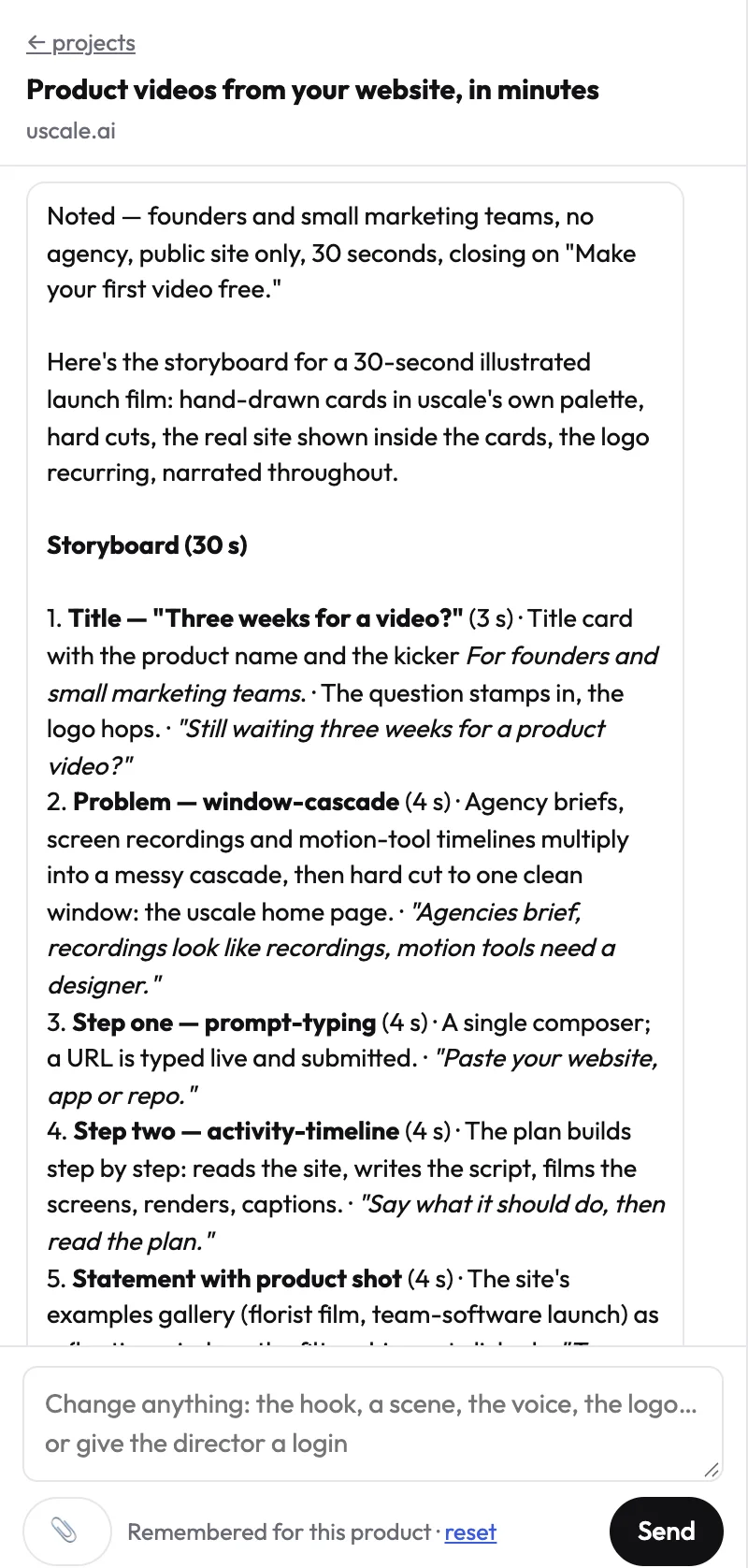
Most teams treat the edit as the last step. In a demo, the script is the edit: once the words and the order of screens are right, the cut follows them. Fixing a line costs a sentence in a chat, not an afternoon on a timeline. Every render is a new version, so earlier cuts stay. When the app changes, you film it again. The same film can be made in other languages, among the 21 supported.
From a repo, before there's a site
Say you're launching a developer tool next week and the site isn't live yet. You connect GitHub read-only, and the director reads the repository and plans a film of the project. The developer tools page covers that case.
What it isn't for, and what it costs
It isn't built for long step-by-step training courses or quizzes. It can't narrate in your own voice today, and captions can't be turned off today.
You start with 10 credits, or 20 with a work email, and no card is needed. A product walkthrough is about 10 credits. After that you buy a pack once:
- Lite $29 (25 credits, about 2 product walkthroughs)
- Starter $49 (50 credits, about 5)
- Growth $129 (150 credits, about 15)
There is no subscription and there are no seats. The pricing page has the details.
Camtasia vs uscale: Camtasia gives you your own recording, every cut on a multi-track timeline and quizzes an LMS can track. uscale films your live app and writes every narration line, so there is nothing to record or edit. The product demo video page covers that job in full.
Try it: make a product demo video from your live app, and approve every narration line before anything is filmed.
The next option goes the other way: it costs nothing, and you do all the recording yourself.
OBS Studio: when you want free recording or live streaming
For recording or live-streaming a product walkthrough at no cost, OBS Studio is the pick over uscale. The OBS Project describes it as free, open-source software for video recording and live streaming. It captures and mixes video and audio in real time, and you build scenes from sources such as window captures, images, text, browser windows, webcams and capture cards (obsproject.com, checked 14 October 2026).
| What the OBS page says | Detail |
|---|---|
| Price | Free and open source |
| Built for | Video recording and live streaming |
| Scene sources | Window captures, images, text, browser windows, webcams, capture cards |
| Platforms | Windows 10/11, macOS 13.0 or newer, Linux |
| Latest release listed | 32.2.2 (August 14) |
Best for: a zero budget, teams working on Linux, and anyone who also streams live product walkthroughs and wants one setup for both streams and recordings.
Plan where the edit happens
OBS's page describes recording, mixing and streaming. It does not describe a timeline with callouts and zooms like the one Camtasia is known for. That doesn't mean you can't edit. It means you should decide, before the first take, where the cuts, zooms and captions get added. They can go into the scene layout while you record, or into a separate editor afterwards. The narration is your own voice into the microphone.
The reasoning carries over to any free recorder: in a live stream there is no second pass, so the scene layout has to do the work an editor would. Build the scenes as if each one were a cut.
OBS vs uscale: OBS is free and gives you full control of every scene. uscale adds the narration, captions and music, and you change the film by asking in a chat instead of on a timeline.
Free covers the capture. It doesn't decide who writes the script, speaks the lines or makes the cuts. Count those hours before you compare the price column.
With that in mind, here is the whole shortlist in one table, Camtasia included.
Camtasia alternatives compared side by side: ScreenFlow, ScreenPal, OBS Studio and uscale
Five columns settle most shortlists. Platforms rules a tool in or out. How the video gets made is the main split: you record and edit, or the tool films your app. Narration is about whose voice the viewer hears. Price comes from each tool's own page, with the date we checked it. uscale is our product, and its row follows the same rules as the others.
| Tool | Built for | Platforms | How the video gets made | Narration | Price (source, date) |
|---|---|---|---|---|---|
| Camtasia | Screen recordings, how-to and training videos, quizzes tracked in an LMS | Windows and Mac | You record and edit on a multi-track timeline | AI voiceover with 200+ voices on the Create plan | Create plan $249.00 per year, billed yearly (TechSmith, 2026-10-14) |
| ScreenFlow | Software demos, tutorials, presentations, corporate training | Mac only (Apple Silicon and Intel) | You record screen, camera and mic together, then edit | Your own, recorded with the screen | From $199 (Telestream, 2026-10-14) |
| ScreenPal | Frequent short tutorials, with quizzes and polls on Solo Max | See their page | You record and edit | AI text-to-speech on Solo Max | $4/month or $10/month, billed annually (ScreenPal, November 2025) |
| OBS Studio | Video recording and live streaming | Windows 10/11, macOS 13.0 or newer, Linux | You record, with scenes mixed live; plan where the edit happens | Your own, mixed live | Free, open source (obsproject.com, 2026-10-14) |
| uscale | Narrated product demos from a site, app or GitHub repo | Starts from a web address or a repo | It films your live app; you approve the storyboard and ask for changes in a chat | uscale voices with captions and music; your own voice not today | Credit packs from $29, bought once, no subscription (uscale pricing) |
Sources: each vendor's own page, checked 2026-10-14. ScreenPal's pricing page is dated November 2025. Check the pages again before you buy.
The price column mixes different kinds of numbers: a yearly plan, a one-time starting price, a monthly rate billed annually, nothing at all, and credit packs you buy once. Setting $0 next to $249 tells you little on its own. A free recorder still leaves the recording and the edit to you. A yearly plan earns its place if you build courses every week. Compare by the job first and the number second.
Which column decides it for you
Most readers can settle the shortlist by reading one column first. A team on Linux, or one split across Windows and Mac, starts with Platforms, and the field narrows before price comes up. A solo founder a week from launch, with no time for recording and retakes, should read How the video gets made: it splits the rows into two groups, and only one of them skips the recording.
A developer-relations team with a repo but no live site should check where each tool starts. An agency making demos for many clients reads Price for its billing shape (yearly plan, monthly rate, or packs with no seats) before the amounts. A team whose viewers expect to hear a familiar person reads Narration.
Rule of thumb: if you want to do the recording, pick the recorder that fits your platform and budget; if you would rather nobody recorded, pick the tool that films the app.
Before you pick, one option deserves a harder look: keeping Camtasia.
Which one to choose, and when not to choose uscale
The strongest case on this page is the case for not switching at all. Say you run a training team. Your courses ask questions mid-video, learners have to reach a pass mark, and your LMS needs to record completion, quiz scores and time spent. Camtasia is built for that job.
It lets you put quizzes inside the video and require a set percentage of correct answers to pass, and its SCORM export hands those results to the LMS. The trade-off raised earlier, that quizzes need TechSmith Smart Player and don't work on YouTube, barely matters when the course lives in an LMS anyway. If that is your work, switching to save on a yearly plan would cost you the part your courses depend on. Keep Camtasia.
For every other job, let the job pick the tool:
| If you need… | Choose… |
|---|---|
| Your own voice and your own edit, on a Mac | ScreenFlow (Mac only) |
| Tutorials with quizzes and polls on a small budget | ScreenPal (Solo Max) |
| Free recording or live streaming | OBS Studio |
| Training courses with quizzes tracked in an LMS | Stay with Camtasia |
| To edit footage you already shot | A footage editor; see our Descript comparison |
| A narrated product demo without recording or editing | uscale |
When not to choose uscale
Skip uscale today if you need:
- Long step-by-step training courses or quizzes. It makes product films, not courses.
- Narration in your own voice. Films use uscale's voices. You can change the words, voice and pace, but you can't swap in your own.
- Captions you can switch off. They are burned into every film.
- A film in Chinese, Japanese, Korean or Arabic. Not yet. The 21 supported languages use Latin or Cyrillic script.
- A live-action shoot of real people on camera. uscale films your product or illustrates it.
- Buyers who click through the product themselves. An interactive demo is the better tool for that.
If your job is a demo that shows buyers your product, uscale films the live app and writes every narration line for your approval, so there is nothing to record or cut. If your job sits in any other row of the table, pick that row's tool with a clear conscience.
Pick the job, then the tool
Most people start this search expecting another screen recorder. Sometimes that's right: a better recorder for your desk, or Camtasia itself. Sometimes the answer is no recording at all.
So settle one question before you compare anything. Are you building a training course, making a tutorial in your own voice, or showing buyers what the product does? The first two need a recorder and a timeline. The third needs neither.
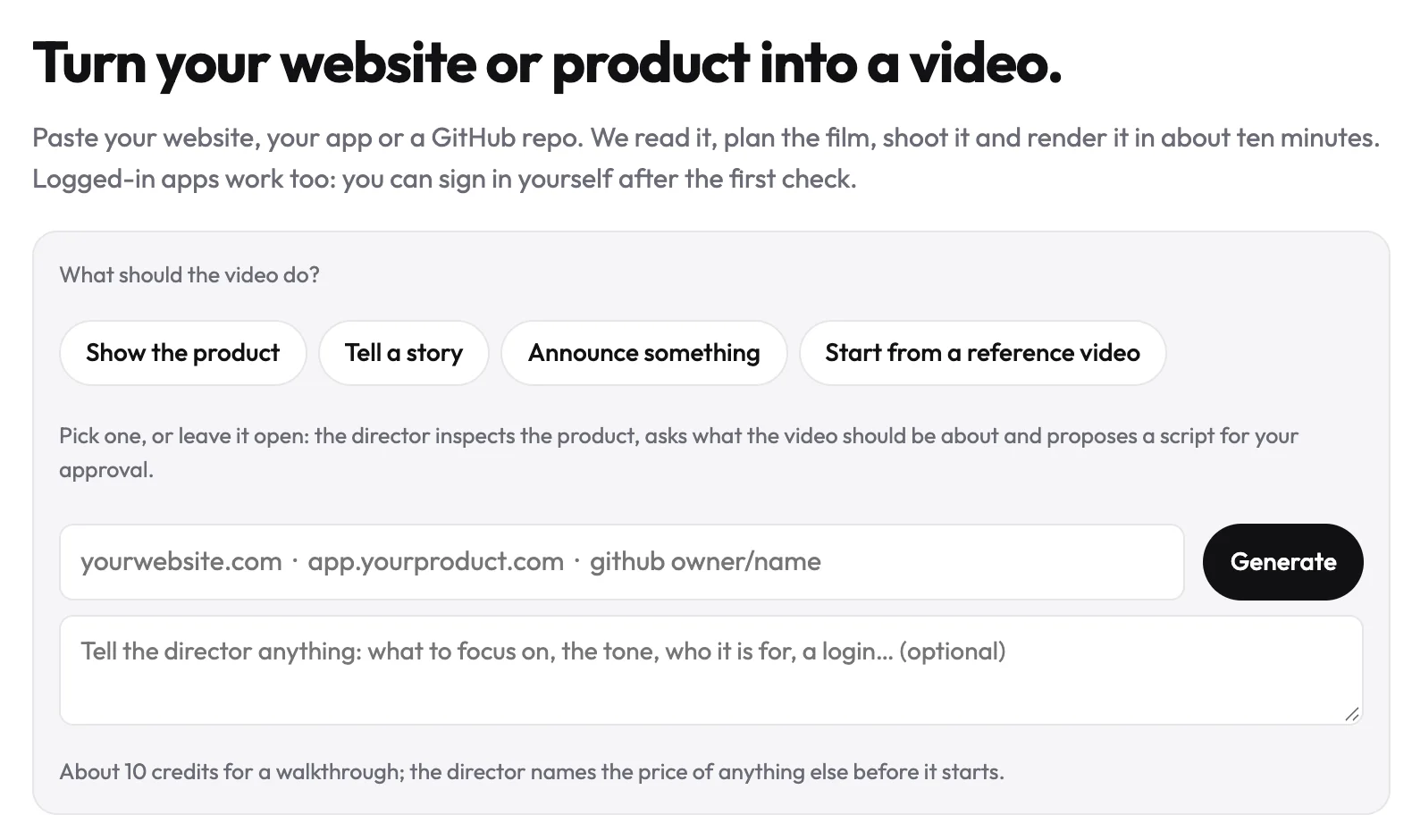
If it's the demo, start from the product demo video page. You paste your site or app address, read the storyboard the director proposes, and approve every narration line before anything is filmed. The first video is free, and no card is needed.
If you came for screen-recording tools for demos, our post on Loom alternatives for product demos covers that shortlist.
A buyer demo was never about the recording. It's about lines your team agreed on, and the product doing what it does.
Make your camtasia alternatives from your website — it’s free →
Questions
What is a Camtasia alternative?
A Camtasia alternative is another tool for making screen-based how-to, training or demo videos. It is either a screen recorder with an editor, or a tool that films your product for you. The main options are ScreenFlow, a recorder and editor for Mac; ScreenPal, a low-cost recorder with quizzes on its Solo Max plan; OBS Studio, free and open-source software for recording and live streaming; and uscale, which films your live app and writes the narration.
What is a free alternative to Camtasia?
OBS Studio is a free, open-source alternative to Camtasia for video recording and live streaming, according to obsproject.com in October 2026. It runs on Windows 10 and 11, macOS 13.0 or newer, and Linux, and builds scenes from window captures, browser windows, webcams and other sources. Its website does not describe a Camtasia-style editing timeline, so plan where cuts, zooms and captions get added, and expect to narrate in your own voice.
Is there a Camtasia alternative for Mac?
Yes. ScreenFlow by Telestream is a screen recording and editing tool built only for Mac, on Apple Silicon and Intel, and prices start at $199, per Telestream's overview page in October 2026. It records the screen, camera and microphone at the same time and is sold for software demos, tutorials, presentations and corporate training. It suits a Mac team that wants to narrate and edit its own videos; it does not run on Windows or Linux.
Can I make a software demo video without recording my screen?
Yes. A software demo video can come from a tool that films your live product, so nobody records the screen. With uscale, you paste your site or app address, sign in once in a streamed browser if screens sit behind a login, approve a storyboard with every narration line, and get back a narrated demo with captions and music in your brand's colours and fonts. It cannot use your own voice today.
What does uscale cost compared with Camtasia?
Per uscale's pricing page, uscale has no subscription and no seats: the first video is free (10 credits, or 20 with a work email), then you buy packs once: Lite $29 for 25 credits, Starter $49 for 50, Growth $129 for 150. A product walkthrough is about 10 credits. Camtasia's Create plan costs $249.00 per year, billed yearly, per TechSmith's store page, October 2026. Which costs less depends on how many videos you make.

The team behind uscale, which turns a website, web app or GitHub repo into a narrated product video.