An explainer that names the problem in its first frame
Press play on the film above, the first of the explainer video examples in this post, and notice how quickly it tells you what it's for. There is no logo sting and no warm-up. A headline is on screen from the first frame, and it names the problem. Then the method arrives in one line: "Paste your website." Then the real site plays, as proof rather than a promise. The close gives the offer and the address, and the film ends.
None of that order is an accident. Wyzowl's 2026 data says 96% of people have watched an explainer video to learn about a product or service. Your viewers have seen enough of them to know quickly when one is wasting their time.
So what separates the explainers people finish from the ones they close? Below are seven explainer video examples, each taken apart beat by beat, and a beat sheet you can copy for your own film. First, a word on how we chose them, so you know what the comparison can and can't tell you.
How we picked these explainer video examples
We watched seven films, and all of them are ours. We only take apart films we can show and describe beat by beat, so no other companies' videos appear here. The set mixes formats:
- uscale's overview film, an explainer.
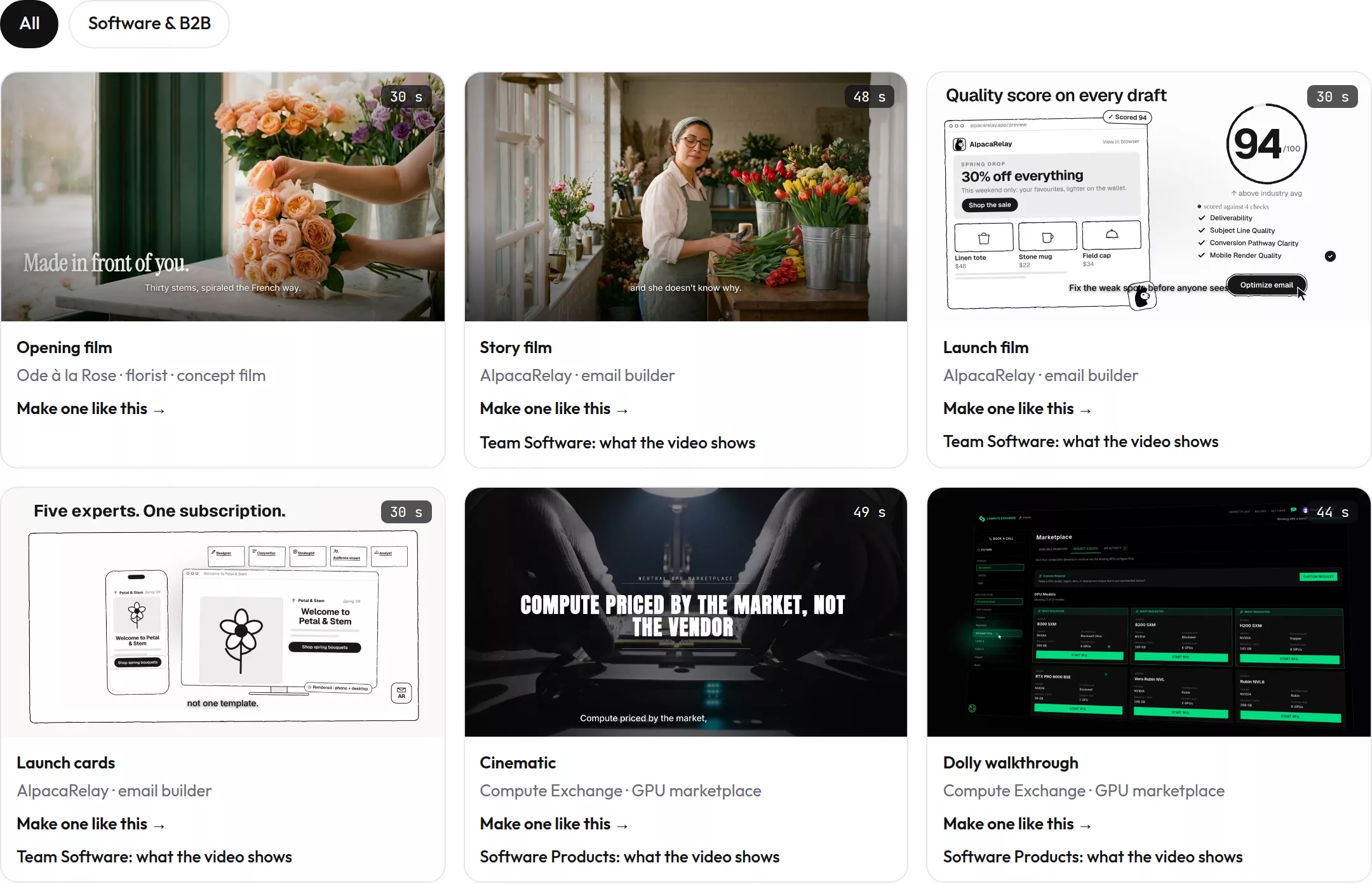
- Three films made with uscale for our demo product AlpacaRelay, an email builder: a launch film, a story film and kinetic launch cards.
- Three of uscale's published example films: a walkthrough and a cinematic cut for Compute Exchange, a GPU marketplace, and a photographic film for Ode à la Rose, a florist with no screen to show.
Each film plays in full on our examples page. You can find more software films under software products.
The four questions
Every film got the same four questions, and you can ask them of any explainer you watch:
- What does the first beat show?
- Does the real product appear?
- Does each beat carry one idea?
- Is there one ask at the end?
There are no scores or rankings, only observations and one fair weakness per film.
Limits
- Small and ours: the set covers three products and seven films. uscale is our product, so we are not neutral.
- Can change: we watched the films as they appeared on the examples page at the time of writing. The products and lengths differ, so we compare structure, not quality.
With those limits in mind, go back to the film at the top and watch it again, one beat at a time.
uscale's overview film: the problem on screen before the first word
The overview film puts problem, method and proof in that order, and gives each beat only one of those jobs.
| Beat | What you see | What you hear |
|---|---|---|
| 1. Problem | A headline naming the problem, on screen from the first frame | — |
| 2. Method | "Paste your website." | — |
| 3. Proof | The real site playing in a browser panel | — |
| 4. Count-up | A figure counting up on screen | — |
| 5. Output | "Real renders." over the examples page | — |
| 6. Close | The close card with the offer and the address | — |
The first beat works because a viewer decides there whether the film is about them. A headline that names their problem answers that question before the film claims anything about the product.
The second beat states the whole method as one imperative. "Paste your website." tells the viewer what they would do, not how the product works. A method that needs a paragraph reads as a complicated product.
The third beat shows the real site, not a mock-up. A drawn interface asks for trust; a live one earns it.
The film has one weak spot. The output beat shows example cards on the examples page, not a finished film playing. The viewer is told the output is real but never watches any of it. A short clip from one finished film would close that gap.
Borrow this: write your method as one imperative of three words or fewer, and put it straight after the problem. The next film goes a step further and opens on the user's own input.
AlpacaRelay's launch film: the headline is the product's first input
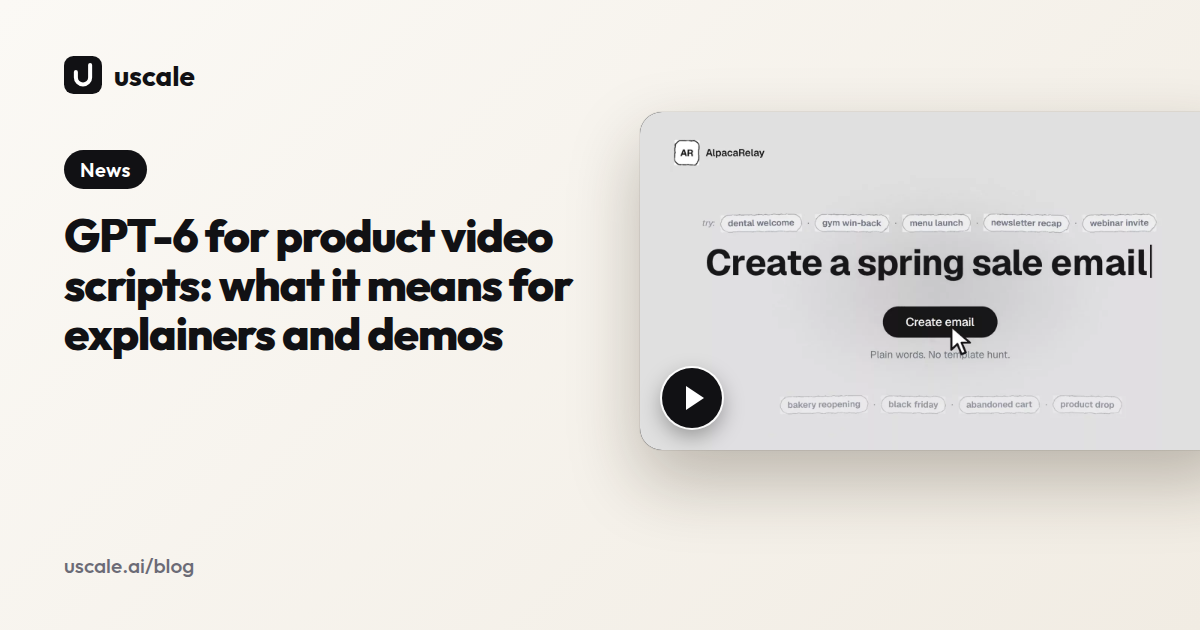
This launch film, made with uscale for our demo product AlpacaRelay, never says what AlpacaRelay is. Its first beat is a sentence typed into a prompt field, and that sentence does the explaining.
| Beat | What you see | Its job |
|---|---|---|
| 1 | The prompt field, typing "Create a spring sale email" | Shows the first thing a user does |
| 2 | A sketched browser fills with the email. Beside it, a row of small rounded labels each gets a tick, one by one | Shows the product answering |
| 3 | A chat edit, "Add a deadline — ends Sunday", wired to a copy line | Shows control over the result |
| 4 | Export | Shows the email leaving the tool |
| 5 | End card: "Emails worth forwarding." | Leaves one line to remember |
Why it works. The opening beat is the user's own action, so you understand the product before it makes a claim. Most launch films do this backwards. They state a benefit and hope the footage backs it up. Here the input is the pitch. The hand-drawn browser frame also keeps your eye on the email as it fills in, because there is no real interface to read.
A fair observation. The middle runs three changes together with no pause: the email filling in as the labels tick, the deadline edit landing in the copy, and the export. A first-time viewer can miss one.
Borrow this: open on the one sentence your user types or clicks first. If a stranger understands that sentence, your first beat needs no explanation. For how this opening fits a full launch, see product launch videos. The next film drops the input and holds on a single screen.
Compute Exchange's dolly walkthrough: one unbroken look at the real dashboard
A walkthrough can be the whole explainer when the product's main screen already makes the case. This is one of uscale's published example films, about Compute Exchange, a GPU marketplace. It stays on the live app from start to finish.
| Moment | What you see |
|---|---|
| Open | The dashboard fills the frame: a grid of GPU listing cards, held in slight perspective |
| Push-in | The camera moves slowly toward the cards, with no cut |
Why it works
Staying on the live product, with no cuts, tells the viewer that this is what they get. The slow push-in narrows attention from the whole marketplace to the listings without breaking the shot. When the screen is the argument, a camera move can do the work of a cut.
A fair observation
One continuous shot of a dense screen leaves viewers to find the focus on their own. A grid of cards gives the eye many places to land, so on-screen labels or narration have to point to the card that matters.
Borrow this
If your product's main screen is its argument, let the camera move instead of cutting. This is the format people searching "product demo video examples" are usually after. See the product demo video page, and what a film shows for this kind of business under GPU compute and market data.
A dashboard proves itself on screen. A product whose value is a change in someone's week needs a person, and that is where the next film starts.
AlpacaRelay's story film: a person and her problem before the product
This film keeps the product off screen until you have met someone who needs it. It was made with uscale for our demo product AlpacaRelay, an email builder, and it tells its story through one florist.
| Beat | What you see | Line |
|---|---|---|
| 1 | Rosa at her florist counter | — |
| 2 | A handwritten ledger of customers' names | — |
| 3 | The turn | "So she types one sentence." |
| 4 | Her hands on the keyboard | — |
| 5 | The product: "One sentence in", then scores and a card for her email service provider | — |
| 6 | The three-verb card | "Describe it. Score it. Send it." |
| 7 | Customers walking into the shop | — |
| 8 | The end card | — |
Why it works
You meet the problem through one person, so the product arrives as the turn in her story rather than as a list of features. The handwritten ledger does the explaining. It shows what Rosa's week looks like without a word about email marketing. By the time the product appears, you already know what it has to fix.
The three-verb card sums up the product in words a viewer could repeat to a colleague. The customers walking in show the result as a change in her shop, not as a number on a dashboard.
A fair observation
The product appears only after the human setup. A viewer who scrolls away during the counter and the ledger never sees what AlpacaRelay is. This structure suits a page where people chose to press play more than a feed where they decide in a glance.
Borrow this
Give the product a moment where a named person decides to use it. When the value is a change in someone's week, that person's turning point explains it better than a feature tour.
The next film also opens away from the product, on a mood shot instead of a person.
Compute Exchange's cinematic cut: a mood shot names the category, then numbered chapters carry the product
This is one of uscale's published example films. It spends its first beat on atmosphere and every beat after that on the product. The long product stretch is split into numbered chapters.
| Beat | What you see | What the beat does |
|---|---|---|
| Opener | A server corridor while a headline builds on screen word by word | Names the category before any interface appears |
| Product, section by section | The product on a charcoal background. Each stretch sits under a numbered section label and a headline, such as "Every GPU market, one board" and one that begins "Spec it, quotes come" | Splits a dense app into chapters |
| Interaction | A cursor clicks the region filter | Shows the product responding, not just sitting on screen |
Why it works
A corridor of servers tells you this film is about compute in a single shot. The headline then says what the product does about it. The numbered sections matter more. On a busy app, a long product stretch usually blurs into one screen after another. Numbered labels tell viewers where they are and signal that the next idea is coming, so they follow a sequence instead of scanning each frame for meaning. Numbers on screen turn a tour into chapters, and a viewer can follow chapters.
A fair observation
The opener isn't the product. It sets up the category, but it delays the first real screen, so a viewer who came to see the board has to wait for it.
Borrow this: when your middle section runs long, number your product beats on screen.
Numbering gives a dense screen a structure a viewer can follow. The next film builds that structure with no product footage at all.
AlpacaRelay's launch cards: one idea per card, set in the brand
An explainer can make its case with no footage at all, as long as each card makes one claim. These launch cards were made with uscale for our demo product AlpacaRelay. The whole film is told in kinetic type, set in the product's own brand.
| Beat | What you see | What the beat does |
|---|---|---|
| 1 | "Not one week." on a card, with a push-in and a count-down | Makes one claim about time |
| 2 | A black interstitial: "Describe", "Score it.", "Export it." | Sums up the product in three verbs |
| 3 | A quality score table, with ESP names on a picker rail | Shows the proof instead of stating it |
Each card does one job, so the viewer never has to hold two ideas at once. The motion sets the pace. The push-in and the count-down turn a single line into a moment. The score table is the strongest beat: a table from the product is proof shown, not said.
One fair observation: the story film says "Send it." where these cards say "Export it." The same product's verbs drift from one film to the next. Pick one set of verbs and use it everywhere a viewer might meet you.
Borrow this: if you have no footage, let one number or one table from the product be the proof beat. The format works before your UI is polished. The same discipline carries over to a business with no screen at all.
Ode à la Rose's opening film: each shot names one thing the shop does
Ode à la Rose's opening film has no screen in it, and that makes its structure easier to see. It is one of uscale's published example films, made for a florist as a photographic film. It uses shop footage and words on screen, with no product UI.
| Beat | On-screen line | What the picture has to prove |
|---|---|---|
| 1 | "OPENING MORNING · MANHATTAN" | The shop door opening |
| 2 | — | The storefront |
| 3 | "Made in front of you." | The arranging, in view |
| 4 | "Finished in green." | The greenery that completes it |
| 5 | "Nested in tissue." | The wrapping |
| 6 | "And still, everywhere." / "Same-day in NYC, next-day nationwide." | A type card, no footage |
| 7 | "Take one home." | The ask |
| 8 | End card | The shop's name |
Each headline makes one claim, and the shot under it is the evidence. "Made in front of you." works because the viewer watches it happen, so the words and the picture say the same thing once. A software explainer needs the same discipline on every screen. If the line says "export in one click" (a hypothetical line), the screen should show the click.
One beat is weaker than the rest. Beat 6 is the only one without footage, and it carries the delivery promise. For a buyer who isn't standing in the shop, that is likely the claim they most want proven. A shot of a delivery would have done that job.
Borrow this: write each beat's on-screen line as a claim the picture proves. If no shot can prove a line, that line is your weak beat.
Outside software the pattern is easy to see: one claim per beat, the picture as proof and one ask at the end. That makes it easier to check for in your own draft.
What the best explainer video examples share
Side by side, the seven films make the same moves in seven different styles. Here are those moves as a checklist.
| Pattern | Where you saw it | Why it works |
|---|---|---|
| The first beat names the problem or the product's first action | The overview film's headline; the launch film's prompt field | You know what the film is for before it makes any claim |
| One idea per beat | The launch cards; Ode à la Rose's headlines | Each beat reads in one look |
| The real product, or real proof, in the middle | The dolly walkthrough; the launch cards' score table | The film shows the claim instead of stating it |
| On-screen words carry the film without sound | Every film's headlines and cards | A muted viewer still follows |
| One set of verbs | The story film's "Describe it. Score it. Send it." | The viewer can repeat it back, until "Export it." elsewhere blurs it |
| An end card with name, line and address | The overview film's close; "Emails worth forwarding." | The one ask lands where the viewer can act on it |
Read together, the fair observations describe one failure: a beat that hands the viewer work, such as taking a claim on trust or searching a busy screen for the point, and each pattern above takes some of that work back.
This is why the beats matter more than the length. Wyzowl's 2026 data says 63% of people would most like to learn about a product by watching a short video. Yet Wistia's 2026 report says viewers watch about half of educational videos under five minutes, and engagement holds up as those videos get longer. People prefer short videos, but they keep watching when each beat earns the next one.
So start your own film from a list of beats, not a running time.
Make your own explainer video: a beat sheet to copy
Here is the beat structure as a sheet you can fill in. It is shown for a hypothetical invoicing app for freelancers. Copy it into a doc and replace each line with your own.
| Beat | What it's for | An example line |
|---|---|---|
| Problem | Names what the product is for before any claim | "The work is done. The invoice is still a blank page." |
| First action | Shows the one thing a user types or clicks first | "Type the client and the hours." |
| Product doing it | The real screen doing the job | "Your rate, their address, the total: filled in." |
| Proof | Something the viewer can see is true | "Sent and paid invoices, side by side on one list." |
| Ask | One action, one address | "Send your next invoice from here." |
Four decisions, in order
Fill in the sheet for your product. Write one line per beat. This is the quick win: one sitting, and you're done when you have five lines you could read aloud. If a line needs an "and", split it into two beats.
Count the words before you film. Wyzowl's rule of thumb is that 130 words almost always equals about one minute of voiceover. It would never recommend an explainer longer than two minutes, except in special cases such as an opted-in event audience. You're done when your script reads aloud inside that limit.
Pick the page it lives on. Wistia's 2026 data gives homepage videos a 24% play rate, higher than product, contact and thank-you pages. If you can place only one video, put it on the homepage.
Turn the sheet into a film. The free route is the screen recorder you already have: record the real screens and read your script over them. With uscale, you paste your website, or connect a GitHub repo for a developer tool. The director proposes a storyboard with every narration line for you to approve. You can paste your own beat sheet instead, and you ask for changes in the chat. uscale says it turns a website into a narrated video in minutes. See explainer videos made from your website, or the full steps in how to make an explainer video.
If you do only one thing today, write the problem line.
Done looks like this: an explainer on your homepage whose beats you can name, and one link sales can send.
Try it: make a product explainer video from your website, and approve every narration line before anything is filmed.
Start with the first frame
Go back to the overview film's first frame. The problem is on screen in a headline before anyone says a word. Everything after it works because that frame told you what the film was for.
Before you pick a style or a length, write your own first beat as one line. If you can't, no amount of footage will fix the film. If you can, the rest of the beat sheet follows from it.
Then make the explainer from your website. You get a storyboard with every narration line to approve, your real product on screen, and voice and captions added. Your first video is free, and no card is needed. If you're weighing an agency instead, compare what an explainer video costs first.
Put the problem on screen first. Every frame after that is the product keeping the promise of that one line.
Make your explainer video examples from your website — it’s free →
Questions
What is an explainer video?
An explainer video is a short film that shows what a product is for, how it is used and why it matters. The strongest ones give every beat one job: the opening names the problem, the middle shows the real product solving it, and the end asks for one action. Wyzowl's 2026 data says 96% of people have watched an explainer video to learn about a product or service.
What should the first beat of an explainer video show?
The first beat of an explainer video should show the viewer's problem or the first thing a user does with the product, before any claim about it. A headline naming the problem, or a sentence typed into the product's input field, tells viewers straight away whether the film is about them. Skip logo stings and warm-ups. If a stranger understands the first beat without explanation, the rest of the film can build on it.
How long should an explainer video be?
An explainer video should usually stay under two minutes. Wyzowl's rule of thumb is that 130 words almost always equals about one minute of voiceover, and it would never recommend an explainer longer than two minutes except in special cases. Wistia's 2026 report adds that viewers watch about half of educational videos under five minutes, and engagement holds up as those videos get longer, so length matters less than whether each beat earns the next.
Can I make an explainer video from my website?
Yes. uscale makes an explainer video from your website: paste the address and it opens your live site, films the real screens and reads your logo, colours and fonts. For a developer tool you can connect a GitHub repository instead. You approve a storyboard with every narration line before anything is filmed, ask for changes in a chat, and the finished film comes with a natural voice and captions. Screens behind a sign-in work too.
How much does an explainer video cost with uscale?
An explainer video with uscale can cost nothing: the first video is free, with 10 credits, or 20 with a work email, and no card needed. After that you buy credits once, with no subscription. On the pricing page, Lite is $29 for 25 credits, about 2 product walkthroughs, and Starter's 50 credits for $49 cover about 5 product walkthroughs. Growth is $129 for 150 credits. The director names each step's price before it starts.

The team behind uscale, which turns a website, web app or GitHub repo into a narrated product video.