A finished explainer video, then the steps behind it
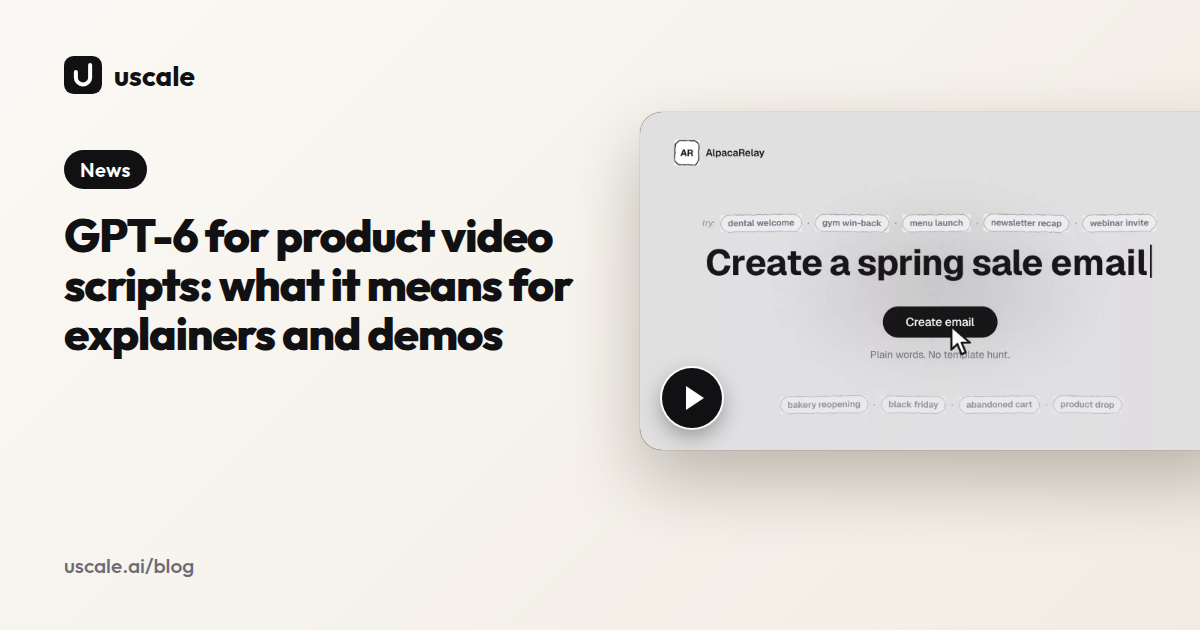
The film opens on an empty prompt. One sentence is typed in, and an email builds itself on screen. Someone asks for a change in a chat, the email updates, and the finished design goes out as an export. That's the AlpacaRelay launch film, a short illustrated explainer for an email builder.
Nothing in it happened by accident. Ask how to make an explainer video like that, and the answer is the same whether you work by hand, hire a studio or use a tool: one short run of steps. Below are those steps in order, with a script template you can copy and fill in today.
So what comes before the script, the voice or the first frame? A single sentence about what the film is for.
What should your explainer video do, and for whom?
Give the video one job and one viewer, written as one sentence: [viewer] sees that [product] does [X], so they [action]. Every later step gets checked against that line.
Three hypothetical jobs, one per video:
- A homepage visitor sees that a scheduling app books meetings without email threads, so they start a trial.
- A new user sees that the app connects their calendar in a few clicks, so they book a first meeting. That is an onboarding video.
- A launch audience sees that a new feature shares availability in one link, so they try it on release day. That is a product launch video.
A video that tries to do two jobs does neither. The visitor who needs the big picture sits through setup steps, and the new user sits through a pitch they have already bought.
Then set a target length. Wyzowl describes explainers as typically running 60 to 120 seconds. Pick one number in that range, because the script in the next step has to fit it.
You're done when you have one job, one viewer and a target length.
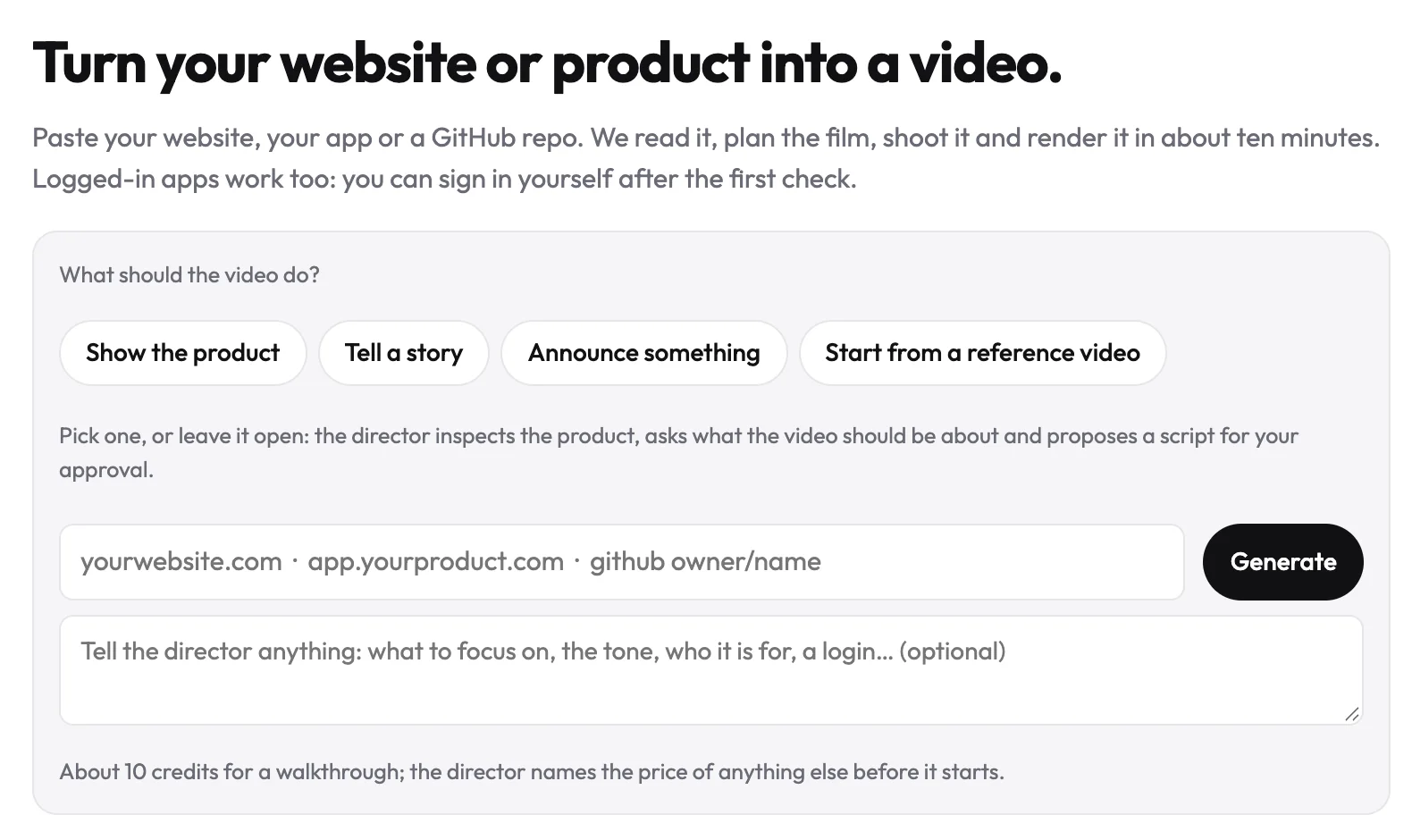
Paste a website, web app or GitHub repo and pick what the video should do. Or leave it open: the director asks what the film is for and proposes a form, and the script starts from there.
However you get there, that sentence and that number are what the script has to serve.
What does an explainer video script template look like?
An explainer video script template fills in five beats: the problem, the product as the turn, two real moments, the result, and a call to action.
Write for the ear, not the page. A viewer can't reread a line, so each one has to land the first time: short, concrete, one idea. A line you can't say in one breath is too long to hear.
Set a word budget first. The Voice Realm puts a typical explainer voiceover at about 160 words per minute. Voice Dragons puts a 60-second script at about 120 to 150 words and a 30-second one at about 60 to 75.
Then fill in five beats in order: the problem, the product as the turn, two real moments of it working, the result, one call to action. Here they are for a hypothetical invoicing app called Tally:
| Beat | What the viewer sees | Narration line |
|---|---|---|
| Problem | A spreadsheet of unpaid invoices, dates in red | "Chasing late invoices eats your Friday." |
| Turn | Tally's dashboard opens | "Tally chases them for you." |
| Real moment 1 | An invoice built from a saved client | "Pick a client, add the hours, send." |
| Real moment 2 | A reminder schedule switched on | "Reminders go out on the days you choose." |
| Result | The invoice status turns to Paid | "You get paid without the follow-up emails." |
| Call to action | The sign-up page | "Send your first invoice today." |
Done looks like this: you read the script aloud against a timer and it fits the length you set in step 1. If it runs over, cut a beat. Don't squeeze every line.
If you already have a script, paste it in. The director fits the scenes to your lines, or keeps the lines you name word for word. Either way, the next step is to approve those lines scene by scene.
Why approve the storyboard before anything is filmed?
A change on paper costs a sentence, but a change after filming or animation costs a re-shoot.
A change on paper costs a sentence. A change after filming or animation costs a re-shoot. That is why the storyboard comes before any footage.
A storyboard is the list of scenes, each showing what's on screen and the line read over it. By hand, make one frame or slide per scene with the narration under it. Then get it signed off by whoever approves product claims.
Read it scene by scene and you'll find two kinds of gap: a line with no screen to show, or a screen with nothing to say. Fix both now. Cut the line, find the screen, or mark the scene for an illustration.
Done looks like this: every line approved, and every scene tied to a real screen or an illustration.
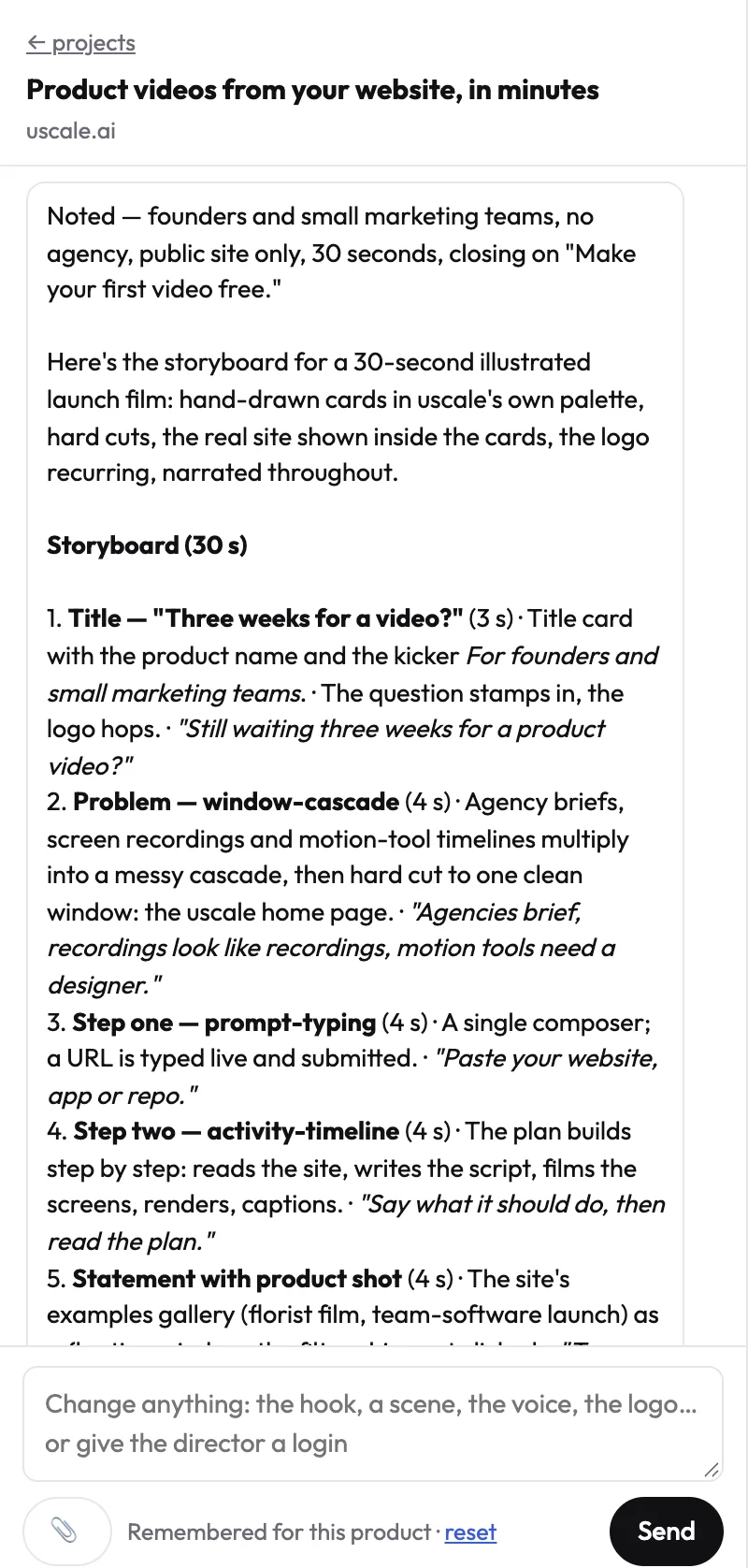
If you ask it to keep everything else, it changes only the moment you name, so fixing one scene never reopens the others. Once the paper version is settled, the footage has a plan to follow.
How do you film the real product or illustrate what can't be filmed?
Footage comes in two kinds: screen footage of the real product, and illustration or animation for ideas that have no screen, such as the viewer's problem before your product turns up. B-roll is the supporting picture that carries a line while no product is on screen. Show the real interface wherever one exists, because viewers trust a screen they could open themselves more than a mock-up.
To record it yourself, sign in to a demo account filled with sample data. Hide notifications, keep one window size throughout, and record each storyboard scene as its own clip. You're done when you have one clean clip per scene, nothing is cropped, and no real customer data appears anywhere.
It opens your live site or app, clicks through it like a careful user, and films each screen sharp and uncropped in your product's own logo, colours and fonts. For an app behind a login, you sign in once yourself in a browser streamed into the page. SSO and two-factor codes work.
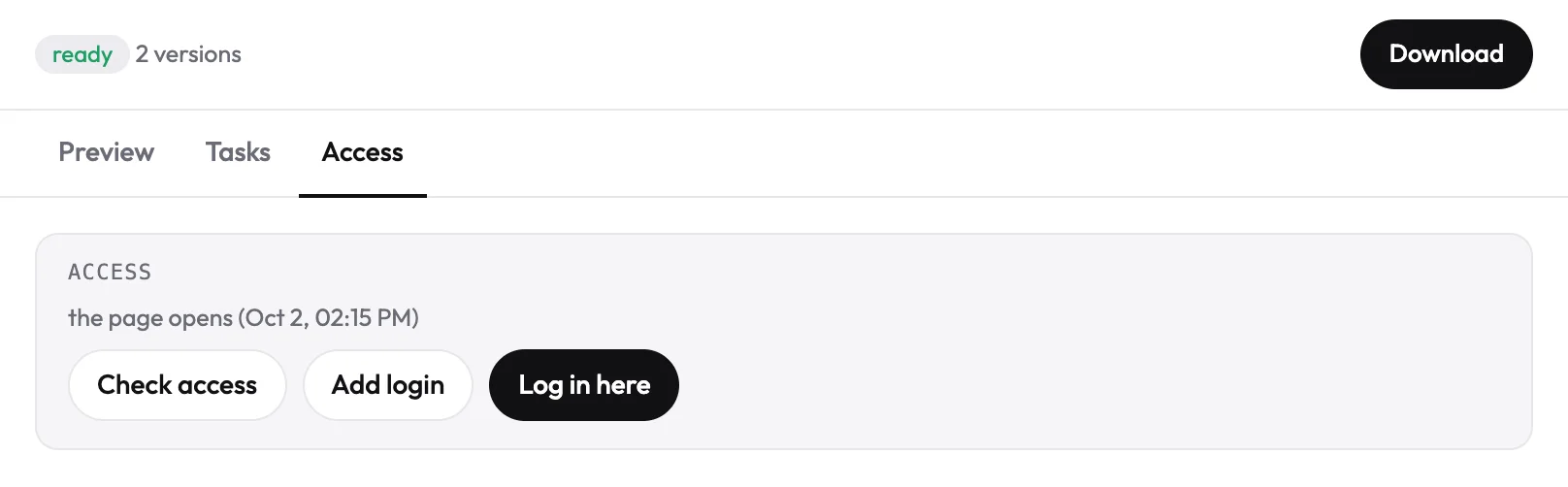
The film shows whatever that account shows, so sign in with a demo account. To see a filmed live app, watch the dolly walkthrough of a GPU marketplace on the example films page. Once every scene has its footage, the film needs a voice to carry it.
How do you add voice, music and captions, and shape it for where it plays?
Add captions burned into the picture, duck the music under the voice, and cut a separate version for each platform's aspect ratio.
Record or hire a voiceover that reads the approved lines and nothing else. Lay a music bed under it and duck it: the music drops whenever the voice speaks and comes back up in the gaps. Burn the captions into the picture, so a viewer scrolling with the sound off still follows.
Then cut one version for each place it plays. Aspect ratio is the frame's shape, width to height: 16:9 is wide, 9:16 is a phone held upright, 1:1 is square. Pick the shape before you trim. A wide cut squeezed into a vertical feed shrinks the interface you filmed until nobody can read it.
- YouTube's formatting specifications recommend at least 1280x720 for 16:9. On standard channels, square or vertical videos up to three minutes count as Shorts (YouTube Help, October 2026).
- LinkedIn's video ad specs take MP4 in 4:5, 9:16, 16:9 or 1:1 at a recommended 30 fps. LinkedIn recommends 15 to 30 seconds to qualify for every placement (October 2026).
You're done when you have a file for each placement and the copy to post it.
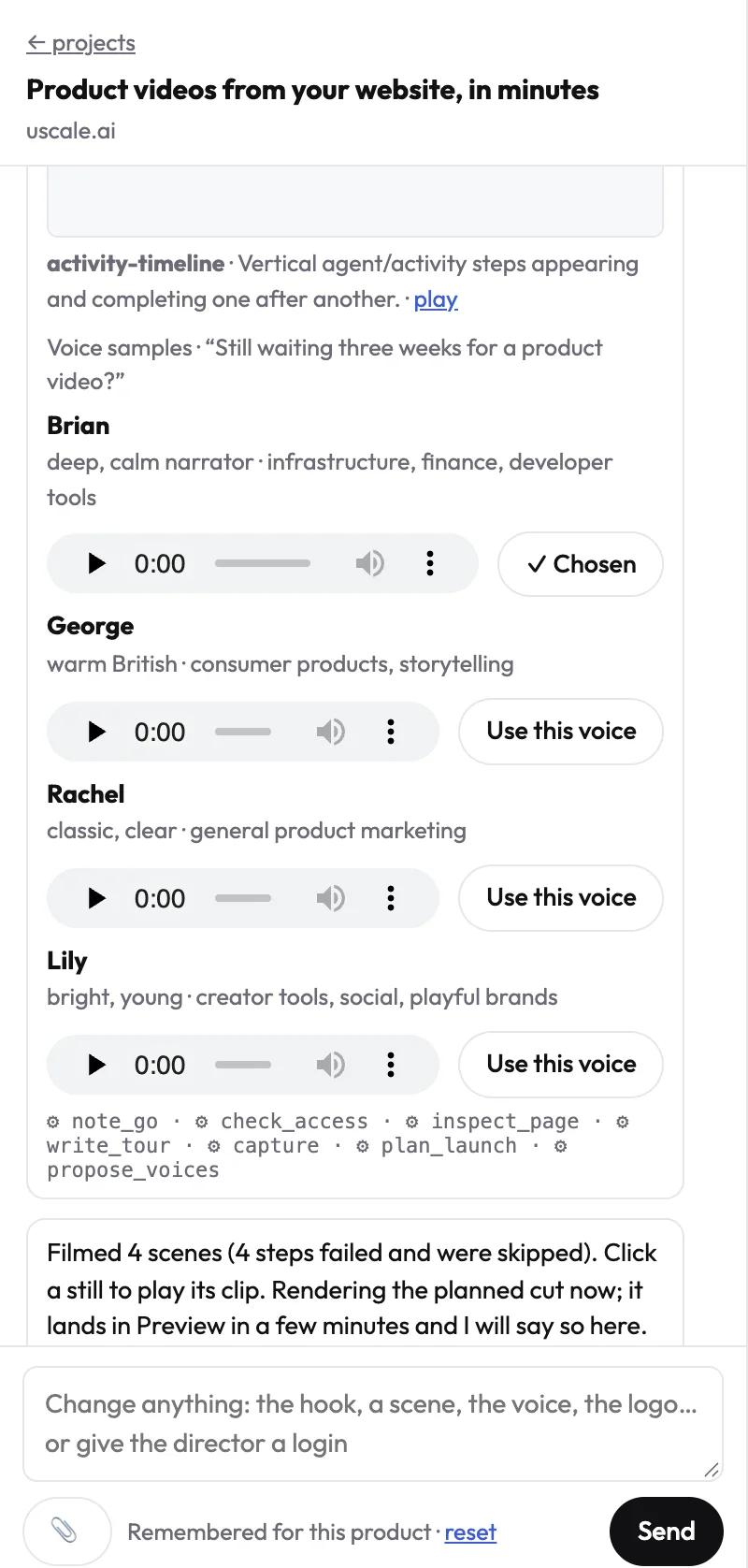
Captions follow every word and are burned in. They can't be turned off today, and your own voice can't be used today. Each film that passes its checks also comes with a post pack: a LinkedIn post, an X post, a YouTube title and description, and alt text. Next come the mistakes to catch before you post.
Common mistakes when making an explainer video
Each of these is easy to spot in a draft and cheap to fix before you publish.
- Every feature in one film. The video tours the whole menu, and the viewer remembers nothing. Cut back to the one job you set in step 1.
- A script written for the eye. Long sentences and lists read well on a page but sound tangled. Read it aloud against the budget from step 2, and split any line you can't say in one breath.
- Filming before sign-off. A claim changes after the footage exists, so a scene has to be redone. Approve the storyboard from step 3 first.
- Real customer data on screen. A real name or email slips into a frame. Use a demo account with sample data, and check each frame before export.
- Captions as an afterthought. They cover the interface, and a muted viewer gets lost. Plan where captions sit when you plan each scene.
- One cut everywhere. A wide film gets cropped in a vertical feed. Make a cut for each placement, using the shapes from step 5.
Some explainers break these rules and still work. A founder's launch note, shot in one take on a laptop, earns trust because it looks unscripted. That's fine when your face is the message and the audience already knows you. When strangers need the product explained, the steps hold.
What changes is how they fit your kind of product, and who does the work.
How do you make an explainer video for your kind of product?
Pick a route by what your product needs, then fit the five steps to it.
Fit the job to your product
Name the job for your kind of product. Done when you know which page the video will live on.
- Say you're launching a SaaS feature. Make a short launch film for the announcement page.
- Say you maintain a developer tool with no live site yet. The director reads the README and files and plans a film anyway.
- Say you need an onboarding video. The job is the first result, so end on the screen where it works. More by product type is in software products.
Choose who makes it
Decide who makes the footage. In Wyzowl's 2026 survey, 63% of video marketers had used AI video tools, up from 51% the year before. Done when one row below is yours.
| Route | What you do | Price (source, date) | Time (source) |
|---|---|---|---|
| Free | Script in a doc, the screen recorder you have, your own voice | Nothing new to buy | Your own hours |
| Studio | Brief them, then approve script and storyboard | Breadnbeyond from $1,000, most clients $1,000 to $7,000 (Oct 2026); Motion The Agency £3,900 to £4,500 for 60 seconds (Jul 2026); ExplainerVideos.ca $5,000 to $10,000 for 60 seconds (Oct 2026) | From 6 working days (Motion The Agency) |
| Template tool | Write, assemble and voice it yourself | Vyond Starter $99 a month or $699 a year (Vyond, Oct 2026) | Not published |
If you do one thing
Write the job sentence and read the script aloud against a timer. It's the quick win: no tools, just a doc and a phone timer. Done when the read fits your target length.
Success is a video on the launch page, a README with a demo, or one link sales can send.
Try it: make a product explainer video from your live site or app, and approve every narration line before filming.
Your explainer video checklist
Work through these today:
- Write the one sentence: which viewer, which job, what length.
- Read the script aloud against a timer until it fits.
- Get every storyboard line approved before filming.
- Record one clean clip per scene, with sample data only.
- Add voice, music and captions, and cut one version per placement.
To hand steps 2 to 5 over, make a product explainer video in uscale. You approve every narration line, and uscale films the product and adds voice, captions and music.
An explainer that works is a few lines somebody agreed on, and the product doing its thing.
Questions
What is an explainer video?
An explainer video is a short film, typically 60 to 120 seconds by Wyzowl's definition, that uses visuals and a short narrative to show what a product or service does. For software, it usually pairs screens of the real product with narration, music and captions, and it is built around one job for one viewer, such as getting a homepage visitor to start a trial.
How long should an explainer video be?
An explainer video typically runs 60 to 120 seconds, according to Wyzowl. Pick one target inside that range before writing, because the script has to fit it. The placement can change that: LinkedIn recommends 15 to 30 second video ads so they qualify for every placement, and on standard YouTube channels square or vertical videos up to three minutes count as Shorts. Decide by where the video will play.
How many words should a 60-second explainer video script have?
A 60-second explainer video script should have about 120 to 160 words. Voice Dragons puts a 60-second script at about 120 to 150 words at a natural conversational pace, and The Voice Realm puts a typical explainer voiceover at about 160 words per minute. Aim for the lower end if the visuals need room to breathe, then read the script aloud against a timer to confirm it fits.
Can an AI explainer video generator show my real product, even behind a login?
An AI explainer video generator can show your real product if it films the live interface rather than mock-ups. uscale opens your live site or app, clicks through it like a careful user and films each screen uncropped. For screens behind a sign-in, you sign in once yourself in a browser streamed into the page, and SSO and two-factor codes work. The film shows whatever that account shows, so use a demo account with sample data.