The polished video nobody finishes
Most teams treat a SaaS explainer video as a production problem. Agencies price it that way. Wyzowl lists explainer videos from $2,500 with a typical six-week turnaround, and Broadcast2World quotes $3,000 to $10,000. So the effort goes where the invoice goes: the animation, the voiceover talent, the tight edit.
Then the video ships, and nobody finishes it. The animation was fine. The voice was fine. What nobody decided was the video's one job, which three to five screens prove it, or what the narration should say that the screen doesn't already show.
Those decisions cost nothing, and they get skipped because they don't feel like production. So how do you make them before anything is filmed? Keep one example in mind as you read. It is a launch film for Orbit Desk, a shared-inbox product, built around a single job. Notice what it leaves out.
The answer starts with the first decision, the one most briefs skip entirely.
Pick one job and write it down in a sentence
Before you open a script or a screen recorder, name what the person watching should be able to do afterwards that they couldn't do before. That sentence is the video's job, and a SaaS explainer video gets one. Most teams pick a style first. The job is what decides which screens and lines belong.
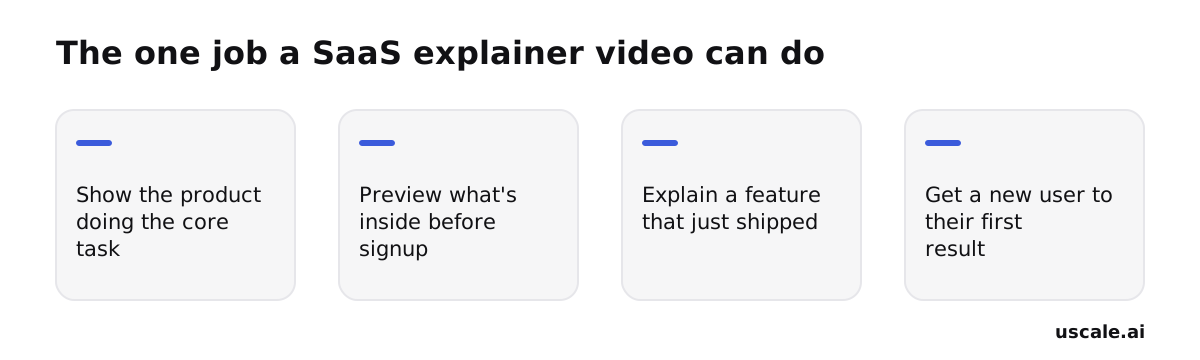
The test is one line: After watching, [this viewer] can [do this]. A prospect on your homepage can see the product handle the core task. A visitor deciding whether to sign up can see what's inside. A current customer can use the feature you just shipped. A new user can reach their first result, which is the job of an onboarding video.
Why two jobs fail
A conversion video has to hold someone who hasn't committed yet, so it shows the payoff fast and skips setup. An onboarding video speaks to someone who already said yes, so it needs the setup steps in order. One cut can't skip the setup and teach it at the same time. A video that tries to convert and onboard usually does neither.
Write your sentence down now. A video with one job tells you what to cut. A video with two jobs argues with itself. That sentence becomes the filter for choosing which screens make the cut.
Keep the three screens that prove the job, cut the rest
Ask what the viewer must see to believe the job gets done, not what the product can do, and stop there. The cutting rule: if removing a screen doesn't change whether the viewer understands the job, cut it.
Most teams get this backwards. They treat a cut as hiding a feature. A cut screen isn't lost. It waits for the onboarding video or the docs, where a user who has already signed up goes looking for it.
Worked example: a shared-inbox tool
Say you're making the explainer for a shared inbox. The job is a support team clearing customer email without two people answering the same message. Three screens prove it: the inbox filling up, a reply assigned to one teammate, and the thread closing. A looser cut would add more, so run every candidate screen through the rule.
| Screen | Does cutting it change whether the job is understood? | Decision |
|---|---|---|
| Inbox filling up | Yes: without it there is no problem | Keep |
| Reply assigned to one teammate | Yes: this is the job | Keep |
| Thread closed | Yes: this is the result | Keep |
| Settings and permissions | No | Cut |
| Every integration | No | Cut |
| Empty and error states | No | Cut |
| Reporting dashboard | No, unless reporting is the job | Cut |
Integrations and reporting are real and they help sell the product, which is why they creep into the cut. Each one also turns a three-step story into a feature list. Three screens that read as one story leave the narration, the next decision, with only three moments to carry.
Fill in five script beats, each with a screen and a line
A script that films well has five beats. Each beat pairs one screen with a line that says something the screen can't. Most teams write it backwards: they script the walkthrough first and add a problem to the front at the end. Instead, write the problem beat first, in the words a viewer would type into a support ticket, because that is the line where they recognise themselves.
Here are the beats filled in as a worked draft for the Orbit Desk shared-inbox film. These are illustrative lines, not a published script.
| Beat | What the viewer sees | The kind of line under it | Orbit Desk draft line |
|---|---|---|---|
| Hook | The end state: a cleared inbox | The result, before any menu | "Every customer email answered, and none answered twice." |
| Problem | The shared inbox filling up | The viewer's own complaint | "Three people saw it. Nobody replied." |
| Product does the job | A reply assigned, then sent | The job, not the clicks | "Assign it once, and it's someone's." |
| Proof point | The thread closing | One thing the screen proves | "The customer gets one answer, from one person." |
| Call to action | The product's home screen | One next step | "Try it on your own inbox." |
If you have no measured result to quote, let the screen be the proof point. A thread visibly closing is more convincing than a number nobody can check.
There are two ways to turn this table into a film. The manual route is to record your screen, then lay each line against the stretch of footage it belongs to. The faster route is to paste your site into uscale's product explainer video maker. It drafts a storyboard with every narration line, and you approve or rewrite each line before anything is filmed. It then films the real product and adds voice, captions and music.
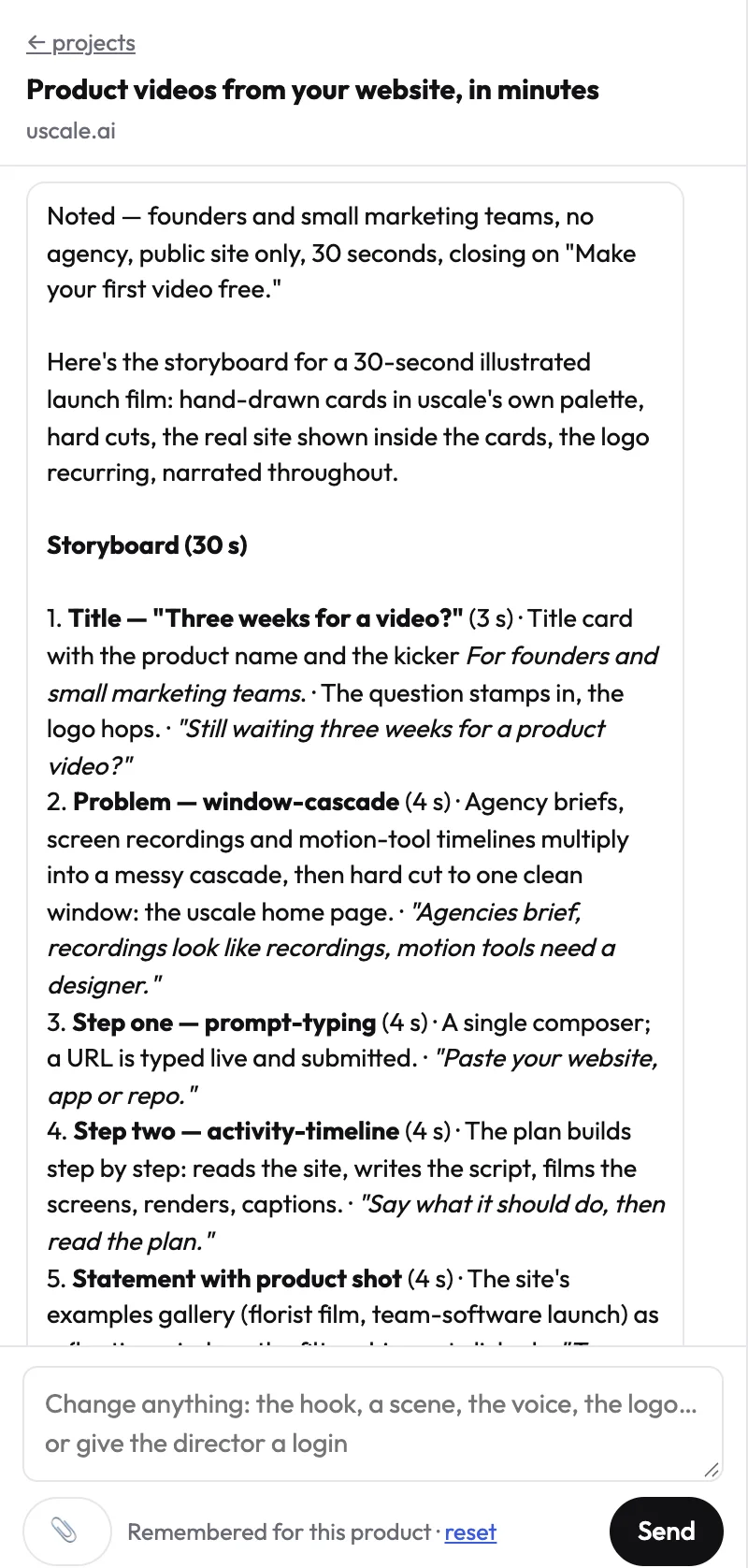
The table decides where each line sits. Next, test whether each line earns its place beside the screen. Before that, though, settle how long the cut runs, because the length decides how many seconds each line gets.
Write one long cut, then trim it for each place it runs
A site explainer should run one to three minutes. Every other version should be a trim of that cut, not a new video. Vidyard recommends 1–3 minutes for product videos, and in Wyzowl's 2026 survey, 71% of respondents named 30 seconds to two minutes as the most effective length. Aim where the two overlap: one to two minutes.
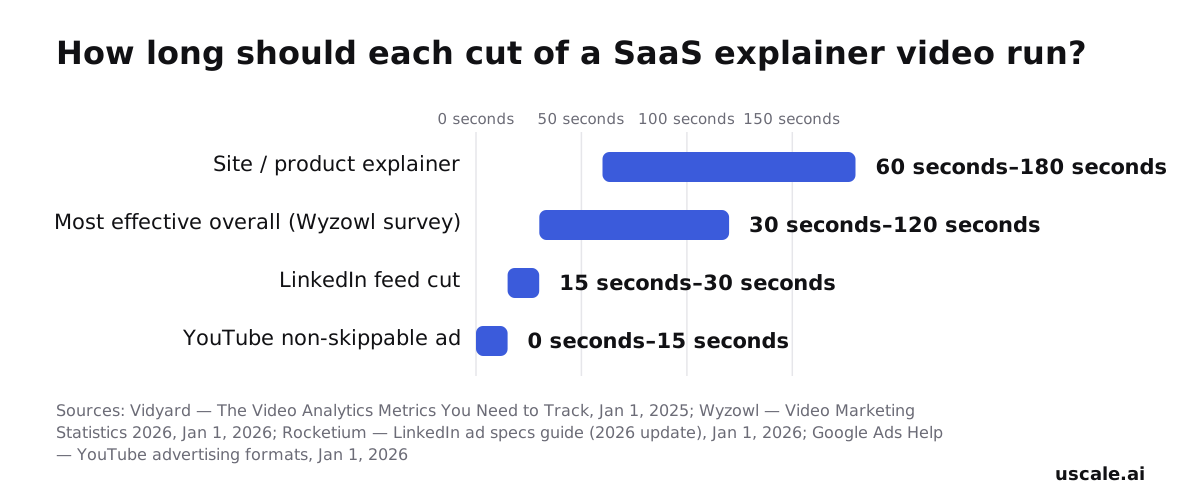
- Site or landing page: one to two minutes, covering the full job and its proof.
- LinkedIn or launch post: 15–30 seconds, the range LinkedIn recommends for the widest placement eligibility. One moment, one line.
- Unskippable ad: 15 seconds or shorter. That is YouTube's cap for non-skippable in-stream ads, up to 20 seconds in some regions.
Most teams get the order backwards. They make the short cut, then pad it into a long one. Write the longest version first and trim down. Vidyard's benchmark data finds viewer engagement peaks in the first quarter of a video's runtime, so the opening is the part most viewers see in any cut. A short cut is a trim of the long one, not a separate video, so the opening has to work at every length. If your first beat needs the second minute to make sense, it will not survive the 15-second ad.
With each cut sized, every line of narration inside it now has to earn its seconds.
Cut any narration line that only repeats the screen
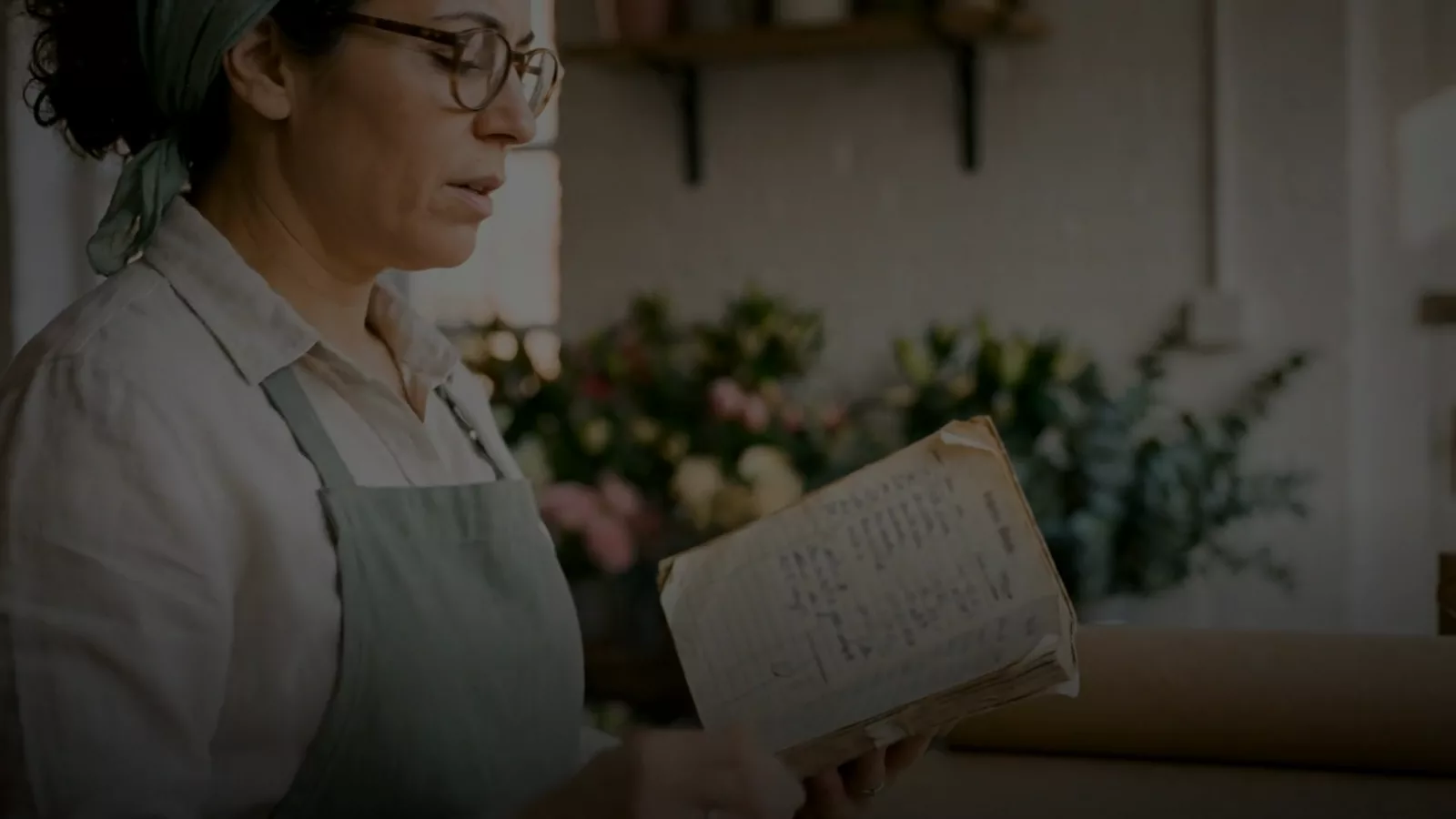
Narration earns its place by saying what the screen can't. In AlpacaRelay's story film, one of uscale's published example films, the picture shows someone opening a laptop and typing. The viewer can already see that. So the line under it isn't "she opens her laptop and types." It is "So she types one sentence." That line names the job and how little effort it takes. The typing is visible; the size of the effort is not.
The test for every line
Read each line against its scene and ask what it adds. Keep it only if it gives the viewer one of these three things:
- The job: what the person is trying to get done.
- The trade-off: what they no longer have to do.
- Why it matters: the result the viewer cares about.
If a line only describes what's on screen, cut it.
| Line under the typing shot | What it adds |
|---|---|
| Before (our rewrite, for contrast): "She opens her laptop and starts typing." | Nothing the viewer can't already see |
| After (the film's line): "So she types one sentence." | The job, and how small the effort is |
Most teams get this backwards. They write narration to explain the interface, but the interface already explains itself. A line that reads the screen aloud makes the viewer take in the same thing twice. That habit is the first mistake to look for in a draft.
If the plan is sound, why does the draft still fall flat?
A fair pushback: you wrote the one job down, picked the moments and filled in the beats, and the first cut still feels long and flat. If the decisions made before filming carry the video, a well-planned draft shouldn't drag.
That point holds. A good plan does not guarantee a good draft. The gap is rarely the plan itself. It is three habits that slip back in while writing and cutting, and each one undoes a decision you already made. All three are easy to spot in a draft you have today, and each takes one pass to fix.
| Mistake | How it shows up in the draft | The fix for today's draft |
|---|---|---|
| Narrating the UI | Lines read button labels the viewer can already see: "Click New, then choose Assign." | Rewrite each line to say what the step gets done, not which button it uses. |
| Scoping to the whole product | Settings, integrations or a second feature appear after the core task. | Check every scene against your one-sentence job, and cut any scene that doesn't serve it. |
| One length everywhere | The site cut is posted to LinkedIn and run as an ad unchanged. | Trim down from the longest cut: a launch-post version in LinkedIn's recommended 15–30 seconds, and an ad version at 15 seconds or shorter if it must run unskippable on YouTube. |
None of these needs a new plan. Each one needs the plan you already have applied to every line and every scene. Run the three checks on your current cut and it goes back to doing the one job you wrote down. If you want a second pass on the words alone, the product demo script guide goes through it line by line.
So the plan holds up. What's left is getting it on screen this week.
How to turn the four decisions into your first video this week
The four decisions are your brief, whatever the video is. What changes is the one job. A launch film has to convince. A developer-tool explainer made from a GitHub repo has to demo the integration. An onboarding video has to get a new user to their first result.
Write the one job at the top of a doc. Use one sentence that names what the viewer can do afterwards, and list your three to five moments under it. This is the quick win: it fits inside an hour. It's done when a colleague can read the page and name the screens you'll show.
Choose how you'll make it. The free route is the screen recorder you already have, plus the script beats in that same doc. Record each moment, then read the lines over the matching clip. It's done when every beat has a clip and a line.
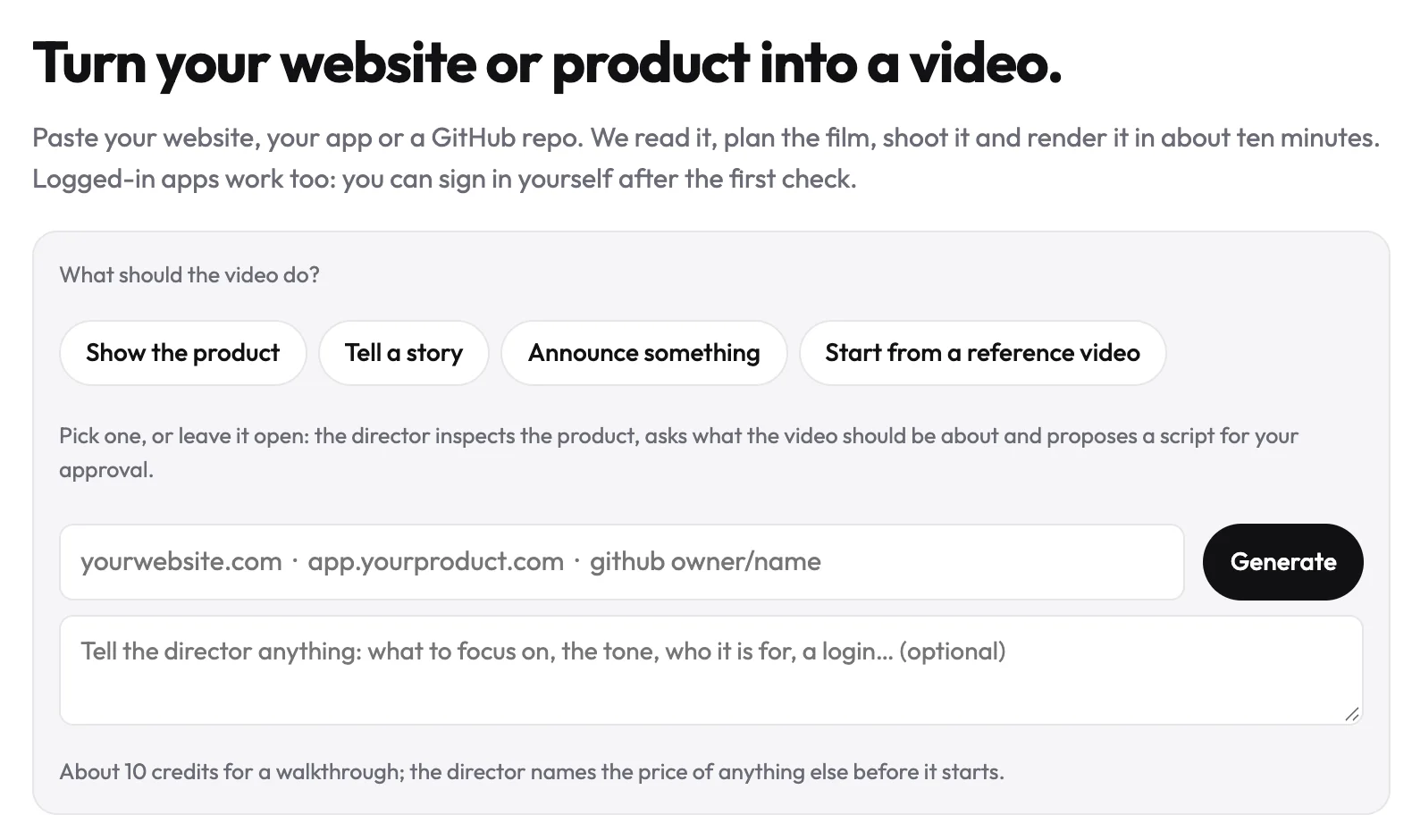
The fast route is to paste your site, app or repo into uscale. The director drafts a storyboard with every narration line for you to approve or rewrite in the chat. It then films the real product and adds voice, captions and music. uscale says the video is ready in minutes. If you already wrote your lines, paste them in and the scenes are fitted to them.
Cut the longest version first, then trim. Make the site cut, then shorten it into the launch-post and ad versions, keeping the opening intact each time. It's done when every place the video will run has its own file.
Where the fast route isn't the fit
Some videos need a different tool. If you want a real person filmed on camera, a live-action shoot, or an edit of footage you already have, a video editor or a production studio will serve you better.
If you do only one thing
Write the one-job sentence today. Every later choice, from screens to length, gets easier once it exists.
Success looks like the film on your launch page and a README that shows the tool working. It also gives sales one link they can send instead of booking a call.
Try it: make a product explainer video from your site, app or repo, approving every narration line before filming.
Before you film anything
Run this list before you film anything:
- Write the one job down. One sentence: what the viewer can do after watching that they couldn't before.
- Pick the three to five moments. The shortest path to that result, and nothing from the settings page.
- Fill in the script beats. Hook, problem, product doing the job, one proof point, the ask.
- Match the length to where it runs. Write the longest cut first, then trim for the launch post and the ad.
To test that outline against a real cut, paste your site, app or repo and make a product explainer video on uscale, approving the storyboard line by line. Your first video is free. After that, the credit packs are bought once, with no subscription.
A good explainer isn't polished into being. It's decided, four lines at a time, and your next draft starts with the first one.
Make your saas explainer video from your website — it’s free →
Questions
What is a SaaS explainer video?
A SaaS explainer video is a short film that shows a software product doing one job for one viewer, using the real screens and a narration line for each moment. On a site or landing page it works best at one to two minutes. Wyzowl's 2026 survey found 68% of video marketers have made one, which puts explainers among the most common video types.
How long should a SaaS explainer video be?
A SaaS explainer video for a website should run one to two minutes. Vidyard recommends one to three minutes for product videos, and 71% of respondents in Wyzowl's 2026 survey named 30 seconds to two minutes as most effective. Shorter trims suit other placements: LinkedIn recommends 15 to 30 seconds for video ads, and YouTube caps non-skippable in-stream ads at 15 seconds, or 20 in some regions.
How do you decide what to show in a SaaS explainer video?
A SaaS explainer video should show only the screens that prove its one job. Write that job as a sentence: after watching, this viewer can do this. Then test each candidate screen: if cutting it doesn't change whether the viewer understands the job, cut it. Aim for three to five screens, typically the problem, the product doing the job, and the result. Settings, integrations and dashboards can wait for onboarding or docs.
Do I have to record my own screen to make one?
Not necessarily. Making a SaaS explainer video by hand means recording your screen and laying narration over each clip. With uscale, you paste your site, app or GitHub repo instead, and it films the real product itself, adding voice, captions and music. For screens behind a sign-in, you log in once in a browser streamed to you. You approve every narration line in the storyboard before anything is filmed.
What does a SaaS explainer video cost?
A SaaS explainer video from an agency starts in the thousands: Wyzowl lists explainers from $2,500 with a six-week turnaround, and Broadcast2World quotes $3,000 to $10,000. Recording it yourself costs only time. On uscale, the first video is free, and after that credits are bought once with no subscription: Lite is $29 for 25 credits, Starter $49 for 50, and Growth $129 for 150. A standard walkthrough uses about 10 credits.

The team behind uscale, which turns a website, web app or GitHub repo into a narrated product video.