Two different tools behind one search
Yes, AI video editing includes tools that cut the footage a business already has into a finished video, not only tools that invent new scenes from a line of text. You would not guess it from the search results. Prompt-to-video tools crowd the top, and they have planted a belief: an AI video is something you type into existence, not something built from your own clips.
Test that belief on a hypothetical. Say a client runs a bakery whose Instagram is full of reels: hands shaping dough, the oven door, a tray sliding into the window. A prompt-to-video tool would hand them a bakery. It would not hand them theirs.
So the results split into two camps. One generates new footage from a prompt. The other edits the footage you give it. If you are holding real clips, only the second camp applies to you. The trouble is telling which camp a tool is in from its landing page alone. So what actually separates the two?
What's the Difference Between an AI Video Generator and an AI Video Editor?
A generator makes new footage from a text prompt. An editor works on footage you already have: it trims, cuts, captions and reframes what was filmed. Both get sold as "AI video editing", which is why the search results so often answer someone else's question.
The ten-second test
Open any tool search turns up and look at the first screen. Does it ask you to upload or link footage, or to describe a scene? A text box means a generator. Your files mean an editor. That one check sorts most of the list before you sign up for anything.
Much of what ranks for this search is generators. They're built to invent scenes, like a product on a marble counter or a shop interior that doesn't exist. That suits some briefs. It's the wrong answer when a client hands you a folder of real clips and wants an ad by Friday.
What picking wrong costs
Pick a generator and the ad looks polished, but it doesn't look like the client's shop, product or staff. The client sees it at sign-off, and the round starts over.
Skip the tools and you're back to a manual re-cut. You scrub through clips, trim, caption and resize for each placement. That eats a weekend, and the margin on the job goes with it.
Knowing a tool starts from your footage is only the first filter. The next question is which kind of footage it was built for. Start with the kind most teams have plenty of: someone talking to camera.
How Do Transcript-Based Editors Like Descript Work?
They let you cut video by deleting text. Descript, the best-known example, turns an imported recording into a transcript. Delete a sentence from that transcript and the same stretch disappears from the video.
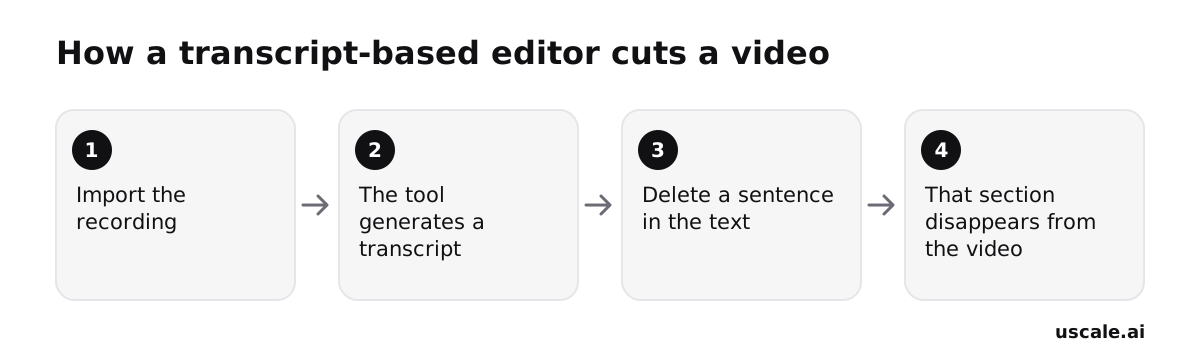
"How a transcript-based editor like Descript cuts a video: import, transcribe, delete a line, and the video follows the text."
The transcript becomes the edit. If your footage is mostly someone talking, such as an interview, a webinar or a founder update, cutting filler and retakes in a text document is far quicker than scrubbing a timeline. The limit runs the other way: a transcript only knows what was said. When the value of the footage is what's on screen and nobody speaks, as with a shop's product clips, the tool has almost nothing to cut by.
What a trial costs
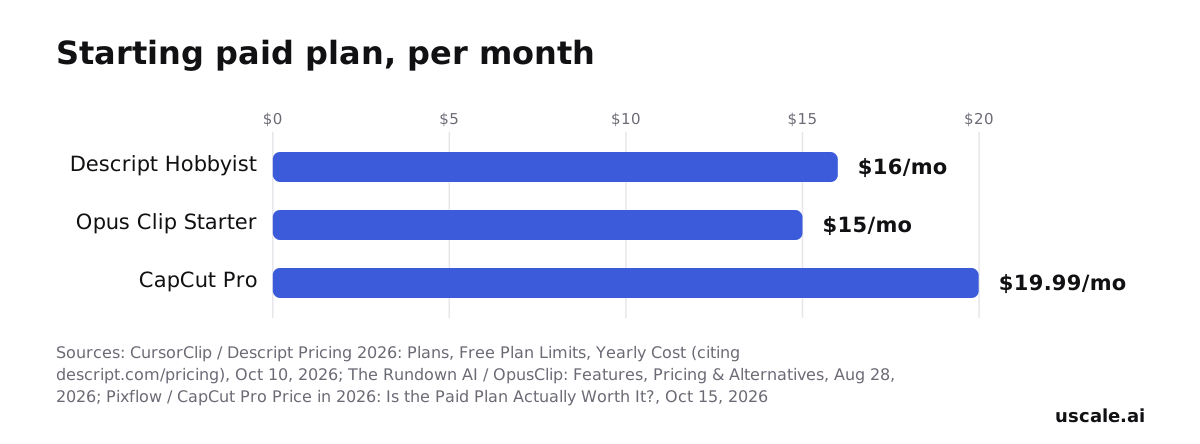
The free plan includes 60 media minutes a month, with 720p exports that carry a watermark. That is enough to test the workflow, but not to hand a client a final file. Billed annually, the paid plans are Hobbyist at $16/month, Creator at $24/month and Business at $50/month per person. Monthly billing raises them to $24, $35 and $65. For heavier use, the Creator plan on annual billing includes 30 media hours a month, 800 AI credits and 4K export without a watermark.
If your footage is more than talking heads, compare the options on our Descript alternatives page. A transcript cut trims the recording you have. The next kind of tool finds the short clips hidden inside a long one.
How Do AI Clip Tools Turn Long Videos Into Shorts?
An AI clip tool takes one long recording, finds the minutes worth posting, and cuts several short clips from it, each reframed to vertical and captioned, with no scrubbing through a timeline. Opus Clip is the best-known example. It reads visual, audio and sentiment cues to pick moments, reframes the speaker vertically and writes captions in 25+ languages.
A hypothetical: a 40-minute founder webinar
Say a client hands your agency a 40-minute webinar recording on Monday and wants vertical posts by Friday. A manual re-cut means watching the whole file, marking moments, cropping each one to 9:16 and captioning it. In a clipper, you upload the file once and review the clips it proposes. You keep the ones that make sense without the rest of the talk. Your job shifts from cutting to choosing, and choosing is the part the client is paying you for.
What it costs before you upload
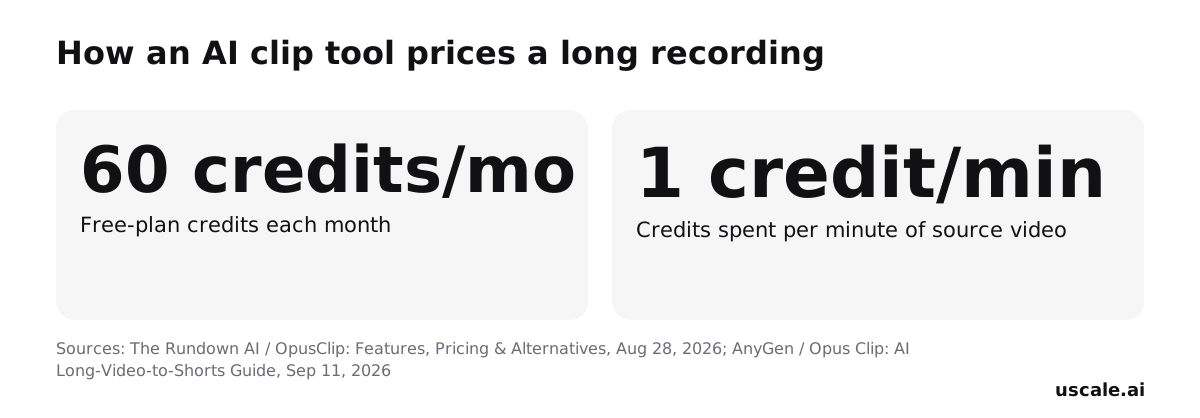
Opus Clip charges by the length of the source video, not by the number of clips: 1 credit per minute of original video imported. The free tier gives 60 credits a month, so the 40-minute webinar fits. A two-hour file needs 120 credits and does not. Free clips are watermarked, capped at 1080p and must be exported within three days. Paid plans start at $15 a month for Starter, with Pro at $29.
A clipper can only reuse what was said on camera. When the job is building a new edit from separate clips, a third kind of tool fits better.
What Do Template Editors Like CapCut Add?
CapCut adds a multi-track timeline, transitions and ready-made templates, so you build a cut from scratch instead of only trimming footage you already have. That is a different job from deleting lines in a transcript or letting a clipper pick moments from one long file.
It fits the editor holding several short clips, such as a product shot, a walk-through of the shop and a packaging close-up, who needs them joined into one piece with transitions and a look that matches the brand. If you have one talking-head recording, a transcript editor is the shorter route. If you have one long webinar, a clipper is.
What the free tier covers, and where it stops
CapCut's free plan includes cut, trim and split editing, the multi-track timeline, filters, transitions, limited auto captions and basic AI voiceover. Its exports are capped at 1080p and carry a CapCut watermark. CapCut Pro costs $19.99 per month, or $179.99 per year, and adds 4K/60fps/HDR export, the full AI toolkit, premium templates and effects.
The free tier is enough to build and test a single ad. It stops being enough when that ad goes to a client. Judge a free plan by its export, not its editor: the watermark only matters on the day the final file is due.
All three start from files you upload. The fourth kind starts from clips a business has already posted to Instagram.
Can an AI Tool Build an Ad From the Clips You Already Post?
Yes. This is the fourth kind of AI video editing, and it is the closest match to the question this post opened with. The business already has footage and needs an ad cut from it, not new scenes from a prompt.
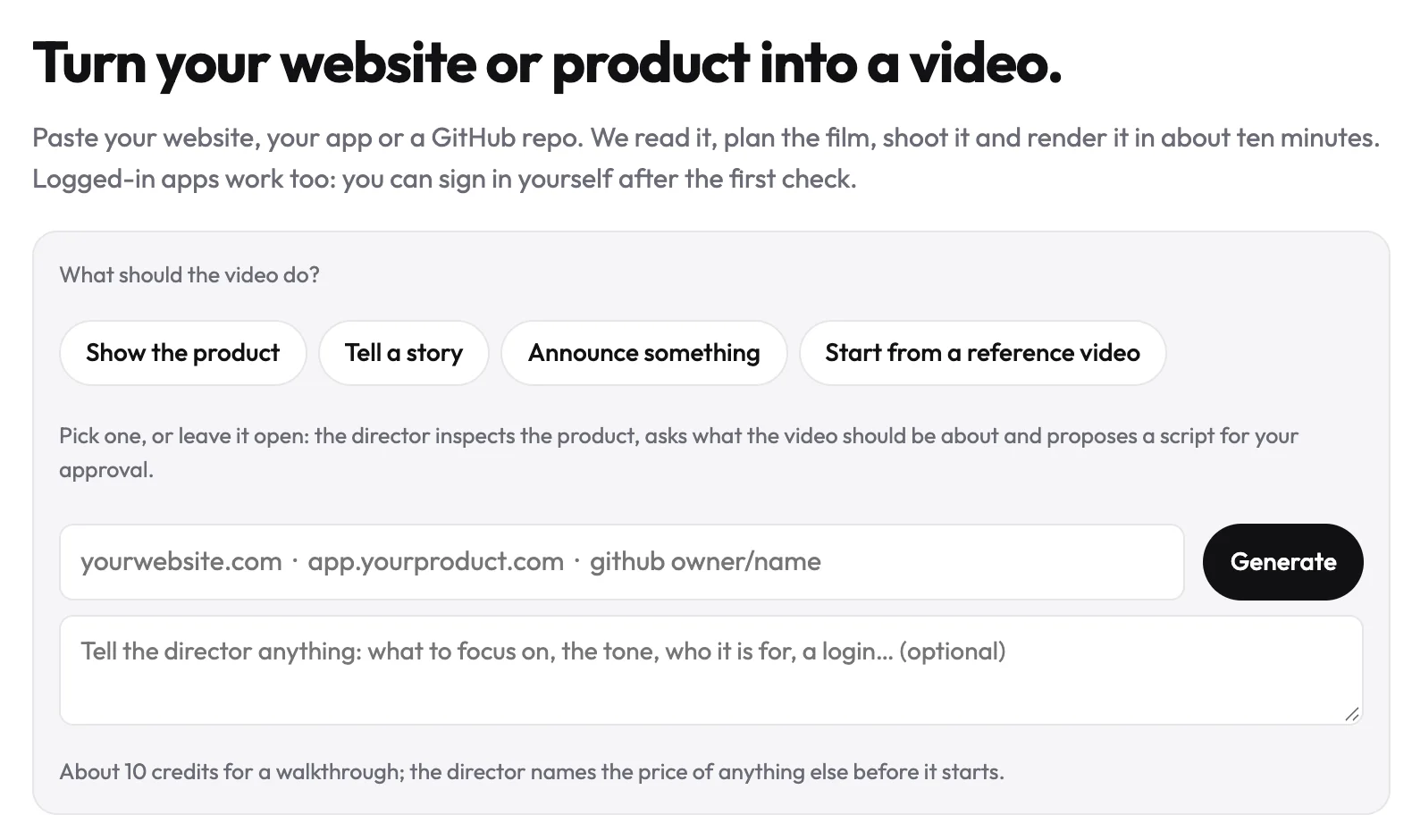
With uscale, you paste the business's Instagram handle. The director reads what the business sells and what its clips show, then proposes three ad ideas. It cuts the one you pick from that footage: a tall ad with words on screen, a narrator and its own music. The music on the original reels is left out, because music from Instagram's library cannot go into a paid ad.
Two limits matter for an agency running client accounts. Stretches where a face is visible, staff or customers, are left out. Clips appear in an ad only after the account owner says the account is theirs and that the clips may be used.
The ad plan costs 4 credits and the render costs 2. A new account starts with 10 credits (see uscale's credit pricing). The pattern is set out in app and promo videos. Finished uscale films, Ode à la Rose among them, are on the examples page, so you can judge the output before you paste a client's handle.
An ad built from real clips shows the shop a customer will actually walk into. That only pays off if the file fits the placement, which is where the most common mistakes start. And for most teams, that first file comes out of a free plan.
Isn't a Free Plan Enough to Test an AI Video Editing Tool?
For an agency, the sensible way to choose is to run one real client clip through each tool's free plan and keep whichever cuts it best. It costs nothing. It tests the editing on your own footage instead of a demo reel, and it avoids paying for a subscription the team may drop after one job. That instinct is right: a free plan is the cheapest honest test.
The catch is what free plans leave off the file you hand over. Descript's free plan gives 60 media minutes a month and exports at 720p with a watermark. Opus Clip's free clips are watermarked, run up to 1080p, and have only a three-day export window. CapCut's free plan caps export at 1080p and stamps a CapCut watermark on it. A trial that looks fine in the editor can fall apart on the day the client asks for the final file.
So check three things before the trial, not after it. Does the tool start from your footage, or from a text prompt? Is the export you will need, at the right resolution and without the mark, on the plan you are testing? And does it output a 9:16 cut, which Instagram Reels and Stories require, rather than a square or landscape file you resize later? Answer those first, and the free test tells you what you actually need to know.
Those checks sit inside a bigger decision, though: which kind of tool to test at all.
How Do You Pick the Right AI Video Editing Tool for Your Footage?
Match the tool to the footage you already hold, not to the search term. Make these four decisions in order.
Sort the client's footage. Open their folder or Instagram grid and name the pile: a talking-head recording, a long recording, raw clips, or a feed full of posts. This is your quick win, and it fits before your next call. You're done when you can describe the footage in one line.
Match the pile to one kind of tool.
- Talking-head recording: a transcript cut.
- Long recording: a clipper.
- Raw clips to build into something new: a template editor. The editor already on your phone is the free route for a rough cut.
- A shop or app whose Instagram is full of its own footage: uscale's ad builder for clips you already post.
Test one export against three questions. Does it keep the real footage and the brand? Are captions on by default? Is it sized for the placement? uscale burns captions into every film. Check any other tool on a test file before you pay. You're done when one file passes all three.
Pick the placement before you cut so you export once.
| Placement | Recommended size | Length |
|---|---|---|
| Reels | 1080×1920 (9:16) | Up to 20 minutes in-app; 3 minutes recommended for new audiences; ads up to 90 seconds |
| Stories | 1080×1920 (9:16) | Up to 60 seconds per segment |
| Feed | 4:5 (1080×1350) as the ad default; 3:4 (1080×1440) and 9:16 also cited | Up to 60 minutes |
Spec guides disagree on feed sizing, so confirm it on the day you post.
Send one cut for the client's sign-off before you make variants. You're done when they say yes.
If you do only one thing, export one existing clip at 1080×1920 with captions on and post it as a Reel. Success looks like an approved vertical ad, built from the client's own footage and posted at the right size the first time.
Try it: turn a shop's Instagram clips into an ad: a tall captioned ad cut from footage already posted, ready for sign-off.
Start with what you're already holding
Does AI video editing work on the footage you already have? Yes. Which kind to try first depends on what's sitting on your drive. A talking-head recording to tighten calls for a transcript editor. One long file to turn into posts calls for a clipper. Raw clips to assemble from scratch call for a template editor. An Instagram already full of the shop or product doing its thing calls for an ad cut from those posts.
For that last case, uscale's first video is free, so you can see an ad built from your own clips before you pay for anything. The finished films on the examples page show what comes back. Running these for client brands? The page for agencies and studios covers client films, each in its own brand.
The footage was never the problem. Picking the editor that starts from it is.
Make your ai video editing from your website — it’s free →
Questions
What is AI video editing?
AI video editing is the use of AI software to make a finished video, either by generating new footage from a text prompt or by trimming, cutting, captioning and reframing footage that already exists. For real footage, the main kinds are transcript editors such as Descript, clip tools such as Opus Clip, template editors such as CapCut, and uscale, which builds an ad from clips a business already posts to Instagram.
Is there an AI tool that edits my own footage instead of generating new video?
Yes. Several AI tools edit footage you already have rather than generating new video. Descript cuts a recording by editing its transcript, Opus Clip cuts short vertical clips from one long video, and CapCut builds a cut from several clips on a timeline. uscale takes a business's Instagram handle and cuts an ad from the clips already posted, adding a narrator, music and words on screen while leaving out stretches where faces are visible.
What's the difference between an AI video generator and an AI video editor?
An AI video generator makes new footage from a text prompt, inventing scenes that were never filmed. An AI video editor works on footage you already have: it trims, cuts, captions and reframes what was recorded. A quick test is the first screen of a tool: a box asking you to describe a scene means a generator, while a request to upload or link footage means an editor. Businesses showing their real product or shop need an editor.
What does AI video editing cost?
AI video editing costs depend on the tool and the plan. Descript's paid plans run $16, $24 and $50 a month per person billed annually. Opus Clip's Starter plan is $15 a month and Pro is $29. CapCut Pro is $19.99 a month or $179.99 a year. Free plans exist but export with watermarks. uscale has no subscription: the first video is free, then credit packs start at $29 for 25 credits.
Can an AI video editor size a video for Reels, Stories and the feed?
Some AI video editors can, but it depends on the tool, so check a test export before paying. Instagram Reels and Stories need 9:16 at 1080×1920; Reels ads run up to 90 seconds and each Story segment up to 60 seconds. For feed ads, 4:5 at 1080×1350 is the common default, though 3:4 and 9:16 are also cited. Clip tools such as Opus Clip reframe to vertical, and uscale cuts a tall ad for Instagram.

The team behind uscale, which turns a website, web app or GitHub repo into a narrated product video.