When a Google Vids draft isn't the video you need
Picture a product marketer at a SaaS company opening Google Vids on the morning after the launch deck is signed off. They start from the Slides deck, pick a voice for the narration and have a clean draft before lunch. Vids did exactly what it was asked to do.
Then they play it back as a buyer would. Every scene is a slide, and the product appears only as the screenshots pasted into them. Nobody sees it working. That's the moment people start looking at Google Vids alternatives, and it's rarely because the draft was bad.
It's because the video now has a different job. Maybe it has to show the product working. Maybe buyers should click through it themselves, or there's a recorded demo to cut, or a presenter should carry it on screen. Those are four jobs, not four brands. So which tool fits the one in front of you?
The answer starts with what Vids is actually for.
Why people look for a Google Vids alternative
Start with what Vids does well, because it does a lot. Anyone with a Google account can try Google Vids at no cost (Google, 2026-10-15). You can start from a Google Slides deck or a ready-made template, then add AI avatars and voiceovers in 24 languages (same page, 2026-10-15). You can also steer how a voice speaks with bracket tags such as [excitedly], which set pacing and emotion (Workspace Updates, 2026-06). For a team that writes in Docs and presents in Slides, that is a short path from a deck to a finished video.
So the reasons to switch are rarely about quality. They are about the job. Google built Vids as a work tool for customer service, learning and development, project ops and marketing teams (Workspace Updates, 2024-11). Those videos explain a process, train a team or share an update, and slides carry them well. A product explainer for buyers has a different job: it has to show the product working. When a screen changes, someone has to update the deck and make the video again.
The second trade-off is the plan. The basic editor is free, but the AI features sit on paid Workspace or Google AI plans (Google Blog, 2025-08), and they come with usage limits. Here are two examples from Google's help page:
| On this plan | What Vids allows | Source |
|---|---|---|
| Google AI Pro | Up to 500 seconds of AI video clips a month. Help me create and AI voiceovers are unlimited. | Gemini features in Google Vids, 2026-10-15 |
| Google Workspace Individual | Each use of Help me create costs 5 credits. Each AI voiceover costs 1 credit. | Gemini features in Google Vids, 2026-10-15 |
None of this is a flaw. It is a question of fit. Vids suits a team's internal videos, and it is priced inside the suite that team already pays for. If your video does that job, staying is a sound choice. If it does one of the other jobs from the opening, the sections below take them one at a time. The first is the job where half the work is already done, because the footage exists.
uscale is our product. We've put it where we think it fits, and said where others fit better.
Descript: when you already have the footage
If the recording already exists, you need an editor, and Descript is a dedicated one. Its pricing page calls it a text-based editor. The Hobbyist plan includes Underlord, Descript's AI video co-editor (checked 2026-10-15). Descript suits a team that has recorded a demo, a webinar or a founder walkthrough and wants to cut it by editing the words in the transcript instead of trimming clips.
Google Vids can also edit a video by editing its text transcript instead of using a timeline (Google, 2026-10-15). So transcript editing alone isn't a reason to switch. Descript's case is that editing is the whole product, with plans sized in media hours and AI credits. Those figures tell you up front how much recorded material a seat covers.
| Descript plan | From, per person per month | Billed monthly | Media hours a month | AI credits a month | Also listed |
|---|---|---|---|---|---|
| Hobbyist | $16 | $24 | 10 | 400 | Watermark-free 1080p export, Underlord |
| Business | $50 | $65 | 40 | 1,500 |
Source: Descript pricing page, checked 2026-10-15.
Ask one question before you compare editors: does the footage exist? An editor is only as useful as the take you give it. It's easy to pick the tool first and only then notice that a recording day still lies ahead.
Descript vs uscale: Descript gives you fine control over footage you already shot. uscale films the product, so there's nothing to record first. If a good take is already sitting in a folder, choose Descript over uscale. There's more detail in our Descript alternatives guide.
The next case is the opposite one: a product worth showing, and no footage at all.
uscale: when the video should show the real product
uscale is built for the video where the product itself is the subject. You paste the address of a website, web app or GitHub repo. A director in a chat reads the product and proposes a storyboard with every narration line written out. Once you approve it, uscale films the live product and adds a voice, captions and music in your product's own logo, colours and fonts. Screens behind a sign-in work too: you sign in once in a browser streamed to you. Nobody records anything.
A hypothetical explainer, approved before filming
Say you're making an explainer for a reporting tool. You tell the director "start on the dashboard and end on the export." The storyboard comes back as beats, each with its line:
- Dashboard: "Every account on one screen."
- Filter: "Narrow it to the team you care about."
- Report: "Turn that view into a report."
- Export: "Send it on, ready for Monday."
You change a word in beat 2 and approve. Only then does filming start.
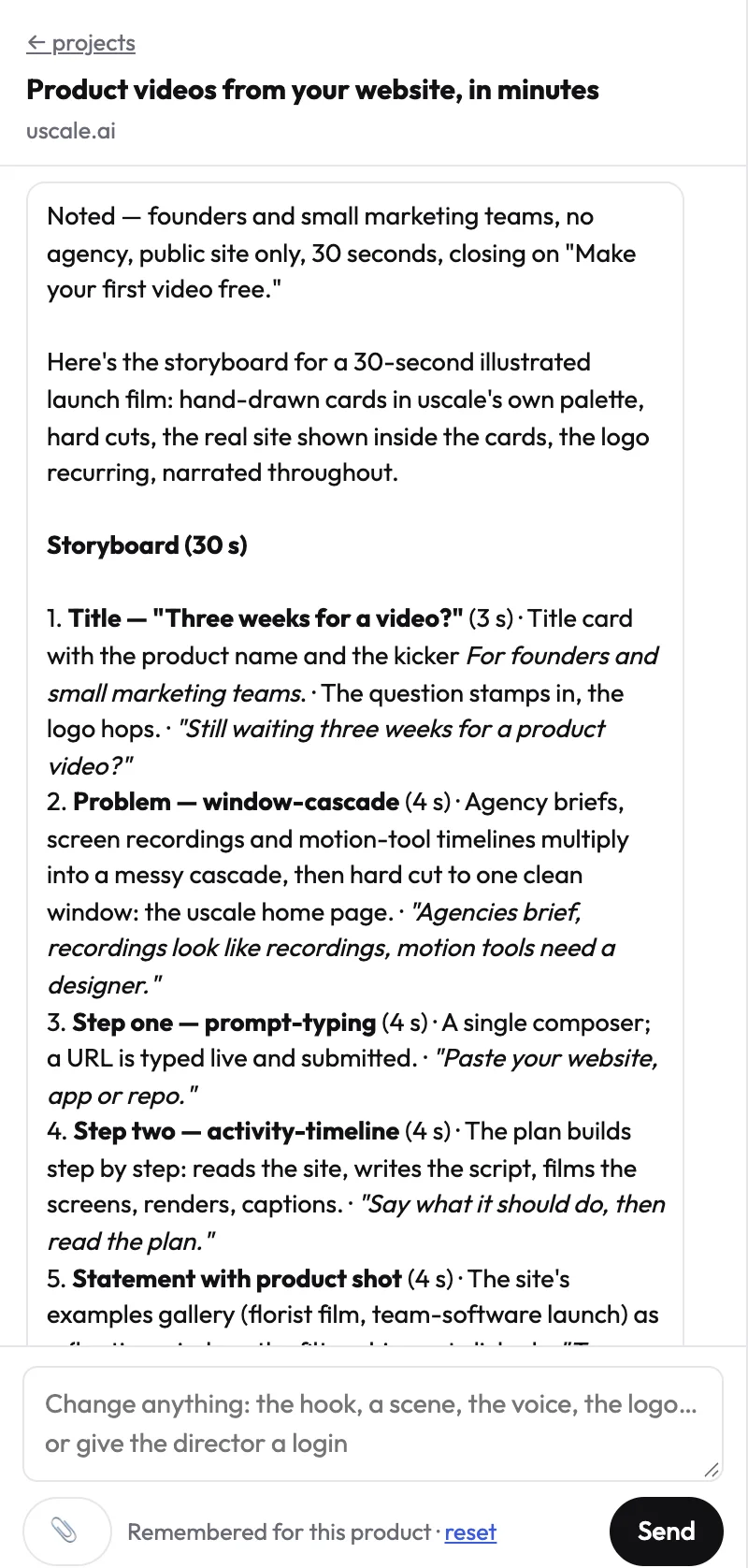
The habit worth keeping is to fix the words while they cost nothing. The chat is free. Filming, writing and rendering use credits, and each price is shown before a step starts. A line you rewrite on the storyboard never has to be re-filmed. To change a finished cut, ask in the chat. Every render is kept as a new version, so earlier cuts stay in the list. Films come in 21 languages. See the product explainer use case, finished example films and videos for software products.
What it costs
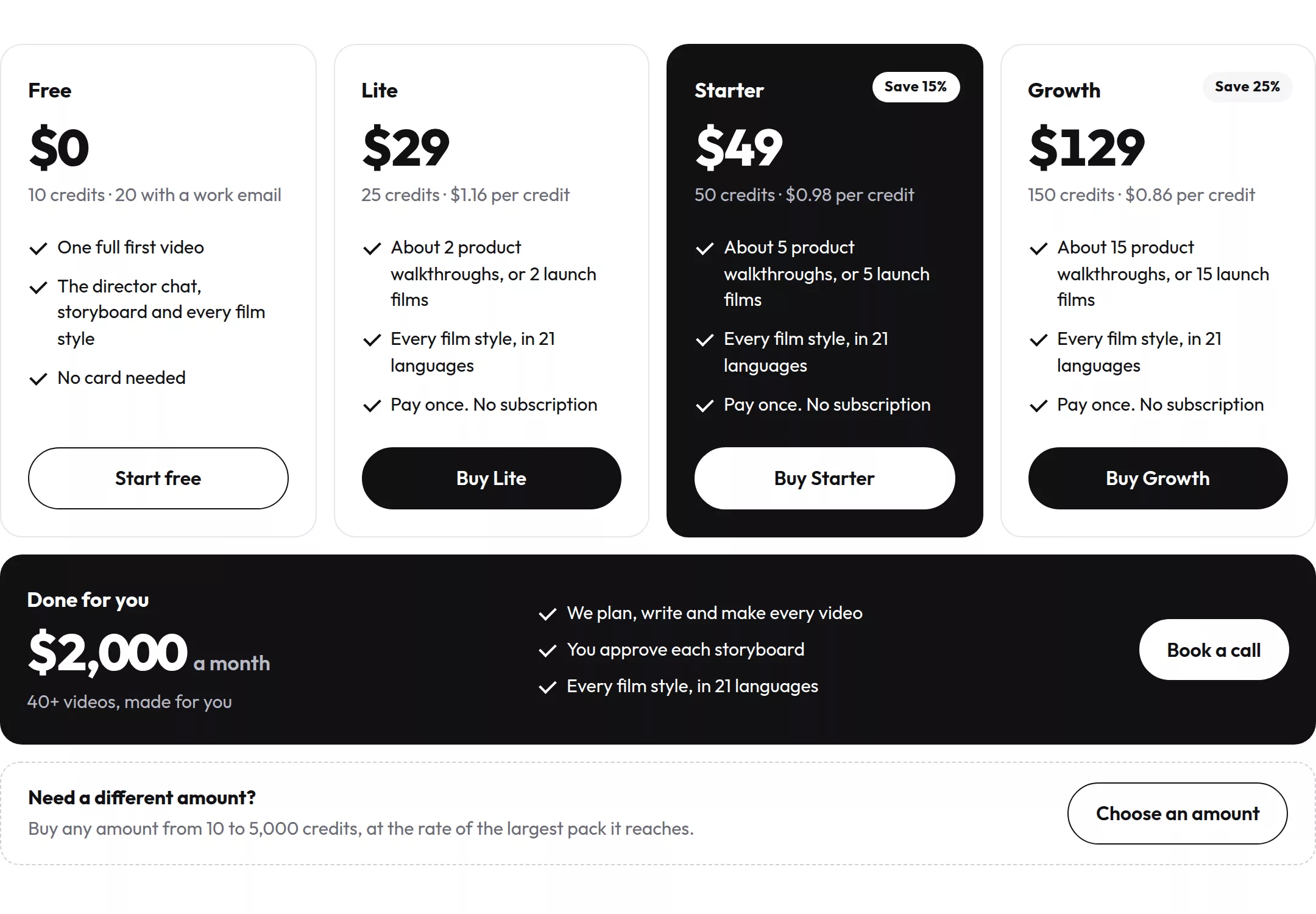
You buy credit packs, listed on the uscale pricing page. Lite is $29 for 25 credits, Starter is $49 for 50 credits and Growth is $129 for 150 credits. Starter's 50 credits cover about 5 product walkthroughs, and Lite's 25 about 2. There's no subscription and there are no seats.
What it isn't built for
There's no slide or template editor and no timeline. The voices are uscale's, not your own. There's no public REST API.
vs Google Vids: Vids starts from slides, templates and a library of millions of royalty-free media assets inside Workspace (Google's Vids page, 2026-10-15), which suits a team building from a deck. uscale starts from the product itself, which suits a video that has to show the product working. When buyers should operate the product themselves instead of watching it, a different kind of tool fits.
Arcade: when buyers should click through the product
Arcade fits when the buyer should do the clicking. Its own pricing page describes it as a clickable-demo tool that also makes videos (2026-10-15). The job it suits is a prospect on a landing page, or one who has just opened a sales email, who wants to step through the product at their own pace and stop at the screen that answers their question.
The pricing follows that split. Interactive demos use no credits, and videos are charged by length. A team that mostly publishes clickable demos can stay within a small credit budget. A team that mostly needs video pays credits for every half minute it makes.
| Arcade, from its own pages | Figure | Source, date |
|---|---|---|
| Free plan | $0, with 200 AI credits a month | Arcade pricing, 2026-10-15 |
| Free plan output | 1 demo and 1 video published, watermarked, AI voiceover included | Arcade blog, 2026-04 |
| Paid seat | Listed at $50, discounted to $42.50 per seat per month, with 100,000 AI credits a year | Arcade pricing, 2026-10-15 |
| Interactive demos | No credits | Arcade pricing, 2026-10-15 |
| Videos | 50 credits per 30 seconds | Arcade pricing, 2026-10-15 |
Click through or watch through
Many teams choose the format by how impressive it looks. Where it will be seen is the better guide. A clickable demo asks the viewer to act. A video only asks them to keep watching. Pick a clickable demo when the buyer has already decided to look, and pick a video when you still have to earn that look. The trade-offs are set out in more detail in interactive demo vs demo video.
Against uscale, each has its own strength. Arcade lets the buyer drive, with the product on their own screen to explore. uscale makes a narrated film of the real product, with voice and captions, that you download and post wherever a video plays. When clicking is the point, choose Arcade over uscale.
Some jobs need neither a guided click-through nor a finished film. They only need a quick word to one person.
A screen recorder such as Loom: for a quick message to a teammate
Some product videos aren't for buyers at all. They're for one person, and they need to exist in the next few minutes. A screen recorder is built for that job: you press record, talk over your screen and send the link.
The usual cases are a reply to a customer who can't find a setting, a bug report that's easier to show than describe, or a walkthrough of a new flow for the colleague who takes it over. Each has one viewer, a short shelf life and one question to answer. Polish adds time without giving that viewer anything. A rough take that arrives now beats a clean film that arrives tomorrow.
The rule you can reuse is to match the effort to the size of the audience and how long the video will live. If it has one viewer and will be stale within days, record it and move on.
If your team works in Google Workspace, check before adding a tool. Vids can record your screen and audio itself (Google, 2026-10-15), so you may already have this job covered. Our guide to Loom alternatives for product demos compares the dedicated recorders in more detail.
| The video | Who watches | How long it lives | Fits |
|---|---|---|---|
| Reply to a customer | One person | Days | Screen recorder |
| Bug report | One team | Until it's fixed | Screen recorder |
| Explainer on a product page | Many buyers | Months | Finished, narrated film |
A recorder is the fastest way to say something to one person, while uscale is for a finished, narrated film a buyer watches. For async messages, pick the recorder. When a presenter should carry the video instead of the screen, a different kind of tool fits.
An avatar-presenter tool such as HeyGen: when a presenter carries the video
If a face on screen has to hold attention from the first word to the last, pick a tool built around the presenter. In that video, everything else is set dressing.
Here is a hypothetical case. You're making an onboarding explainer for new customers. A presenter greets them, explains what the first week looks like, walks through setup and signs off, all to camera. The presenter never leaves the frame, and the script runs well past a handful of short lines. That is a presenter-first video, and a dedicated avatar tool such as HeyGen is one to check for that shape. Our HeyGen alternative page covers the details.
Before you buy anything, check what you already pay for. Google says you can add AI avatars to a Vids video (Google, 2026-10-15). They come with paid Workspace plans and Google AI Pro and Ultra subscriptions, not with the free editor (Google, 2025-08).
uscale offers a narrower version: founder avatar films. One clear photo of you becomes a presenter who speaks your approved lines to camera, with your product composed around them. The limits are fixed:
| Founder avatar film in uscale | What you get |
|---|---|
| Starts from | One clear photo of you |
| Presenter lines per film | Up to six |
| Length of each line | Up to about 30 words, 4 to 15 seconds to camera |
| Voice | A uscale voice, not your own |
Ask who the viewer is watching. If it's the person, choose an avatar tool. If the presenter introduces the product, a few lines to camera are enough.
vs uscale: an avatar tool lets one presenter carry the whole video, while uscale puts your face next to your real product, from one photo and with no filming day.
With each job matched to a tool, the next step is to see them side by side.
Google Vids alternatives compared: Descript, uscale, Arcade, recorders and avatar tools
The table below puts all six options side by side. Each quoted price comes from that tool's own page.
| Option | What you start from | Best for | What you do yourself | Entry price (source, date) |
|---|---|---|---|---|
| Google Vids | Slides, a template or a screen recording | Workspace teams making training, updates and marketing videos | Build the slides, record or generate, edit by transcript | Free to try with a Google account; more on paid plans (Google Vids page, 2026-10-15) |
| Descript | Footage you already recorded | Cutting a demo or webinar you've already shot | Record first, then edit the text | From $16 per person per month on Hobbyist ($24 billed monthly) (Descript pricing, 2026-10-15) |
| uscale | A website, web app or GitHub repo | A narrated film of the real product, with nothing to record | Approve the storyboard line by line, ask for changes in the chat | Packs from $29 for 25 credits, no subscription (uscale pricing page) |
| Arcade | Your product, as a clickable demo | Buyers clicking through at their own pace | Make the demo; demos use no credits, videos cost 50 credits per 30 seconds | $0 plan with 200 AI credits a month; paid seat listed at $50, discounted to $42.50 per seat per month (Arcade pricing, 2026-10-15) |
| A screen recorder | Your screen and your voice | A quick async message to one person | Record it yourself | See their pricing page |
| An avatar-presenter tool | A script and a presenter | A presenter on camera from start to finish | Write the script, choose the presenter | See their pricing page |
We checked the Google Vids, Descript and Arcade prices on each vendor's own page on 2026-10-15. uscale's packs are quoted from our pricing page. We have no dated prices for screen recorders or avatar tools, so we quote none.
Read across a row, not down a column. Find the "Best for" cell that matches the job your video has to do, then check the price in that row. The cheapest cell often belongs to a tool built for a different job.
Which row is yours
- A solo founder before launch with a live site: choose uscale for a product explainer buyers will watch. Choose a screen recorder for a quick note to your first users.
- A developer-relations team with a repo: choose uscale to plan a film from the repository before there is a site to show. Choose Descript if the walkthrough is already recorded.
- An agency with many clients: match each client. Choose Vids for a client who sends Slides decks, Arcade for a clickable landing-page demo, and an avatar tool when the client wants a presenter.
Rule of thumb: name what you already have (slides, footage, a product address or a presenter's script) and pick the tool that starts from it.
Sometimes what you already have points straight back to Vids. That's worth taking seriously before you switch anything.
Which one to pick, and when not to choose uscale
The strongest case against switching is that Vids already fits. Say your team lives in Workspace, starts from a Slides deck and makes internal training or project updates. Vids lets you begin from those slides, with no new login and no new tool to learn. For that job, stay where you are.
uscale fits a narrower job: a narrated film of the real product. Don't choose it if you want a slide, template or timeline editor, your own voice, captions you can turn off, or a live-action shoot. For now it makes films only in Latin or Cyrillic scripts, so not yet in Chinese, Japanese, Korean or Arabic. It has no REST API for making videos in bulk. Since 15 October 2026, though, you can ask for a video from Claude, ChatGPT or Cursor through uscale's MCP server.
| If your video needs… | Pick… |
|---|---|
| Slides turned into an internal update, inside Workspace | Google Vids |
| Footage you already shot, cut by editing the text | Descript |
| Buyers clicking through the product themselves | Arcade |
| A quick message to one person | A screen recorder |
| A presenter on screen from start to finish | An avatar-presenter tool |
| A narrated film of the real product, with nothing to record | uscale |
Find your job in the left column and take the tool beside it. If that's Vids, you were already in the right place.
Try it: make a product explainer video from your live site, with a storyboard you approve before filming.
Back to the launch deck
Go back to the marketer with the launch deck. If the video only had to carry those slides, Vids did its job, and there's nothing to switch. If buyers need to see the product working, a deck can't do that for them.
The next step is small. Paste your product's address, read the storyboard the director proposes, and approve every narration line before anything is filmed. Start with a product explainer video made from your live site or app. Your first video is free: 10 credits, 20 with a work email, no card needed, as the uscale pricing page shows.
The launch deck already says what the product does. The film can let the product show it.
Make your google vids alternatives from your website — it’s free →
Questions
What is Google Vids?
Google Vids is Google's video maker for work teams in Workspace. According to Google's Vids page (checked 2026-10-15), you can start from a Slides deck or a template and add AI avatars and voiceovers in 24 languages, and anyone with a Google account can try it at no cost. Google Vids alternatives are other tools for making work and product videos, such as editors, clickable-demo tools, screen recorders and avatar tools.
Is Google Vids free to use?
Google Vids is free to try for anyone with a Google account, but the AI features are not. In August 2025, Google opened the basic Vids editor to consumers at no cost, without AI features (Google Blog, 2025-08). AI avatars, image-to-video and automatic transcript trim come with paid Workspace plans and Google AI Pro and Ultra subscriptions. Those plans have usage limits: Google AI Pro, for example, allows up to 500 seconds of AI video clips a month, according to Google's Vids help page (checked 2026-10-15).
What's a free alternative to Google Vids for product demos?
The best free option depends on whether buyers should click or watch. Arcade, a clickable-demo tool, has a $0 plan with 200 AI credits a month (Arcade pricing, 2026-10-15), and its free plan publishes one demo and one video, watermarked (Arcade blog, April 2026). For a narrated film, uscale's pricing page lists a free first video: 10 credits, 20 with a work email, no card needed. Vids itself can also record your screen and audio (Google, 2026-10-15).
Can I make a product explainer video without recording my screen?
Yes. A product explainer video can be made without screen recording by a tool that films the live product for you. With uscale, you paste the address of your website, web app or GitHub repo, approve a storyboard with every narration line, and uscale films the product and adds voice, captions and music. Screens behind a sign-in work too: you sign in once in a browser streamed to you.
What does uscale cost?
uscale's first video is free: 10 credits, or 20 with a work email, with no card needed. After that you buy credit packs once, with no subscription and no seats: Lite is $29 for 25 credits, Starter is $49 for 50 credits and Growth is $129 for 150 credits, per the uscale pricing page. Starter covers about 5 product walkthroughs. The director chat is free, and each step's price in credits is shown before it starts.

The team behind uscale, which turns a website, web app or GitHub repo into a narrated product video.