The logo sitting on your opening line
Since October 2026, a LinkedIn logo has sat over roughly the top 15% of mobile videos. That band is the first rule of any LinkedIn video logo overlay safe zone: nothing you need seen goes there. It is also where a hook usually goes. The bold opening line, the title card, the speaker framed high in a tall cut all read fine last month. On a phone today, they play behind a logo and a back arrow.
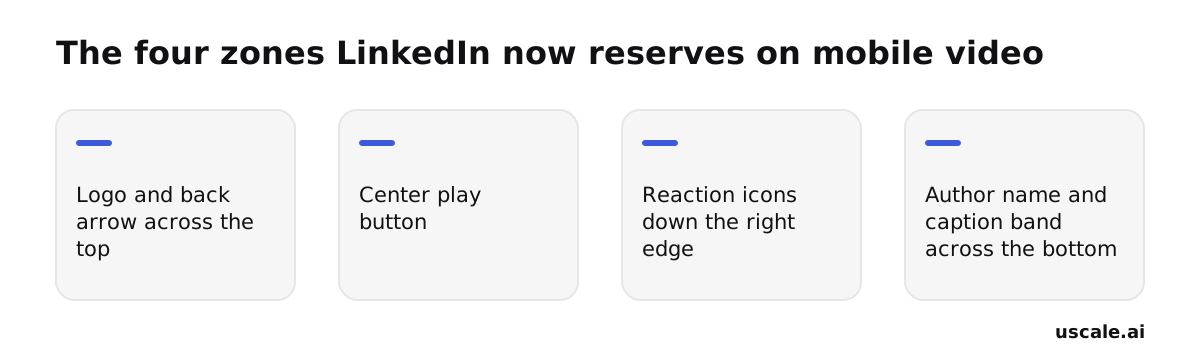
The top band is only the newest layer. A play button takes the center for viewers with autoplay off. A column of like, comment, share and save icons runs down the right edge. The author name and caption cover the bottom.
Hold your last export up against those four zones. How much of the message is left?
To answer that honestly, you need each zone mapped against what a typical product cut puts there.
Map the four zones LinkedIn covers on every mobile video
LinkedIn's mobile player now lays four fixed elements over every video, and each one hides a different part of a typical product cut. Creator Heike Young first mapped them after a new LinkedIn logo started covering roughly the top 15% of mobile videos in October 2026. Hold your last export up against the list below and mark anything that sits under a zone.
What each zone hides
Logo and back arrow, top. This band covers roughly the top 15% of the frame. A cut made for YouTube or Instagram often puts its hook line or title card there, or crops a speaker's eyes into it.
Center play button. It appears for viewers who have autoplay turned off, so for them it sits over the middle of your opening frame. A product name, a logo reveal or a key line centered on frame one is what it hides.
Reaction icons, right edge. Like, comment, share and save icons run in a column down the right side. Anything framed right of center goes under them: a UI panel, a cursor click, a presenter on the right third.
Author name and caption band, bottom. The poster's name and the post caption sit across the bottom. Burned-in captions placed low in the frame end up underneath.
The part most people get backwards
The logo is what everyone noticed, but it is one zone of four. A cut that moves its hook below the top band can still lose its captions to the bottom band and its demo to the right edge. Fixing one zone and calling the frame safe is the usual miss.
Treat the overlay as a frame inside your frame: what falls outside it is decoration, not message.
Knowing which zones exist is half the fix; the other half is how much room to leave around each one.
Place hook text and captions between the logo band and the caption band
Hook text and burned-in captions belong in the strip between LinkedIn's top logo band and its bottom author-name and caption band. They do not belong centered on the frame, where most YouTube or desktop cuts put them. Missive Digital's guidance is direct: start hook text below the top 15% of the frame, and keep captions above the bottom band.
LinkedIn publishes no official safe zone, so the working numbers come from people who measured the app. AdCheckLab's measurements on a 1080×1920 vertical frame give three clearances:
- Top: roughly 192px kept clear
- Bottom: roughly 346px kept clear
- Each side: roughly 65px kept clear
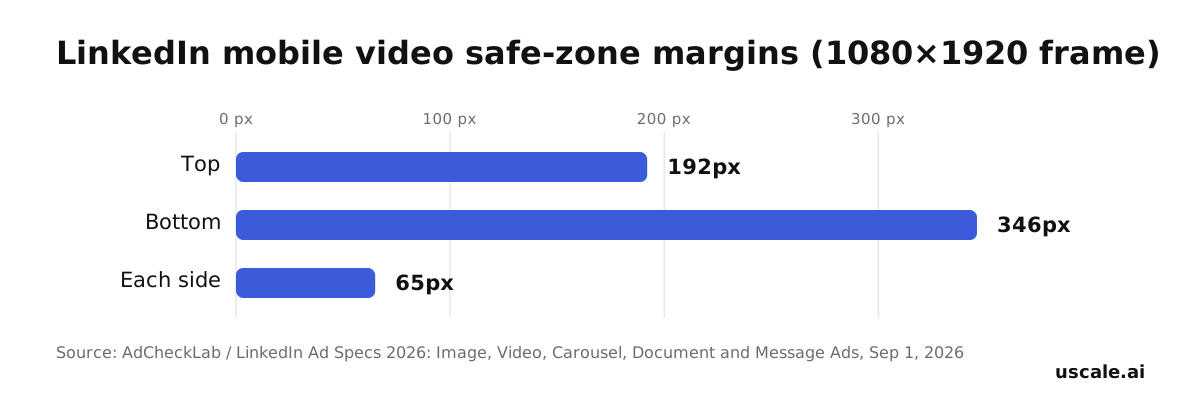
Screenshot this chart and keep it next to your timeline. The numbers work in any editor. Set a guide at each distance from its edge, and move any text box that crosses a guide.
Why centered text is the wrong default
The bottom clearance is much larger than the top one, so the middle of the safe area sits above the middle of the frame. Text centered on the frame drifts toward the caption band once it wraps to a second line. Captions set close to the bottom edge, as many widescreen and Instagram cuts set them, land inside that band.
The reusable rule is to anchor each element to a guide, not to the frame. Captions sit on the bottom guide. Hook text hangs from the top one.
At the top, the two sources differ. The measured 192px is the minimum. Starting below the top 15% is the more cautious line, and it is the one to use when a headline carries the hook.
This placement keeps text clear of the overlay. Faces and on-screen UI follow a different rule, because the right edge has a problem of its own.
Move faces and screens center-left to keep them clear of the icons
Faces and the screen you are demoing belong center-left of the frame. The right edge of a LinkedIn mobile video now carries a column of like, comment, share and save icons, so anything important parked there sits under them. The middle is shared with the play button that viewers with autoplay off see first. Center-left is the open ground.
Why cuts made for other feeds miss it
Most demo clips were framed for somewhere else. A square Instagram post centers the subject, because a centered face looks balanced in a box with nothing on its edges.
A widescreen YouTube cut spreads the product across the full width. The things a demo points to often sit toward the right, such as a settings toggle, an export button or the result panel of a dashboard.
Crop either one to vertical around the middle and two things happen. The face lands where the play button appears, and the right side of the UI slides under the icon column. The edit looked fine on your timeline because the timeline shows no overlay.
The fix that avoids a reshoot
Recompose or re-crop toward center-left. In most editors that means moving the crop box, or the clip's position, a little left of center for each shot. Then check that the face or the clicked element sits clear of the right edge.
For screen recordings, zoom into the part of the UI that matters instead of shrinking the whole window to fit. A tight frame of one panel survives the overlay better than a full screen nobody can read.
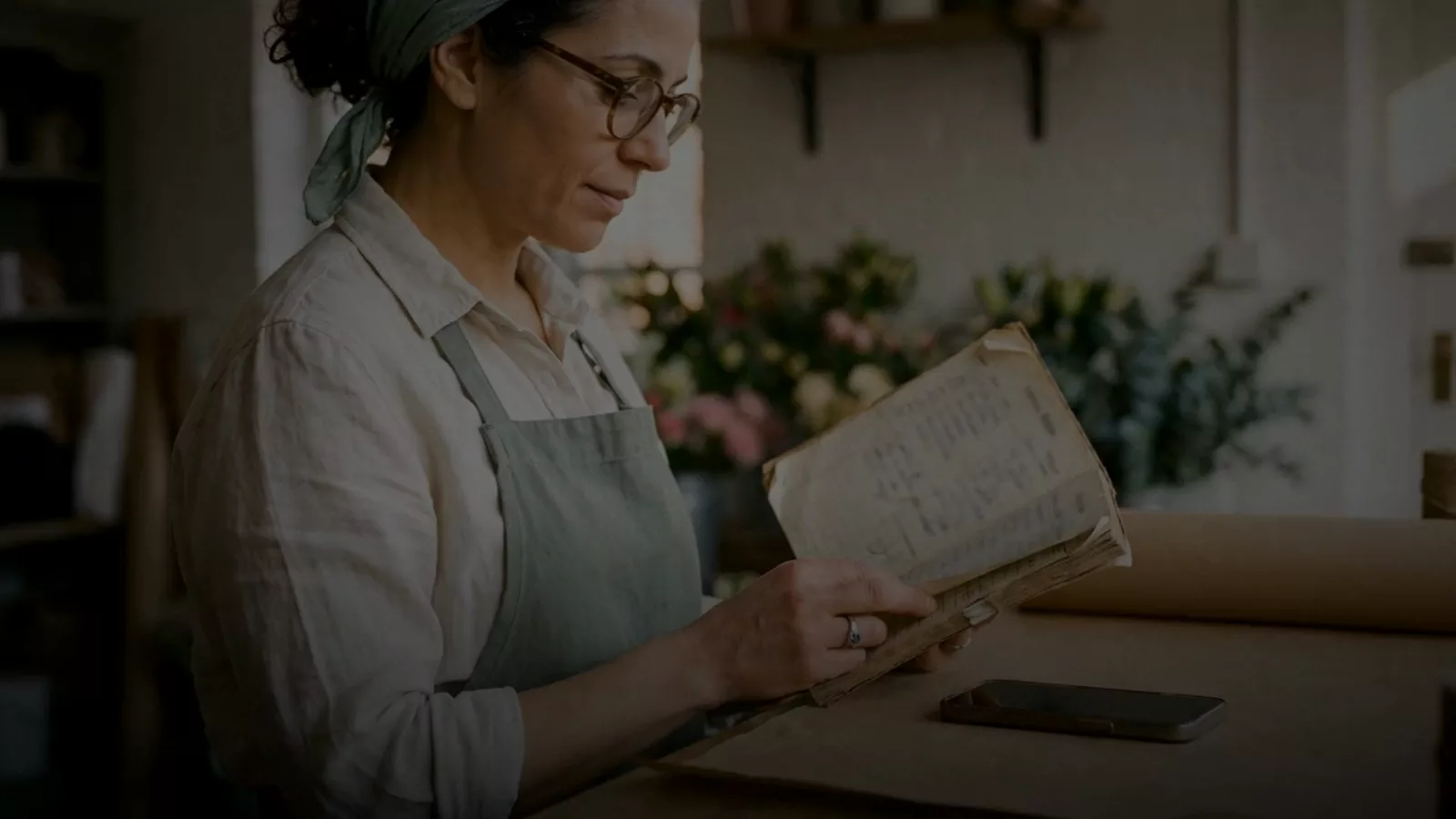
The still above, from our AlpacaRelay story film on uscale's example films page, shows the result: a close-up held center-left, with open frame on the right where the icons sit. Frame for the part of the screen the viewer can actually see, not the full rectangle you exported. The same thinking decides which format and dimensions you export in the first place.
Pick your frame by format before you export
Choose the frame for the format that will carry the video, and choose it before you export. A native LinkedIn post and a LinkedIn video ad accept different files. The feed also favors one shape over the others, so the same cut can upload fine as a post and still be wrong for an ad.
| Native post | Video ad | |
|---|---|---|
| Max file size | 5GB | 200MB (up to 500MB on some spec pages) |
| Max runtime | 15 minutes from desktop, 10 from mobile | 30 minutes |
| File format | Not stated in the sources | MP4 only, H.264 codec |
| Aspect ratios | Anything from 1:2.4 to 2.4:1 | 16:9, 1:1, 4:5, 9:16 |
| Resolution | 256×144 to 4096×2304; 1920×1080 recommended | 1080p recommended |
Most people get one row backwards. Spec pages still recommend 1920×1080 for native video, but that recommendation is a landscape frame. Vertical video at 1080×1920 is the shape getting the distribution boost. Square and horizontal clips are being pushed lower in the feed now that LinkedIn has built a full-screen, swipeable video feed. A spec page tells you what LinkedIn will accept; the feed tells you what it will show.
Use the stricter column as your rule. A 1080×1920 MP4 in H.264, under 200MB and under 10 minutes, fits every row of both columns. One export can then serve the post and the ad, and you won't get a rejected upload the day the campaign goes live.
Vertical is also the frame where the overlay covers the most, so the next section covers the two checks that still catch people after the frame is right.
My cut looked fine in the preview, so isn't it fine on LinkedIn?
Fair point: LinkedIn will take the cut you already have. Video ads accept 16:9, 1:1, 4:5 and 9:16, and a clean preview on your laptop feels like proof. Two habits still get a video covered after the frame is fixed.
Checking on a desktop
The overlay this post maps is the mobile one. It has the back arrow and logo on top, the play button in the center, the reaction icons down the right and the author band at the bottom. A desktop preview or your edit timeline shows none of it, so neither can tell you what a phone viewer sees.
Reusing the square or wide cut
Accepted is not the same as favored. Vertical video at 1080×1920 is getting a distribution boost, while square and horizontal clips are pushed lower in the feed. The cut that worked on Instagram or YouTube starts on LinkedIn at a disadvantage.
Check the real mobile view
Before publishing, send the export to your phone and play it full screen. Screenshot the first three seconds and the busiest caption frame. Lay the safe-zone chart over both. On a 1080×1920 frame, nothing that matters should sit in the top 192px, the bottom 346px or the outer 65px on each side. After posting, open it once in the LinkedIn app with autoplay off to confirm the center play button hides nothing important. The phone gives the final answer, not the timeline.
So checking is the easy part. The real work is the fix, and how much of it you take on depends on whether you're patching one clip or planning the next one.
How to reframe your product video for LinkedIn this week
The fix is the same whether your product video came from an editor, a screen recorder or uscale. The only real choice is whether you patch the cut you have or plan the next one around the frame.
Patch the cut you already have. Pause on the frame with your hook text, take a screenshot and hold it against the safe-zone chart. In the editor you already use, move the hook below the top band, since the logo covers roughly the top 15% of the frame. Lift the captions above the author-name band and crop toward center-left. You're done when no word or face touches a band. This is the quick win: one clip, finished within the hour.
Write the safe zone into the next storyboard. If a new version is coming, mark on each scene where the text sits and where the face or screen goes. Do this in a script doc or a storyboard before anyone films. In uscale, ask the director in the chat to place on-screen text lower and frame the product center-left. The storyboard and every change to it are free. You're done when every scene has a placement note.
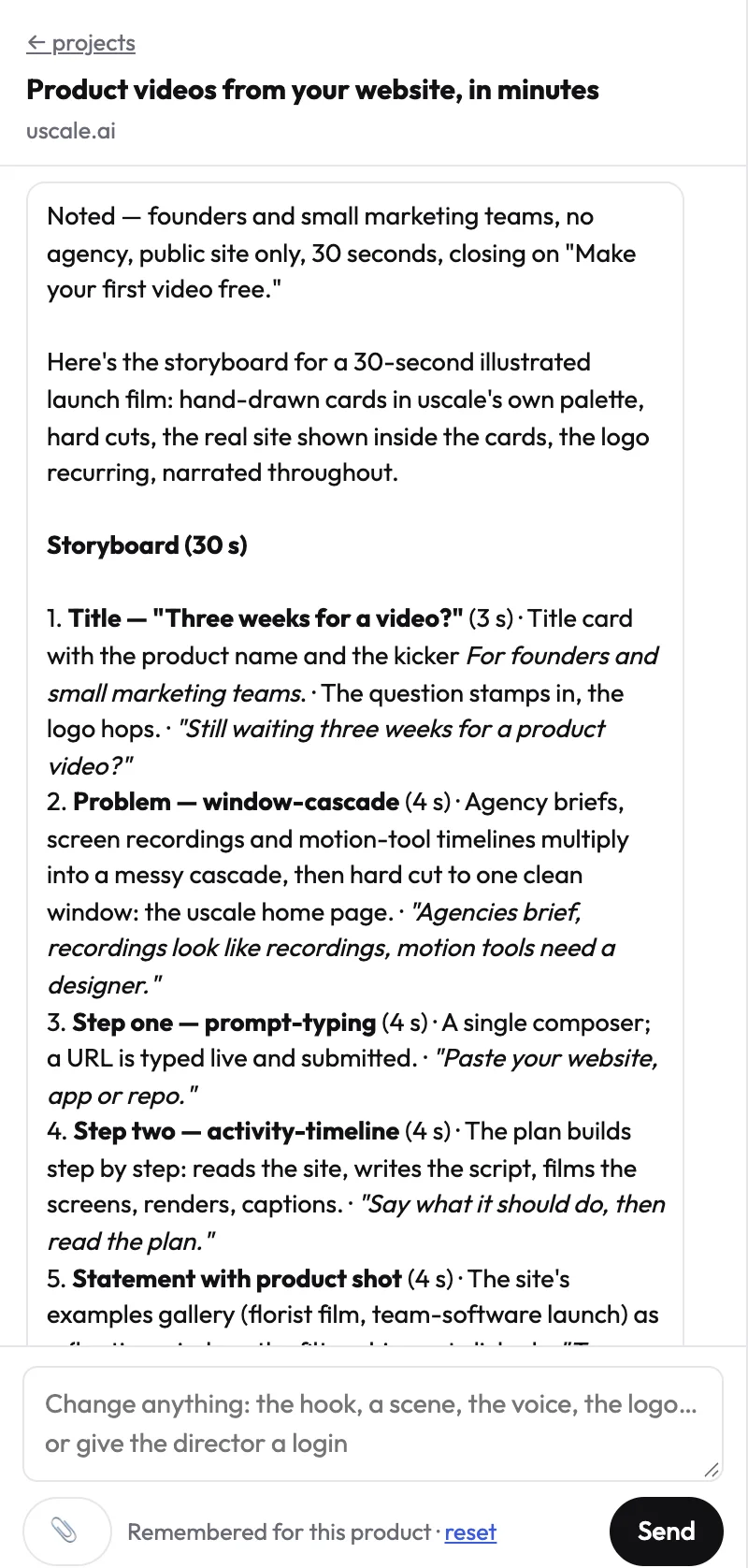
Compare the reframed cut with the original. Watch both on your phone, not on a desktop. On uscale a revision costs 1–3 credits (see what each step costs), and the earlier cut stays in the version list, so trying a second framing is cheap. In your own editor, export a copy under a new name. You're done when you've picked one by looking at the mobile view.
Export once for the post and the ad. A finished uscale film exports tall, 4:5 or wide and comes with a LinkedIn post written for it, so one project covers both the feed post and the ad. You're done when both files sit in one folder with the post copy.
If you do only one thing, move the hook text below the top band on your current cut.
Success looks like a LinkedIn post where the hook, the captions and the product screen all show clearly on a phone. It also means one set of files your team can use for both the feed and the ads.
Try it: make B2B marketing videos of your product: tall, 4:5 or wide exports, each with a LinkedIn post written for it.
Before your next LinkedIn post
Run this on the export you already have, before it goes out:
- Hold it against the four zones: logo and back arrow on top, play button in the center, reaction icons down the right, name and caption band at the bottom.
- Start hook text and faces below the top 15%.
- Keep faces and the key screen center-left, clear of the icon column.
- Watch it on a phone in the LinkedIn app before publishing, not in a desktop preview.
If you'd rather build that framing in from the first storyboard, uscale for B2B video marketing turns your product into a narrated, captioned video, and your first video is free. Any editor you already trust works just as well.
The overlay is staying. Your message only has to stand a little lower and a little to the left of it.
Make your linkedin video logo overlay safe zone from your website — it’s free →
Questions
What is LinkedIn's video safe zone?
LinkedIn's video safe zone is the part of a mobile video frame that the app's overlay leaves uncovered. On phones, LinkedIn lays a back arrow and logo across the top, a play button in the center for viewers with autoplay off, like, comment, share and save icons down the right, and the author name and caption across the bottom. LinkedIn publishes no official safe zone, so the working numbers come from measurements taken in the app.
How much of a LinkedIn video does the new logo cover?
LinkedIn's new top-of-frame logo, added in October 2026, covers roughly the top 15% of mobile videos, together with a back arrow. Measured in the app on a 1080×1920 vertical frame, about 192px at the top should be kept clear. Starting hook text below the top 15% is the more cautious line, and it is the better choice when a headline carries the hook of the video.
Where should captions and text go on a LinkedIn mobile video?
On a LinkedIn mobile video, hook text and burned-in captions belong in the strip between the top logo band and the bottom author-name and caption band. Start hook text below the top 15% of the frame and keep captions above the bottom band. On a 1080×1920 frame, in-app measurements suggest keeping roughly 192px clear at the top, 346px at the bottom and 65px on each side, with faces and key screens center-left.
Does the safe zone apply to LinkedIn video ads as well as regular posts?
Plan for the LinkedIn safe zone on both ads and posts. The published measurements of the mobile overlay, roughly 192px clear at the top, 346px at the bottom and 65px per side on a 1080×1920 frame, come from an ad specs guide. Ads accept different files than posts: MP4 with H.264, capped at 200MB and 30 minutes. A vertical H.264 MP4 under 200MB and 10 minutes fits both formats.
What does it cost to re-cut a product video for LinkedIn's safe zone?
Re-cutting a product video for LinkedIn's safe zone costs only your time if you move the text and crop in an editor you already use; one clip can be finished within the hour. On uscale, a revision costs 1–3 credits and a product walkthrough about 10 credits. Credit packs start with Lite at $29 for 25 credits, with no subscription, and the first video is free.

The team behind uscale, which turns a website, web app or GitHub repo into a narrated product video.