The cheap part of a Kling 3.0 product video
Kling's own API pricing page, dated 6 October 2026, prices a second of Kling 3.0 video at $0.112 at 1080p without audio. That second can be a slow push across a sunlit office, hands lifting a laptop lid, or a long corridor in soft light. The cinematic, moving shot is now the cheap part of a product video.
The part no model can make sits a few seconds later in the cut: your product's real screen. No video model can hand you that. It can draw a dashboard, but not yours, with your data, your menus and the button a new customer will click first.
The film below shows both halves. It opens on an atmospheric corridor, then cuts to the live app, filmed.
So which shots belong to Kling 3.0, and which should come from your own product? This guide sorts them. It then shows how to prompt, set and price each generated clip, and what to film instead.
The short answer: the model gets everything around the screen, and the screen comes from you.
Give Kling 3.0 the people and places, not the screens
Split your shot list in two before you write a single prompt. Shots of people, places and the product in someone's hands go to Kling 3.0. Shots of the product's own screens get filmed from the real product.
Say you're making a SaaS launch video for a scheduling tool. The generate column holds a person at a desk mid-task, hands on a laptop or phone, the place your customer works, product b-roll (the cutaway shots that sit under the narration), and team scenes. Kling's own guide lists coreference for three or more characters among the features 3.0 adds, so a small team in one scene is work it was built for. The film column holds the dashboard, UI text, your logo and the pricing table.
| Generate with Kling 3.0 | Film from the real product |
|---|---|
| A person at a desk, mid-task | The dashboard a new user lands on |
| Hands on a laptop or phone | UI text, buttons and menus |
| The place the customer works | Your logo |
| Product b-roll under the narration | The pricing table |
| A team of three or more in one scene | Any screen a viewer can check after signing up |
The reason works for any product: a generated screen is a picture of a product, not your product. It can look right in a single frame, but anyone who signs up meets the real dashboard. Every difference between the two is a small broken promise. A video model can show someone using software, but only your product can show your software.
It is tempting to do the reverse: ask the model for the hard part, the interface, and treat the room as an afterthought. Flip it. Once the list is split, each line in the generate column becomes one prompt. That is the next step.
Write one prompt per shot: subject, action, camera, light
Give Kling 3.0 one shot per prompt and spell out four things: who or what is in it, what happens, how the camera moves, and what the light is like. A prompt that names the camera move gets a shot. A prompt that doesn't gets a guess.
The clip above has all four parts: hands, a product, a slight push-in and shallow focus. The two prompts below follow the same pattern. Both are hypothetical examples for you to adapt. We did not run them.
Hypothetical shot 1: the opening cutaway
Close-up of a person's hands opening a silver laptop on a wooden café table. Slow push-in toward the hands. Soft morning light from a window on the left, shallow depth of field. The screen glows but shows nothing readable.
Hypothetical shot 2: the team scene
Three colleagues around a standing desk in a bright open-plan office. One points at a laptop while the other two lean in. Medium shot, camera slowly tracking left. Even daylight, warm tones. No text, signs or logos in frame.
Each prompt ends by keeping words out of the frame. Titles, captions and your product name go on in the edit. There you control the font, the spelling and the timing, and you can change them without paying for a new clip.
Two features in Kling's guide affect how you write the prompt. Multi-Shot gives you several connected shots from one generation, so you can describe a short sequence in one request. Write each shot in it with the same four parts. The guide also lists five prompt languages: Chinese, English, Japanese, Korean and Spanish. Your team can write in the one it thinks in.
A good prompt sets up one shot. A product video, though, is never just one shot.
Lock the product and the face with Elements
A product video made of several shots holds together only if the device and the face stay the same from cut to cut. Kling 3.0 handles this with Elements. You give it several reference images, or even reference videos, and it keeps the traits of a character, an item and the scene locked in place across shots. The 3.0 guide also lists Start Frame + Element Reference. A shot can begin on an exact frame you supply while the Elements keep everyone recognisable.
What to upload before you generate
- The product, from several angles. Front, side, back and in a hand. A single photo shows one view, and every other angle is left to chance.
- One reference of the person on screen. With Kling 3.0 Omni, this can be a 3–8 second video of the character, uploaded or recorded. The model takes both their traits and their original voice from it.
- The setting. A photo of the desk, office or café where the scenes happen, so the room stays the same room between cuts.
Only use people who have agreed to appear, and count the voice as part of the person. A colleague who said yes to a photo has not said yes to a clip of their voice speaking your lines.
Why this comes before the prompt
Most people write the prompt first and try to fix consistency afterwards. Do it the other way round. Viewers forgive a plain shot, but they notice at once when the laptop changes colour or the face shifts between two cuts, and after that the rest of the film is harder to believe. With the references set, the next choices are the length, resolution and audio of each clip.
Set length, resolution and audio to fit the cut
Every Kling 3.0 setting should follow the edit you are building, not the most the model allows. Start with length. The user guide lets you set any duration from 3 to 15 seconds, and Omni also runs up to 15. Pick each shot's length from the narration line it will sit under. Read the line aloud, time it, and generate that plus a little room to trim at each end. A 15-second clip under a short line is footage you pay for and then cut away. Let the script set the clock, not the slider.
| Setting | Options | What to pick for a product video |
|---|---|---|
| Duration | Any value from 3 to 15 seconds; Omni up to 15 | The length of the narration line above the shot, with a short handle at each end |
| Resolution | 720p, 1080p, 4K (Turbo lists no 4K price) | 720p for drafts, 1080p for a video that plays in a feed or on your site, 4K only if the whole cut ships in 4K |
| Native audio | On or off | Off for cutaways under a voiceover; on only when the scene's own sound carries the moment |
| Variant | 3.0, Turbo, Omni | 3.0 for most shots; Turbo when you want native audio at 720p or 1080p; Omni when a short video of a person should carry their traits and voice |
Native audio is sound the model generates together with the picture, such as footsteps or the hum of a room. Leaving it on is tempting. In a product video, though, the voice and the music usually go on in the edit, over every shot at once, so a clip's own soundtrack often ends up muted. Audio-off clips often do the job. Turbo comes with native audio, so it is not the pick for a silent cutaway.
Once each shot has a length, a resolution and an audio choice, you can price it before you press generate.
Price Kling 3.0 clips per second before you generate
Kling 3.0 is billed by the second, so your shot list is also your budget. Kling's API pricing page, checked on 2026-10-06, counts in units, where 1 unit = $0.14 at list price. Here are the list prices per second.
| Kling 3.0 variant | 720p | 1080p | 4K |
|---|---|---|---|
| 3.0, no audio | $0.084 (0.6 units) | $0.112 (0.8 units) | $0.42 (3.0 units) |
| 3.0, with audio | $0.126 (0.9 units) | $0.168 (1.2 units) | $0.42 |
| 3.0 Turbo (audio included) | $0.112 (0.8 units) | $0.14 (1.0 unit) | no price listed |
| 3.0 Omni, video input, no audio | $0.126 (0.9 units) | $0.168 (1.2 units) | $0.42 |
Two things in that table change your plan. At 4K, every variant with a listed price costs the same per second, so the audio choice from step 4 only moves the bill at 720p and 1080p. At 1080p, Turbo costs less than standard 3.0 with audio.
Work out the cost shot by shot
For each shot you will generate, multiply its length in seconds by the per-second price for the variant and resolution you chose. Then add up the shots. Use the length you set from the narration line, not the 15-second maximum. Price the seconds you will use, not the seconds the model allows. Leave some room for takes you throw away.
Size the package to the shot list
API usage is prepaid in unit packages. Standard Package 3 is 30,000 units for $3,780, or $0.126 per unit, which is below list. It is valid for 180 days with no rollover. Any units you have not spent in that window are lost, so buy for the shots you will really make.
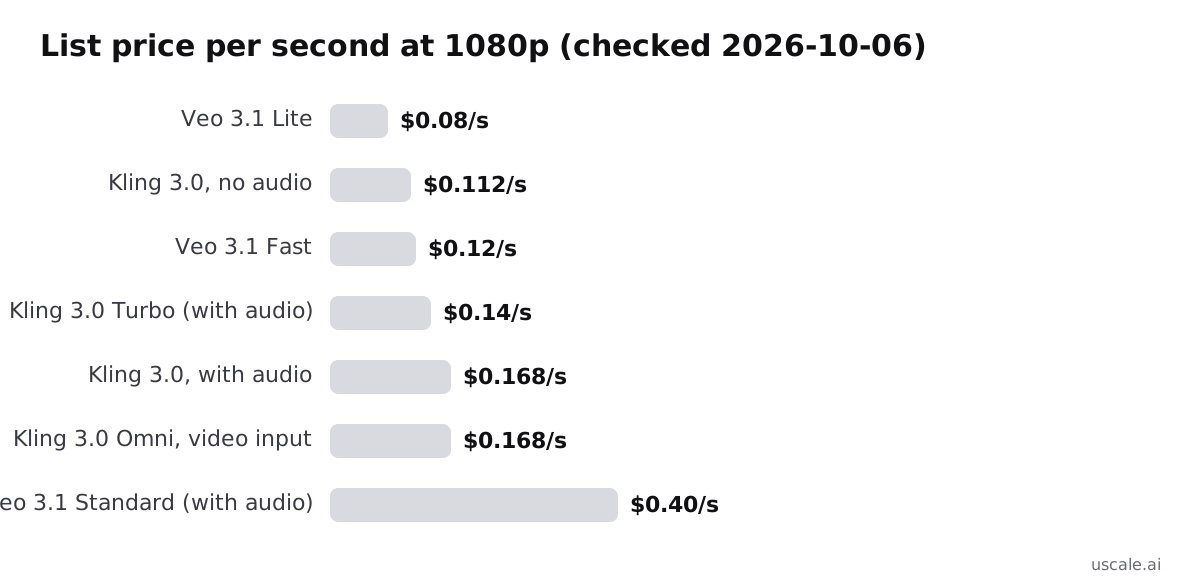
The chart sets Kling's 1080p prices beside Veo 3.1's. The next step weighs those prices against what each model can make.
Kling 3.0, Veo 3.1 or Seedance 2.5: pick per shot
Pick the model per shot, not per project. A product video mixes shots with different needs, and each model sets a different length limit, keeps things consistent in a different way and bills differently. The table uses each vendor's own pages: Kling's user guide dated February 2026, and the rest dated 2026-10-06.
| Need | Kling 3.0 | Veo 3.1 | Seedance 2.5 |
|---|---|---|---|
| Clip length | Any value from 3 to 15 s | 4, 6 or 8 s; 8 s only at 1080p, 4K or with references | 4 to 30 s |
| Resolution | Up to 4K (no 4K price for Turbo) | Up to 4K (Lite has no 4K) | 480P, 720P, 1080P |
| References | Elements: several images, or even videos | Up to three images; none on Lite | Multimodal generation |
| Audio | Native audio on or off | Natively generated audio | Not stated on the pages cited |
| Provenance | Not listed | C2PA Content Credentials | Not listed |
| How you pay | Prepaid unit packages | Per second in the Gemini API, no free tier | Token plans valid 3 months |
Which model for which shot
Veo 3.1 fits when C2PA Content Credentials matter to whoever publishes the video, or when 8-second shots suit the cut anyway. If you want 1080p or references, plan those shots at 8 seconds. Veo 3.1 Lite is the low-cost way to draft a shot before you pay for the final take.
Seedance 2.5 fits one continuous shot longer than Kling's 15 seconds. Say you need a slow walk through an office under a full paragraph of narration.
Kling 3.0 fits 4K, Multi-Shot sequences, and scenes where the same person and the same device must hold across cuts.
Seedance's per-second price can't be lined up with the others. BytePlus sells its plans in tokens and quotes seconds only at 480P, as a range. So budget a Seedance shot from its token plan, not from the chart above.
Write each shot's length and resolution next to its line on the shot list, and the model usually picks itself. Once every shot has a model, the clips are ready to sit around the screens you film from the real product.
Put the Kling 3.0 clips around your real screens
The generated shots earn their place only when they sit next to the real product. You can put them there in two ways, and the difference is who records the screens.
The manual route
Download each clip from Kling. Record your screens yourself, one take per flow, in a demo account with sample data. Lay both into an editor in shot-list order. Add a voice track, captions and a music bed, then trim until each shot ends with its narration line. It works, but every screen take and every caption is yours to redo when the product changes.
The fast route in uscale
Paste your site or app address on Generate. In the chat, ask the director for a cinematic cut, for example "open on a person at a desk, then start on the dashboard and end on the export". uscale films the real product, with no screen recording on your side. It reads your logo, colours and fonts from the live site and adds a voice, captions and music. You approve the storyboard before anything is filmed.
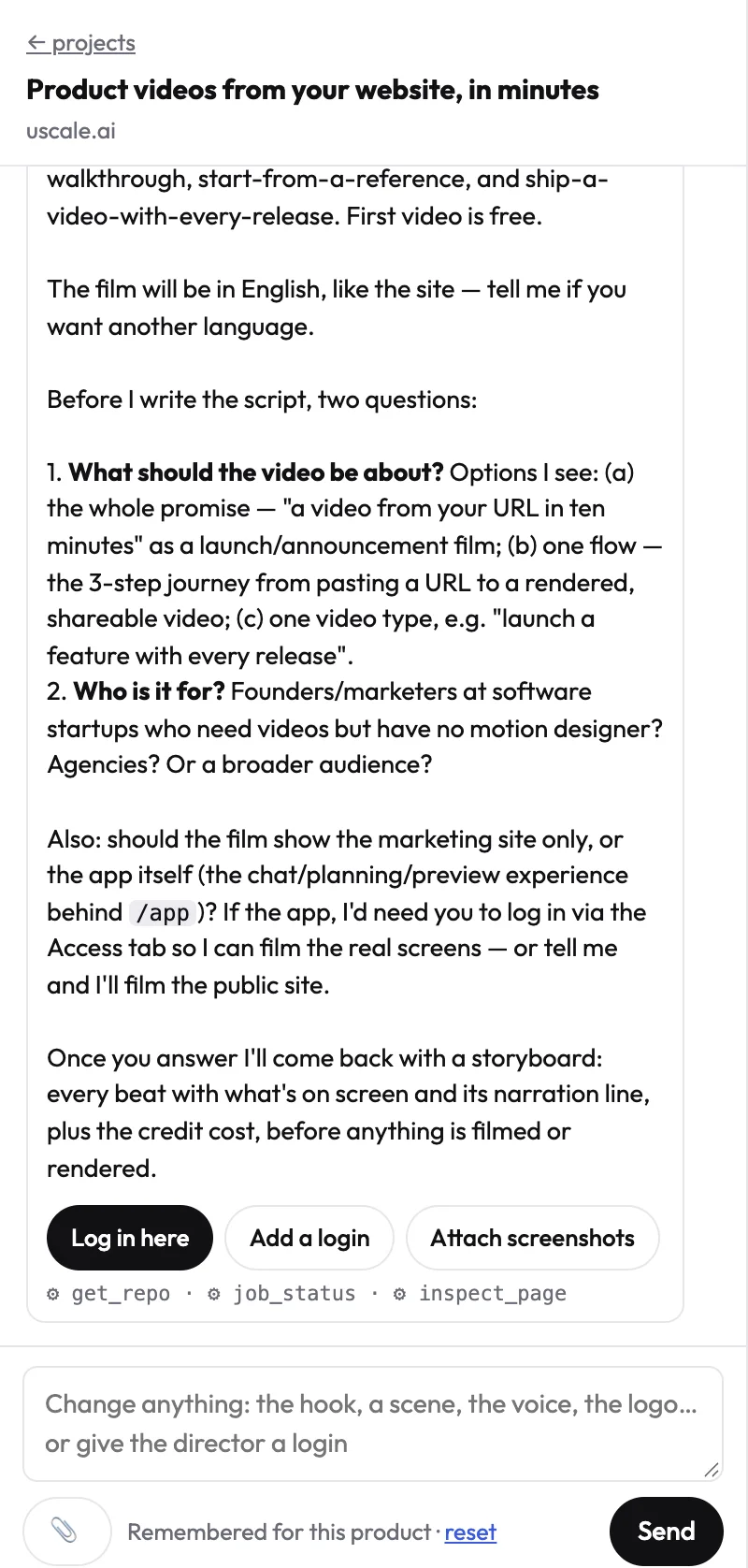
Cinematic cuts with AI film clips cost more, and every price is shown before you press anything. The chat itself is free, so you can reshape the plan before a credit is spent. For more on the format, see making a product demo video from your site.
Let the generated shots set the scene and let the filmed screens make the promise. Most of the mistakes in the next section come from mixing up those two jobs.
Common mistakes with AI product shots
- Asking the model for dashboards, UI or logos. Fix: film them from the live product, and give the model only the people and places around them.
- Prompting words into the frame. Fix: describe the scene with no text in it. Add titles and captions in the edit, where you control the spelling.
- Making every clip the maximum length. Kling 3.0 accepts any length from 3 to 15 seconds. Fix: time each clip to the narration line it sits under.
- Paying for 4K when the video plays in a feed. Kling lists 3.0 units a second at 4K against 0.8 at 1080p, without audio. Fix: use 1080p unless the film plays on a large screen.
- Buying a large package that expires unused. Standard Package 3 is valid for 180 days with no rollover. Fix: price your shot list first, then buy for it.
- Planning Veo 3.1 shots at 4 or 6 seconds in 1080p. Veo makes only 8-second clips at 1080p, at 4K or with reference images. Fix: plan 8-second Veo shots, or give the short ones to Kling.
When AI shots aren't the route
Three cases call for something other than AI shots, and other than uscale. If the film rests on your founder speaking in their own voice, film them on a camera: uscale's presenter films use one of uscale's voices. A physical product shows its weight and finish best in a live-action shoot. Footage you already have only needs an editor. For a software product, though, the screens are the proof, and those can be filmed from the real thing.
So what does that split look like on a real launch?
Plan the Kling 3.0 shots for your own product video
Say you're launching a team task app next month and need a short launch video. Here is a shot plan to adapt. Every generated clip stays inside Kling 3.0's 3-to-15-second range, and each clip runs as long as the narration line it sits under.
- Open on the place. Generate a small team arriving at a bright office. Give it the opening line, well under 15 seconds.
- Show the problem in someone's hands. Generate hands scrolling a crowded phone, with nothing readable on it. Three seconds is enough.
- Show the dashboard. Film the real screen and hold it for the line that explains it.
- Show the one action that fixes it. Film the click, the result and the screen after it.
- Cut to people using it. Generate three colleagues around a laptop. Keep it short, close to 3 seconds.
- End on your sign-up page and logo. Film both from the live product.
For a developer tool, film the terminal and the README in beats 3 and 4, and keep the desk and the people for Kling.
Quick win, within the hour: write this list in a doc. Put the narration line beside each beat and mark it "generate" or "film". If you do only one thing, record your real screens today with the screen recorder you already have. You need them whichever model makes the rest.
To see finished films that mix the two kinds of shot, browse the example films and the videos for software products. If you take the fast route, Preview plays the cut before you download it, and every render is kept as its own version.
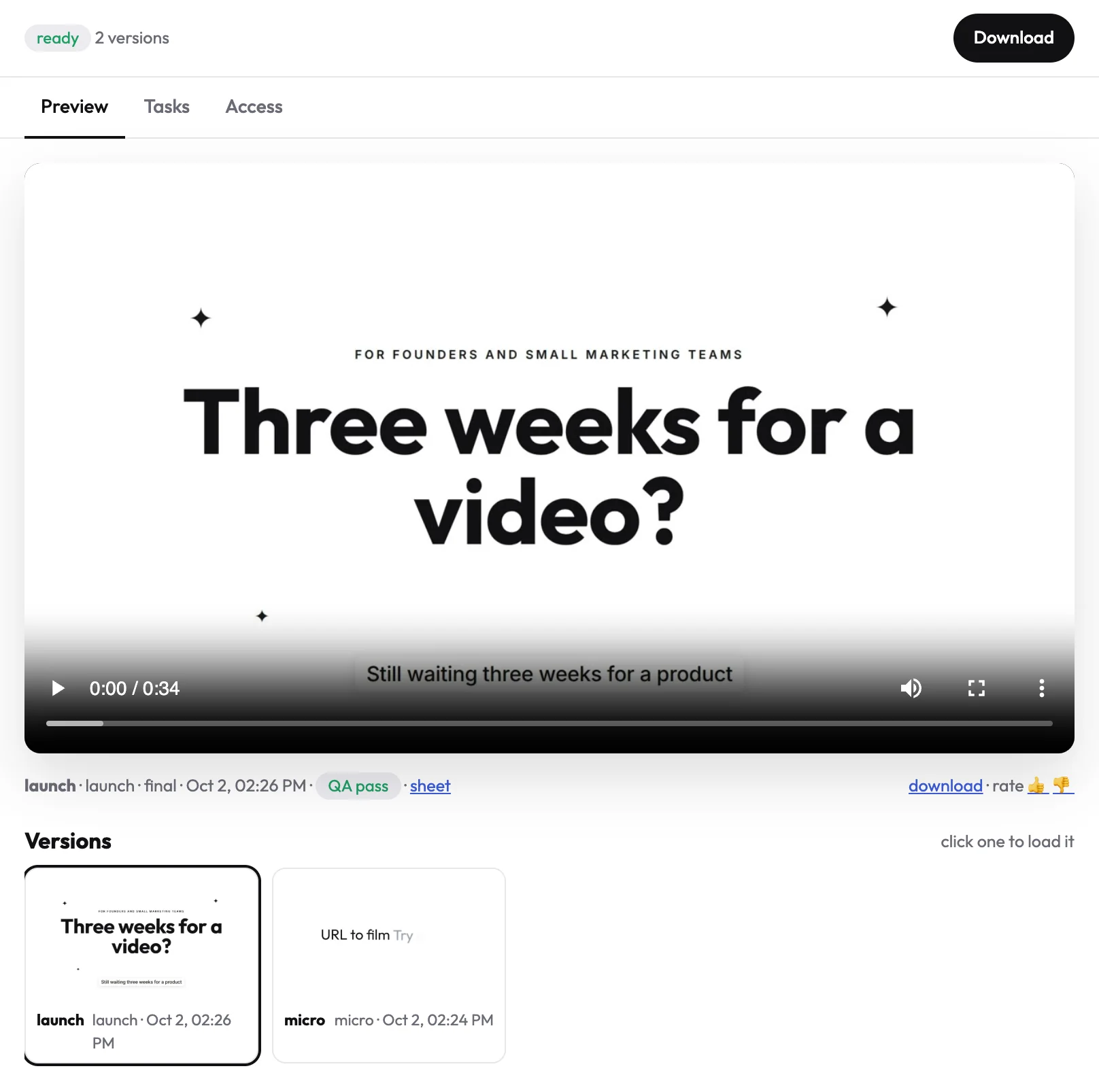
You're done when one shot list sits in front of whoever edits, the film plays on your launch page and sales has one link to send.
Try it: make a product demo video: real screens filmed from your site, and a storyboard you approve first.
Plan on 3.0 until 4.0 ships
Kling has announced 4.0 for October. It promises up to 4K, 10-bit HDR, up to 15 multimodal references and native 30-second generation. Until it ships, build your plan on 3.0. What Kling 4.0 changes for product videos covers the switch.
Whichever version you plan on, the order of the work stays the same.
Your next four moves
- Split the shot list. Mark every beat generate or film. People, places and the product in hand go to the model. Screens, UI text and logos come from the real product.
- Write one prompt per shot. Subject, action, camera, light, and nothing readable in the frame.
- Price the seconds before you generate. Multiply each shot's length by the per-second price, add them up, then buy a package sized to that total.
- Pick the model per shot. Choose Kling 3.0, Veo 3.1 or Seedance 2.5 by length, references and provenance.
Prefer to skip the edit? Make a product demo video where the real screens are filmed for you. The first video is free, and the pricing page lists what comes after.
The model can paint the room. Only your product can show what it does.
Make your kling 3.0 from your website — it’s free →
Questions
What is Kling 3.0?
Kling 3.0 is a video generation model from Kling AI that turns text prompts, images and reference videos into clips of 3 to 15 seconds, at up to 4K. It adds Multi-Shot sequences, Elements that keep characters, items and scenes consistent across shots, coreference for three or more characters, and prompts in Chinese, English, Japanese, Korean and Spanish. Variants include standard 3.0, Turbo and Omni.
How long can a Kling 3.0 video be?
A Kling 3.0 video can be any length from 3 to 15 seconds of continuous footage per generation, and you set the duration yourself. Kling 3.0 Omni also runs up to 15 seconds. For a product video, time each clip to the narration line it sits under rather than generating the maximum, because every extra second is billed. For one continuous shot longer than 15 seconds, Seedance 2.5 lists durations from 4 to 30 seconds.
How much does Kling 3.0 cost per second?
On Kling's API pricing page, checked in October 2026, Kling 3.0 without audio costs $0.084 per second at 720p, $0.112 at 1080p and $0.42 at 4K. With native audio it is $0.126 at 720p and $0.168 at 1080p. Turbo, audio included, costs $0.112 at 720p and $0.14 at 1080p. Usage is prepaid in unit packages; Standard Package 3 brings a unit from $0.14 to $0.126, valid for 180 days.
Should I use Kling 3.0, Veo 3.1 or Seedance 2.5 for a product video?
For a product video, it depends on the shot, so pick per shot. Kling 3.0 suits clips of 3 to 15 seconds, 4K, Multi-Shot sequences and people or devices that must stay the same across cuts. Veo 3.1 suits 8-second shots and videos that need C2PA Content Credentials. Seedance 2.5 suits one continuous shot of up to 30 seconds. With any of them, film the product's real screens rather than generating them.
What does a product video with AI film shots cost in uscale?
In uscale, a walkthrough video is about 10 credits: filming 4, directing 3, copy 1, render 2. Cinematic cuts with AI film clips cost more, and every price is shown before you press anything. Your first video is free: 10 credits on sign-up, 20 with a work email, no card needed. Credit packs start at $49 for 50 credits, with no subscription. Chatting with the director is free.

The team behind uscale, which turns a website, web app or GitHub repo into a narrated product video.