The Veo 3.1 endpoint that just went dark
On October 22, 2026, Google shut down the Veo 3.1 preview models on the Gemini API: veo-3.1-generate-preview, along with its Fast and Lite versions. Developers were pointed to Gemini Omni Flash or to the GA models on the Gemini Enterprise Agent Platform. The public preview had opened on October 15, 2025. That puts the life of the endpoint behind a lot of recent AI product-video b-roll at just over a year.
If you are trying veo 3.1 for a product video today, the model has not gone anywhere. The preview names that many tutorials and scripts still call have stopped answering. The shots people made with it are still the ones marketers ask for: a lit opening frame, a slow push-in on a laptop lid, a macro of brushed metal.
The shutdown leaves a harder question open. Which parts of a product video was it never right for in the first place?
To answer that, start with what the model is, and the shots it was built to make.
What is Veo 3.1, and what does it do best in a product video?
Veo 3.1 is Google's video-generation model. Google released it, along with Veo 3.1 Fast, in public preview on October 15, 2025. That release added three things a product team will notice. You can extend a clip Veo has already made, guide a shot with up to three reference images, and generate a shot from a first frame and a last frame. Clips come out at 4, 6 or 8 seconds. Google Cloud's spec notes that the reference-image route supports only the 8-second option.
| What the release added | What it gives a product video |
|---|---|
| Extend a Veo-created clip | Lengthen a shot you like instead of starting over |
| Up to three reference images | Point the shot at an object, material or colour you choose |
| First and last frame generation | Set the frame a shot opens on and the frame it lands on |
| 4, 6 or 8-second outputs | Plan each generated shot as one beat |
Where it earns its place
In a product video, its natural job is the lit, textured shot that comes before the product appears. Think of a hand on a door, light moving across a material, or a city skyline before the first screen. These shots carry mood and place. They ask the viewer to read nothing and click nothing. That means the weak spots covered in the next section never come into play.
Which beat to give it
Reserve the opening beat of a launch film for a Veo-style shot. That is the few seconds that tell the viewer what world this product belongs to, before any interface shows up. If you want a matching bookend, give it the closing beat too.
The usual instinct points the other way. Teams ask the AI shot to show the product, when its real job is to set the scene the product walks into. A viewer forgives a dreamy opening. They don't forgive a dashboard with garbled labels.
Give the model the seconds before the product appears, and give the product itself to a camera that can actually film it.
That split matters because the line between the two jobs is sharper than it looks. Clip length and on-screen text are where it shows first.
How long are Veo 3.1 videos, and where do its limits show?
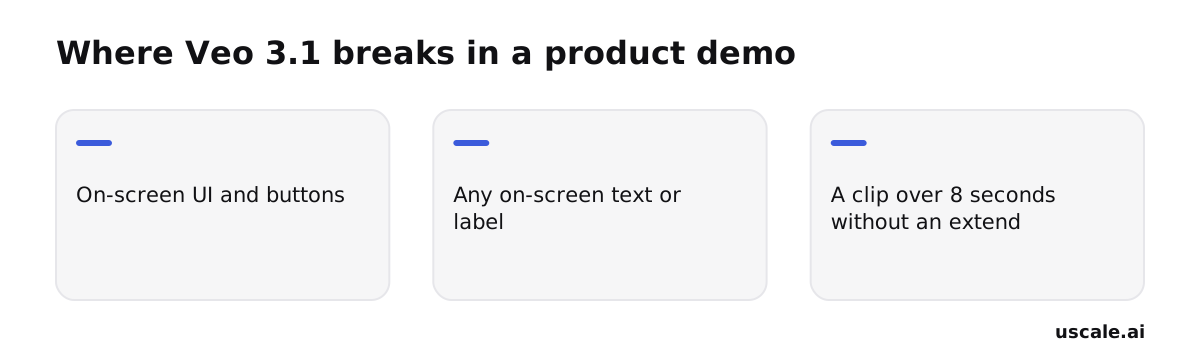
Veo 3.1 makes clips of 4, 6 or 8 seconds. In practice the choice is narrower. 1080p, 4K, reference images and the extend workflow each force the 8-second option. Google's own spec confirms that reference-image generation only supports 8 seconds.
This is where many people plan backwards. The settings you would pick for a polished product shot are the same settings that fix the length. Plan every Veo beat as an 8-second block and trim it in the edit. Don't write a short beat and hope the model fits it. To compare this with other generators, see how long an AI-generated video can be.
The length cap is manageable for b-roll. The next two limits are harder to work around when your subject is software.
Text and labels come out garbled
Signs, labels and in-video text often render garbled or morphing. A product video depends on exactly those details: a button name, a menu item, a figure on a dashboard. When the model has to draw them, expect words your product never shows.
Clicks land in the wrong place
In a benchmark of video models reasoning about interfaces, researchers found that Veo-3 "fails to accurately capture the correct click position and often exhibits inconsistencies between the click location and the resulting on-screen effect." It can also alter icons and text, or invent new ones. A demo exists to show what is true about your product. A model that guesses at the interface can only show a plausible version of it, and viewers who know your app will spot the difference.
What to do instead
Film the real interface for every screen the viewer needs to understand. Keep Veo for the shots around those screens. Add titles, labels and callouts in post-production, where you control the spelling. Generate the mood, record the product.
Once Veo has that narrower job, prompting it well comes down to describing action and camera movement.
How do you use Veo 3.1 for a product video?
Write every Veo 3.1 prompt as a shot: what moves, what the light does, and where the camera goes. Leave out what the product does. A prompt like "the user opens the dashboard and exports a report" asks the model for the two things it handles worst: readable interface text and an accurate click. A prompt like "slow push-in on a laptop lid opening in morning light" asks for what it handles well. Prompt the camera, not the feature list.
Write spoken lines with a colon, not quotation marks
If someone speaks in the shot, Google's own Veo 3.1 prompting guidance says to drop the quotation marks and put a colon after the speaker's action. Quoted words can be rendered as text inside the frame, and in-video text often comes out garbled. So write: A designer leans toward the window and says: this one ships Friday. Don't wrap the same line in quotes.
The settings you can't change
On the Gemini API, three settings are fixed. Clips run at 24 fps. Audio is always on, so every clip arrives with generated sound. Describe the sound you want in the prompt, or plan to put your own music over it in the edit. The frame is 16:9 or 9:16, so decide early whether the shot belongs in a landscape launch film or a vertical feed. For the vertical case, see Veo 3.1 vertical shots for product videos.
Five templates for product b-roll
These are templates to adapt, not tested prompts. Replace the parts in brackets with your own product's world.
| Shot | Template (adapt the brackets) |
|---|---|
| Opening establishing shot | Wide, slow drift over [a city at dawn / an empty office before people arrive], soft [warm] light, quiet ambient sound. |
| Macro texture shot | Extreme close-up of [brushed aluminium / woven fabric / a paper notebook], shallow depth of field, light sliding slowly across the surface. |
| Hands-on-product close-up | Close shot over the shoulder of hands [opening a laptop, screen facing away / picking up a phone] on a [wooden desk], steady camera, natural window light. |
| Push-in reveal | Slow dolly push-in from a dark doorway toward [a lit desk with a closed laptop], the light rising as the camera arrives. |
| End-card frame | Locked-off shot of [a clean desk / a soft gradient wall] with empty space in the [centre], a gentle light shift, no text in frame. |
Every template keeps the screen out of shot or turned away. The end card leaves its space empty on purpose: your logo and closing line go on in the edit, where the letters stay sharp. Anything a viewer has to read belongs in post, not in the prompt.
Each template is one render, and every render costs money. The next question is what a shot list like this costs to make.
Is Veo 3.1 free, and what does it actually cost?
Not on the Gemini API. Veo 3.1 is billed per second of video, at a rate set by tier and resolution. These are the rates WaveSpeed AI reported in September 2026:
| Tier | 720p | 1080p | 4K |
|---|---|---|---|
| Veo 3.1 Standard | $0.40/s | $0.40/s | $0.60/s |
| Veo 3.1 Fast | $0.10/s | $0.12/s | $0.30/s |
| Veo 3.1 Lite | $0.05/s | $0.08/s | not supported |
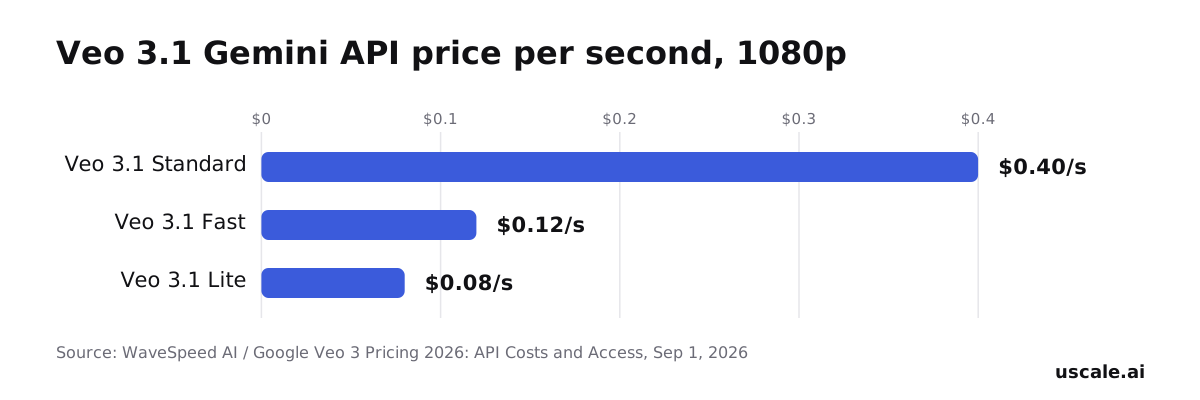
Google shut down the Veo 3.1 preview endpoints on October 22, 2026. Check these rates against the GA model you move to before you set a budget.
Price the clip, not the second
Most budgets get the length wrong. On the Gemini API, 1080p and 4K always produce an 8-second clip, so a 1080p shot you need for only four seconds is still billed for eight. A Veo 3.1 budget is a count of clips, not a count of seconds. Multiply the rate by 8 for the real unit cost: $3.20 for a Standard 1080p clip, $0.96 on Fast and $0.64 on Lite. Draft your variations on Lite or Fast, and pay for Standard only on the take you keep.
The route without code: Flow credits
If you don't write code, you'll use Google's AI subscription plans instead. They give monthly Google Flow credits: 200 on AI Plus, 1,000 on AI Pro, 10,000 on AI Ultra 5x and 25,000 on AI Ultra 20x. The plans page doesn't say what one Veo clip uses. Read the cost Flow shows before a render, then divide your monthly credits by it. The result is a planning number for how many 8-second clips a month covers, not a promise, because the cost can change with the mode and quality you pick.
For comparison, uscale's one-time credit packs from $29 to $129 cover roughly 2 to 15 launch films, based on the per-film credit cost at the lower tiers. Films with AI shots cost more. The video cost calculator shows a few AI shots next to the full cost of a finished video. Price is only half the decision, though. The other half is whether a different model does the same shot better for less.
When should you pick Kling 3.0 or Seedance 2.5 instead of Veo 3.1?
Pick Kling 3.0 when the shot is short, needs sound, and the per-second budget is tight. Pick Seedance 2.5 when one continuous shot has to carry a story longer than Veo's 8-second cap. Keep Veo 3.1 for the single opening shot that has to look expensive. The best model depends on the shot, not on a leaderboard.
Kling 3.0: sound in the clip, priced in Units
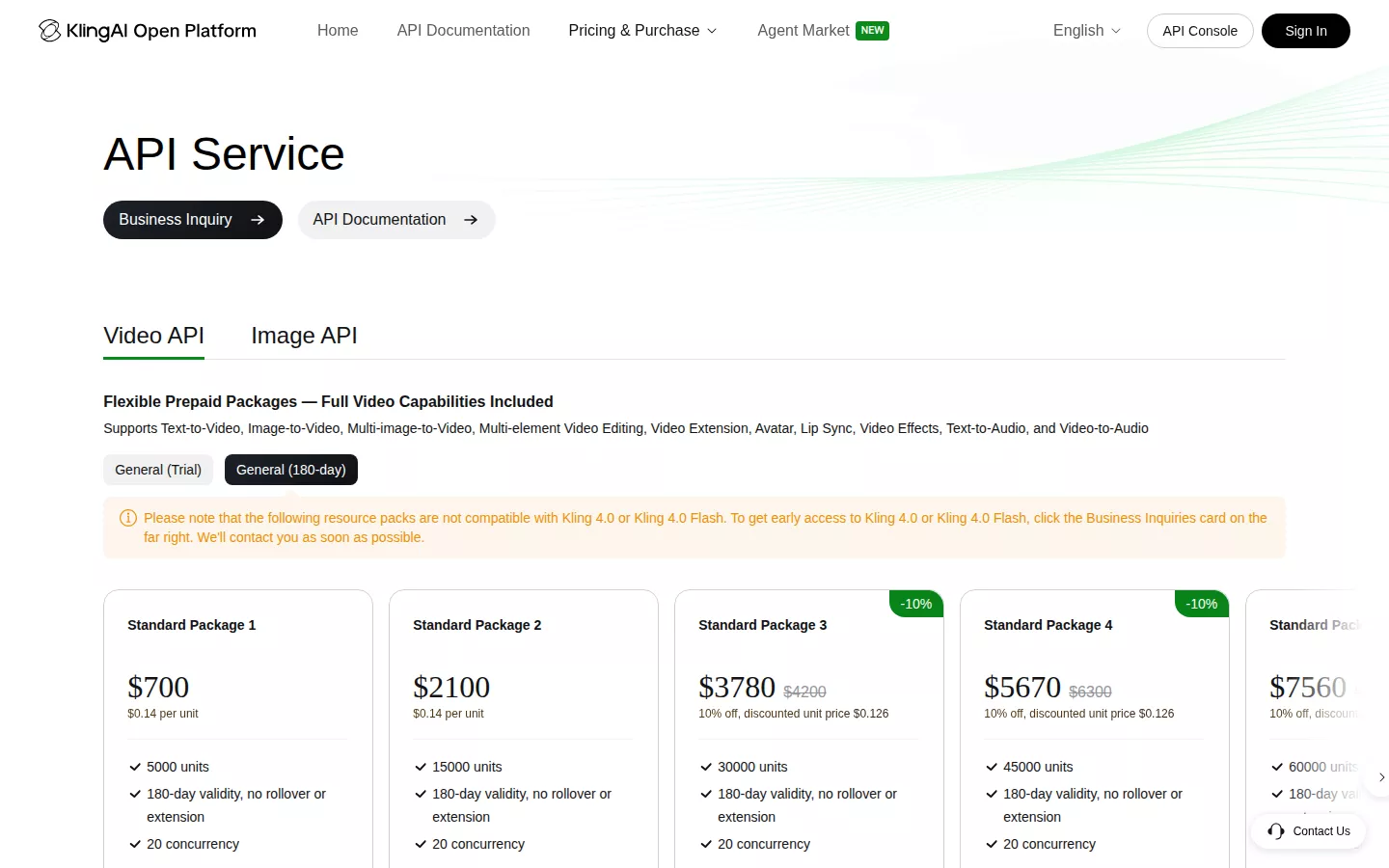
Kling's own API pricing page bills in Units. One Unit is $0.14 at list price.
- Kling 3.0 without native audio costs 0.6 Units per second at 720p and 0.8 at 1080p.
- Kling 3.0 Turbo generates the audio along with the picture. It costs 0.8 Units per second at 720p and 1.0 Unit at 1080p.
Veo 3.1 Standard costs $0.40 per second, so Turbo is the cheaper way to get a clip with sound baked in. Veo 3.1 Fast costs $0.10 at 720p and $0.12 at 1080p (WaveSpeed AI), and Turbo doesn't beat that. Against Fast, the saving comes from the silent Kling 3.0 tier. That tier suits b-roll you will lay a voiceover across anyway. Our Kling 3.0 guide for product videos covers it shot by shot.
Seedance 2.5: one longer shot instead of stitched clips
ByteDance markets Seedance 2.5 for "30-Second long narrative" sequences. That matters when the brief is one unbroken camera move. Say the shot follows a parcel from the warehouse shelf to a doorstep. Cutting four short Veo clips together would show the seams.
OpenRouter lists Seedance 2.5 from $0.1028 per second. BytePlus's own pricing page gives a fuller picture. A 5-second 16:9 clip without video input costs $1.156 at 720p and $2.843 at 1080p. More in Seedance 2.5 for product videos.
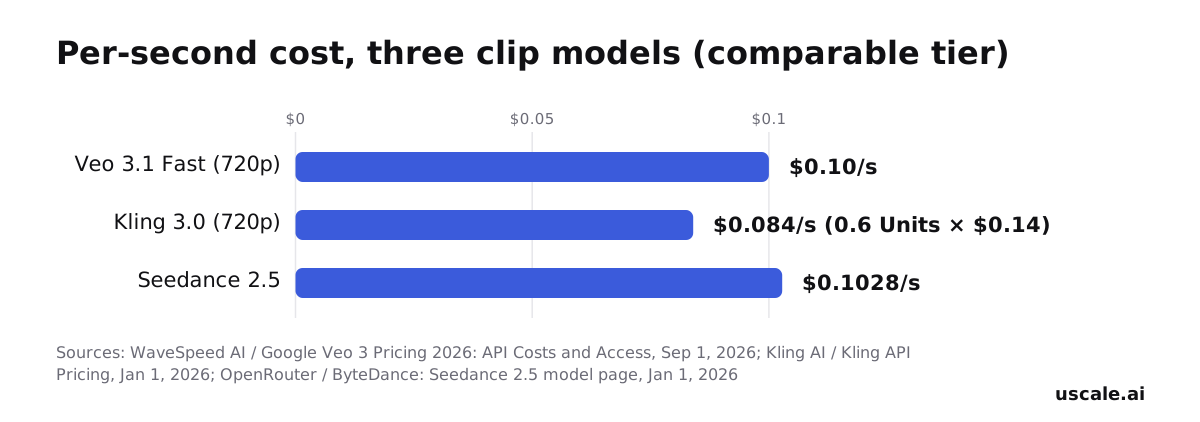
A starting price is a floor, not a quote. Before you compare models, check the vendor's example for the resolution you will actually ship.
Where Veo 3.1 still wins
None of this makes Veo the wrong choice. For the single polished opening shot, the lit, textured first beat of a launch film, it gives you more control over how that one moment looks. It can work from up to three reference images and generate between a first and a last frame you supply (Google's release notes). If the job is one good-looking shot, Veo's higher price buys the right thing. If the job is a long shot or a cheap one, it doesn't.
Whichever model you pick, it only films the shots around the product. What's left is how those shots sit next to the real screens.
Where a Veo 3.1 shot fits next to the rest of a product video
Most product videos end up with the same shape. They have one generated shot at the opening, sometimes one at the close, and real screens of the product for everything in between. The hard part is deciding which beat goes where, and most people do it backwards. They start from the model and ask what it can show. Start from the storyboard instead.
A four-question check for each beat
Write every beat of the film first. Then run each one through these questions:
- Does the viewer need to read something here? A label, a number or a menu item means you should film the real screen.
- Does the beat show a click and what it changes? If so, film the real screen. A generated click that lands in the wrong spot teaches the viewer the wrong thing.
- Is the beat about a feeling rather than a feature? A workspace at dawn, a material up close or the moment before the product appears are candidates for a Veo 3.1 shot.
- Does it fit one short clip? If the idea needs a longer take, split it into two shots or move it to the real recording.
A beat goes to the model only when the first two answers are no and the last two are yes. Expect that to be the opening and perhaps the close.
Where this already happens
You don't have to prompt a model by hand to get this mix. In uscale you paste your product's site, and the director proposes a storyboard with every narration line. You approve it before anything is filmed, and you can ask for changes in the chat, such as which screen to start on. The finished narrated product video sets AI film shots next to sharp, real screens of your live product.
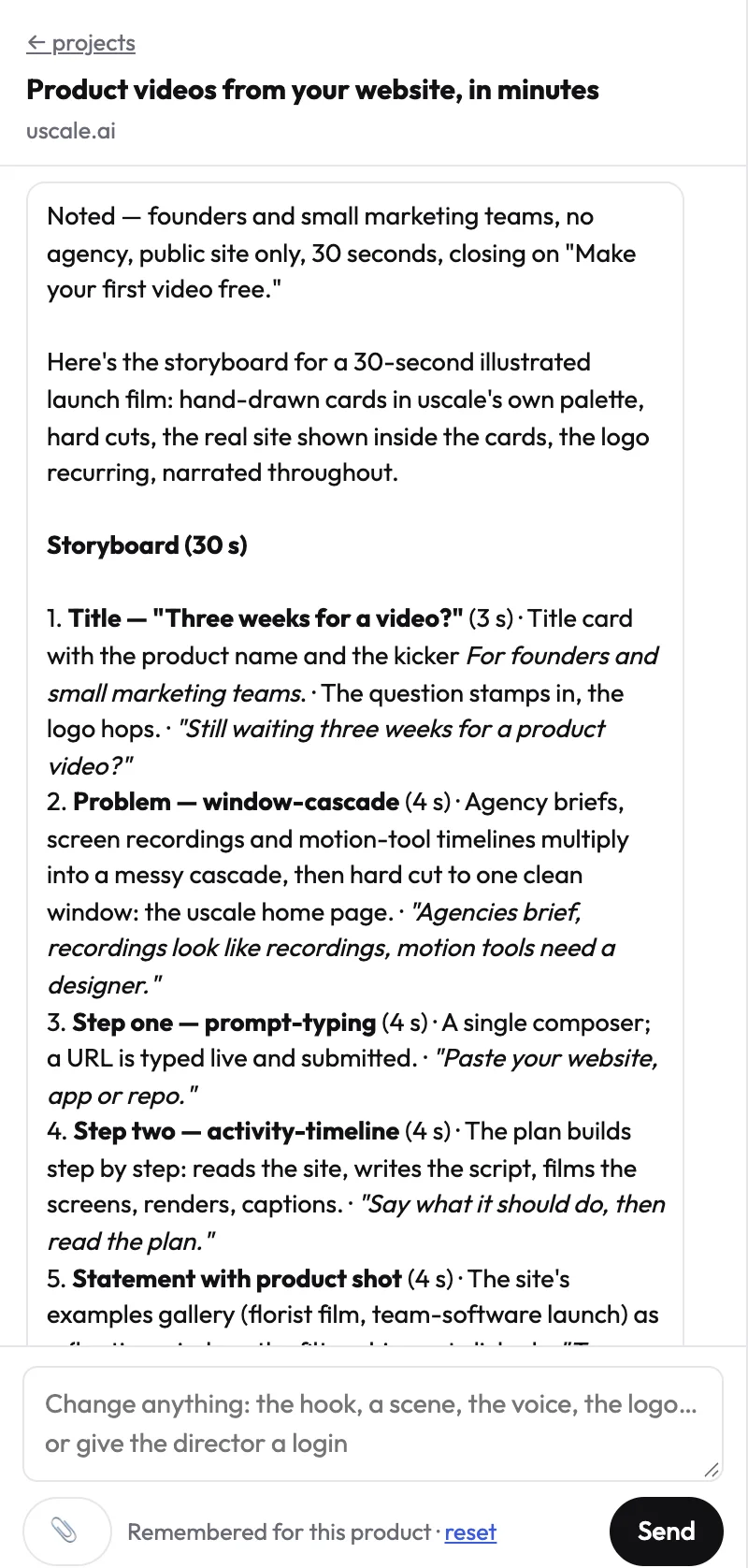
Knowing where the shot belongs is half the job. The other half is not spending renders on work the model was never built to do.
Isn't Veo 3.1 too fiddly to be worth a render? Two mistakes that waste one
If a render has come back with your narrator's line painted across the frame, or a script that worked last month now returns an error, the frustration is fair. Both failures cost money, and neither shows up until the job has run. But both come from how the request was written, not from what the model is built to do. Each has a one-line fix.
| Mistake | What you get | The fix |
|---|---|---|
| Writing dialogue in quotation marks | The words can appear as text in the frame | Put a colon after the speaker's action instead |
| Building on the preview endpoint | The -preview models no longer run on the Gemini API | Move to Gemini Omni Flash or the GA models |
Dialogue in quotation marks
Quotes feel like the natural way to write a spoken line, and that habit causes the problem. Google's prompting guidance, as reported by ScreenWeaver, says to skip quotation marks and put a colon after the speaker's action. Write "A woman at a desk looks up and says: this took us a weekend" rather than quoting the line. The words are spoken, and the frame stays clean.
A workflow built on the preview endpoint
Google shut down the Veo 3.1 preview models on the Gemini API on October 22, 2026, and pointed developers to Gemini Omni Flash or the GA models. Any script or automation still calling a model name ending in -preview will fail. Search your code for those names before your next render.
Neither mistake changes what Veo 3.1 does well: the lit, textured shot that opens or closes a film. Fix the prompt and the model name, and each render you pay for is one the model was built to do.
So what does that look like on a launch you actually have to ship?
Try it: a Veo 3.1 shot list for your own launch video
Start with the film you already need. Then decide how few of its shots actually need a model.
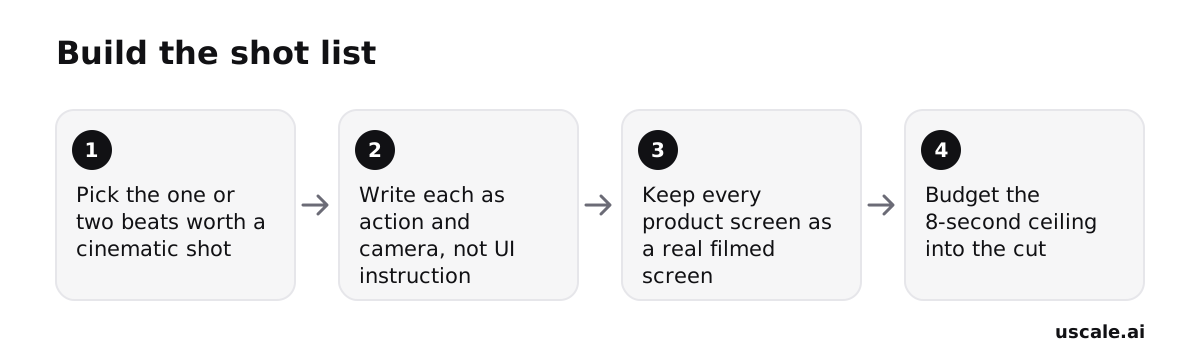
Pick the one or two beats worth a cinematic shot. Usually that means the opening, before the product appears, and the close. Every other beat is a screen the viewer has to read. You're done when your outline marks at most two lines "model shot" and the rest "screen".
Write each beat as action and camera. Describe what moves and how the camera follows it. Leave out any button, label or menu. A plain doc is enough. This is your quick win: you can write the opening prompt within the hour. You're done when each shot is one or two sentences you could paste into Veo 3.1 or another model.
Record every product screen for real. The screen recorder already on your laptop works, and so does a filmed walkthrough. If you do only one thing from this guide, do this. These are the shots a viewer needs to trust.
- Developer tool: follow the flow the README describes.
- Consumer app: use the screens from your app store preview.
- Agency: use the screens the client has signed off.
You're done when each "screen" line has a clip.
Budget the clip-length ceiling into the cut. Google Cloud's Veo 3.1 spec lists 4, 6 or 8-second clips. Reference-image generation supports only the 8-second option. Plan each cinematic beat to fit inside one clip, and cut to the product before the clip ends. You're done when the edit has a fixed slot for each shot.
If you'd rather not stitch the pieces together by hand, uscale's product explainer video does this assembly for you. You paste your site and approve a storyboard with every narration line. The film puts illustrated shots where they fit and uses your real, filmed screens everywhere else. Voice, captions and music are added. See what it shows for software products.
Success looks like a launch page that opens on a lit shot and then shows the real product. It also means a README with a working demo, and one link sales can send.
Try it: make a product explainer video: a narrated film of your real screens, with every line approved first.
Give Veo 3.1 the shot it's built for
Veo 3.1 is a b-roll model. Give it the shot that sets the mood, and leave the interface to something that films the real product.
Before your next launch video:
- Pick the one or two beats that earn a cinematic shot, usually the opening and the close.
- Write those shots as action and camera movement. Leave out on-screen text and quoted dialogue.
- Keep every screen the viewer has to understand as real footage of the product.
- Check which endpoint your workflow calls, because the preview models are gone.
You can also skip the hand assembly. The product explainer video use case reads your site and writes a storyboard with every narration line for you to approve. You get back a narrated film with voice, captions and music. To see the result first, watch the example films. Your first video is free, and the credit packs cover the films after it. Paste your own site today and see which beats get a cinematic shot and which get a real screen.
The opening can be lit like a film. The product should be shown as it is.
Make your veo 3.1 from your website — it’s free →
Questions
What is Veo 3.1?
Veo 3.1 is Google's video-generation model, released with Veo 3.1 Fast in public preview on October 15, 2025. It makes clips of 4, 6 or 8 seconds, can extend a clip it has already made, follow up to three reference images, and generate a shot between a first and a last frame. In product videos it suits lit, cinematic opening shots and textured b-roll more than interface footage.
Is Gemini Omni Flash better than Veo 3.1?
Gemini Omni Flash and Veo 3.1 have no sourced head-to-head comparison to point to yet, so the honest answer is that it depends on the shot. Google shut down the Veo 3.1 preview models on the Gemini API on October 22, 2026, and directed developers to Gemini Omni Flash or the GA models on the Gemini Enterprise Agent Platform. To decide, render the same opening shot on both and compare the result and the price per clip.
How long are Veo 3.1 videos?
Veo 3.1 videos are 4, 6 or 8 seconds per clip, according to Google Cloud's specification. In practice the choice is narrower: on the Gemini API, 1080p, 4K, reference images and the extend workflow all force the 8-second option. For a product video, plan each Veo shot as one 8-second block and trim it in the edit, cutting to the real product before the clip ends.
Is Veo 3.1 free to use?
Veo 3.1 is not free on the Gemini API. It is billed per second: Standard at $0.40 per second at 720p and 1080p and $0.60 at 4K, Fast from $0.10, and Lite from $0.05, as WaveSpeed AI reported in September 2026. Without code, Google's AI plans include monthly Google Flow credits, from 200 on AI Plus to 25,000 on AI Ultra 20x, and the cost Flow shows per render decides how far they go.
What does a Veo 3.1 clip cost next to a full product video?
Because 1080p always produces an 8-second clip on the Gemini API, one Veo 3.1 clip costs about $3.20 on Standard, $0.96 on Fast and $0.64 on Lite at the September 2026 rates WaveSpeed AI reported. That buys one shot, not a finished film. A uscale product video comes from one-time credit packs of $29, $49 or $129, covering about 2, 5 or 15 launch films, and films with AI film shots cost more. The first uscale video is free.

The team behind uscale, which turns a website, web app or GitHub repo into a narrated product video.