CapCut Alternatives for Product Videos: Where to Start
Picture the afternoon before a Thursday launch. CapCut is open on your laptop. You've scrolled the AI templates and picked one that suits a product announcement. Auto captions are ready to sync the moment there's a voice to listen to. And the timeline is empty.
The editor isn't missing anything. There is simply nothing to put on it. The product is a SaaS dashboard that lives at a URL. Nobody has recorded a single screen of it, and the onboarding flow changed again on Monday.
So you open a new tab and search "capcut alternatives", hoping a different editor will rescue the afternoon. But a different editor would open to the same empty timeline. That leaves the question behind most of those searches: is the problem the editor you have, or the fact that there is nothing to edit yet?
To answer that fairly, start with what CapCut already does well. The list is longer than the search suggests.
What Does CapCut Do Well?
A lot, as long as you already have footage. As of 2026-11-02, CapCut's own pages describe a free editor that runs almost everywhere and handles the fiddly parts of short video for you.
Free, and on every screen you own
You can download CapCut for free on Desktop, iOS and Android, and there's a browser-based online editor that needs no install. CapCut's guide to using it on PC and Mac says it's free to use unless you upgrade to Pro features. The free Standard plan is described as covering essential basic editing needs at no cost.
Templates and AI tools that save real time
CapCut's AI video editor page lists over 30 ready-to-use AI templates. They cover news, tutorials, education, motivational content and storytelling. The feature list includes auto subtitles, AI background removal, smart text-to-speech, AI stickers, camera tracking and noise reduction. The auto caption generator syncs captions to your video, and you can edit the font, format, color, effects and motion.
Paid tiers, if you need more
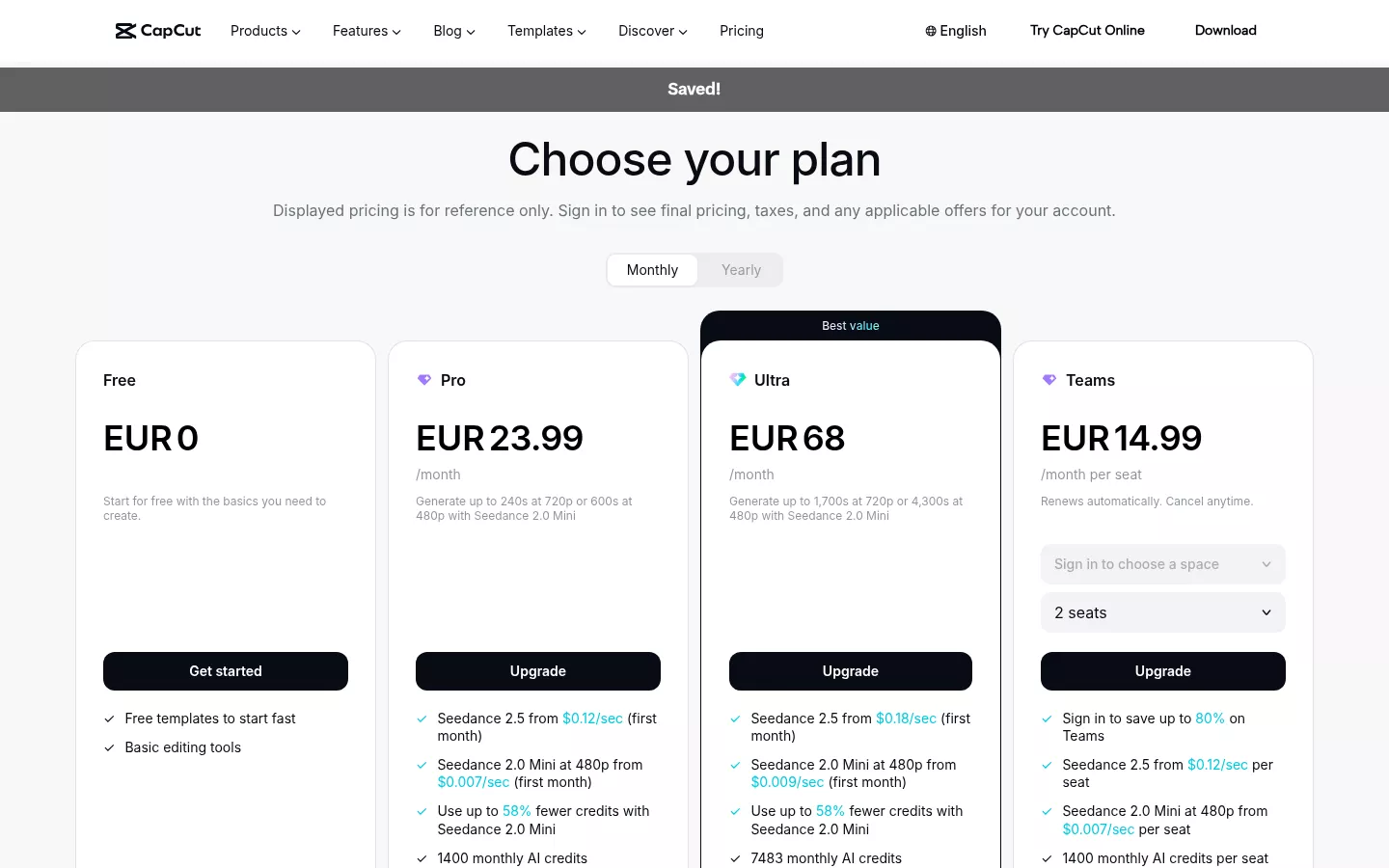
On the pricing page, Pro is $19.99 per month with 1,200 monthly AI credits, premium templates and 1 TB of storage. CapCut's Standard vs Pro comparison lists Pro yearly at $179.99 per year. Ultra is $79 per month with 8,645 monthly AI credits and 1 TB of storage. For Teams, CapCut's help page says pricing isn't fixed. Typical starting prices run $15–$30 per seat per month, billed annually, and vary by seat count and region.
Where the trade-off shows up
These are real strengths. If you have a clip to cut, or a trend you want to ride this week, CapCut is hard to beat on price or speed.
But every one of those features starts from the same assumption: a clip already exists. Captions need speech to transcribe. Background removal needs a shot. A template needs footage to drop in.
A product demo or launch film usually starts with nothing recorded at all. You have a live site, an app behind a login, maybe a GitHub repo. Before CapCut can help, someone has to script the tour, click through the product without a slip, record it, record it again when the copy changes, and only then cut it. That work lands in the days before launch, and it comes back every time the dashboard moves.
That isn't a CapCut failure. CapCut is an editor, and your job is the step before editing. So the question is what changes when the video starts from the product instead of from an empty timeline.
First, though, look at the editors people usually reach for instead of CapCut, and at what each one expects you to bring.
Descript: when you already have the footage
Descript is the pick when the recording already exists and the job is cutting it down. It is a text-based editor: the recording becomes a transcript, and when you delete a sentence from the transcript, that moment leaves the video. This suits a webinar, a podcast or a recorded talk, where the hard part is finding the good stretches inside a long take.
Say your team recorded a product webinar last week. In Descript you read the transcript, strike the false starts and the off-topic questions, and export a tighter cut. Nothing in that process asks you to film anything new.
| Descript | uscale | |
|---|---|---|
| What you bring | A recording you already made | A website, app or GitHub repo |
| What you edit | The transcript of that recording | The storyboard, by asking the director in a chat |
| Faster when | The clip exists and needs trimming | Nothing has been filmed yet |
| Not built for | Making a video with no footage behind it | Cutting down a recording you already shot |
The limit follows from the design. A transcript needs a recording behind it. With only a live dashboard and no screen capture, there is nothing to transcribe.
Here is the rule to reuse: choose the tool by what you hold at the start, not by its feature list. Descript is faster when the clip already exists. uscale fits when there is no footage, because it films the live product itself and adds narration, captions and music. Descript's current plans are on its own pricing page, which our Descript comparison links to. VEED, the next tool, starts from the same place: a clip you already have.
VEED: a browser editor for captions and quick social cuts
VEED earns its place when the recording already exists and the job is getting it onto several feeds fast. It runs in the browser. A team can add captions, change the frame size and drop a clip into a template without installing anything. If you've just finished a webinar or a recorded walkthrough and want short cuts for social, that is a quick path.
The limit follows from how those tools work. Each one acts on a clip you bring. Captions need speech to transcribe. Resizing needs a frame to resize. A template needs footage to fill. An editor is only as fast as the first recording you hand it.
That is the gap when a product hasn't been filmed yet. If all you have is a live web app or a GitHub repo, uscale opens the site and films the screens itself, then returns a narrated video with captions and music. Captions are burned into every uscale film, so the step you'd open VEED for is already done.
| What you start with | Better fit |
|---|---|
| One finished recording that needs captions and new sizes | VEED |
| A live site, app or repo, with nothing recorded | uscale |
VEED is quicker for turning one existing clip into many cuts. uscale fits when the first clip doesn't exist yet. VEED lists its current plans on its own pricing page, and our VEED comparison puts the two side by side. The same question about footage you've already shot decides the next pick, Filmora.
Filmora: a desktop editor for footage you've already shot
Filmora assumes the footage is already on your drive. It is a desktop timeline editor: you drag clips onto tracks, add transitions and effects, and adjust cuts by hand until the pacing feels right. For creators who want manual, frame-by-frame control, that is the point, not a drawback.
A worked example
Say you're a founder who recorded your onboarding flow last week, plus a short clip of yourself explaining why you built it. In Filmora you lay both on the timeline, trim the dead air, add a transition between the screen and the talking clip, and drop in a title card. Every decision is yours, and so is every hour it takes.
Now say the onboarding flow changed on Monday. The recording is out of date, and the whole edit sits on top of it. A timeline editor can polish a clip, but it can't go back and film the new screens for you.
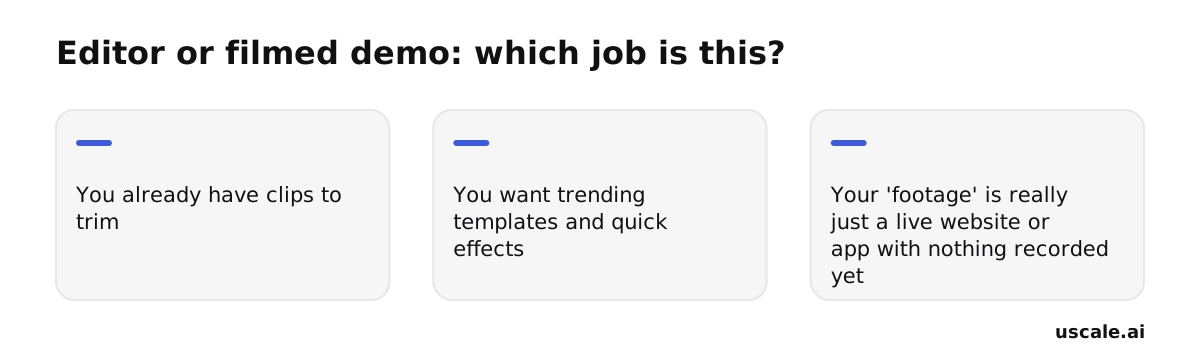
The rule you can reuse: pick the tool by what you have on day one, not by its feature list. If you have clips, an editor fits. If all you have is a URL, you need something that films.
Filmora vs uscale: Filmora gives you full manual control over clips you shot. uscale skips the shoot by filming the live product itself and returning a narrated video with captions and music. The Filmora comparison covers that trade-off in more detail.
The next tool starts somewhere else again: not from footage, but from the documents and slides a team already has.
Google Vids: a simple editor inside Workspace
Google Vids is built for one job: quick internal clips made by teams who already work in Google Docs and Slides. It sits inside Google Workspace, with basic templates and AI help to turn existing material into a short video. For a weekly update, a training note or a recap for colleagues, that is enough, and the team already has it.
The job changes when the audience changes. Two premises decide it:
- An internal clip speaks to people who already know the product. A slide, a short script and a voice can carry the message.
- A public launch film speaks to a buyer who has never seen the product. They need to see the real screens, in order, with a reason to care at each one.
The conclusion: a tool built around documents and slides is a good fit for the first audience and a poor fit for the second. An internal update can assume the viewer already knows the product. A launch film can't.
| The video's job | Where it fits |
|---|---|
| Internal update for a team already in Workspace | Google Vids, already part of their tools |
| Public film showing a live product to outside buyers | uscale, which reads a website, app or GitHub repo and returns a narrated video with captions and music |
Google Vids is already bundled for a Workspace team's internal updates. uscale is the fit when the video has to show the product itself to a buyer who has never seen it, as the Google Vids comparison sets out in more detail. The next section covers what that looks like.
uscale: a narrated film of the product itself, no editing
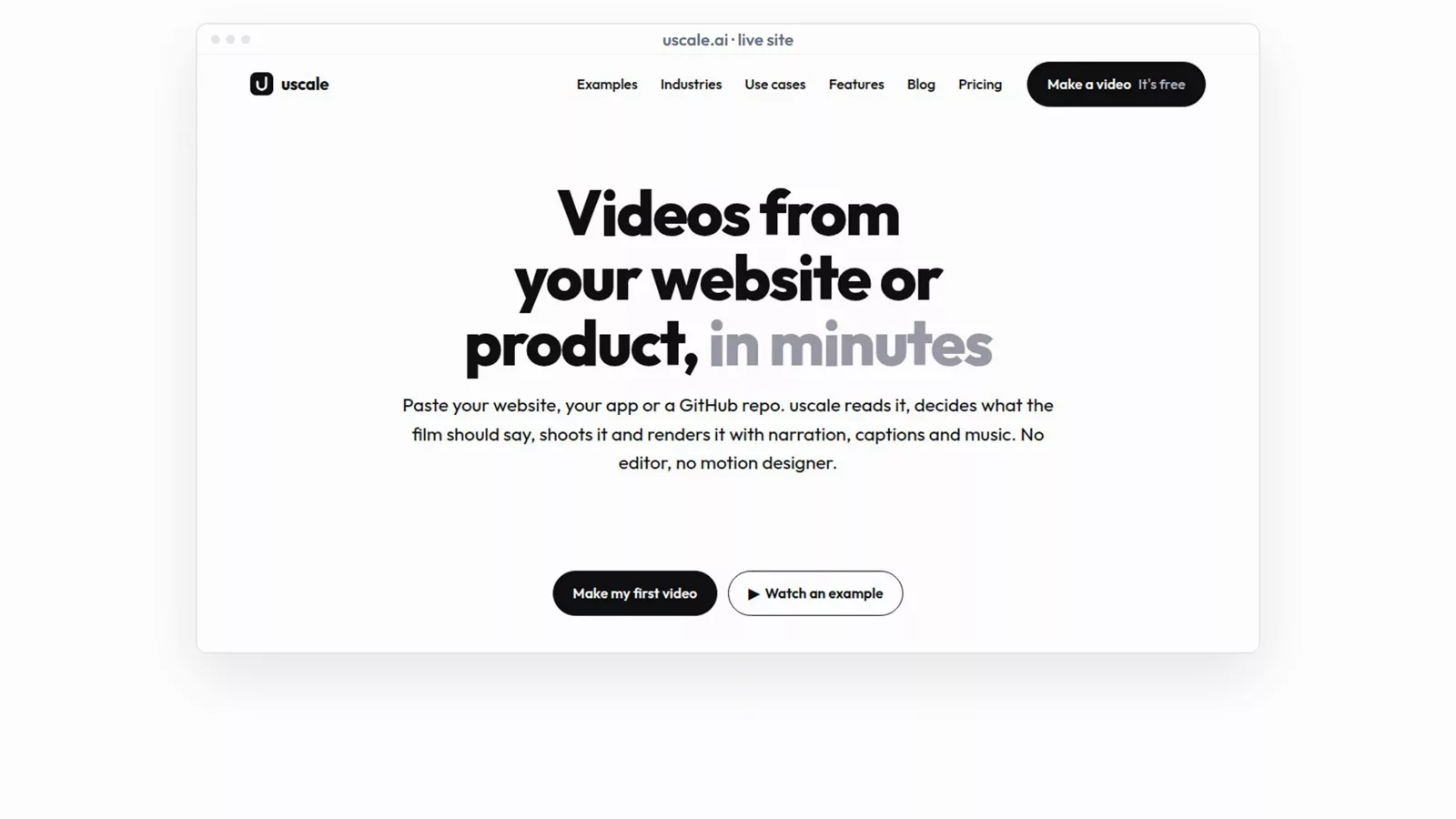
uscale skips the step every editor above assumes is already done: recording the product. Its homepage (checked 2026-11-02) says you paste a website, app or GitHub repo, and uscale reads it to plan, film and render a narrated video with captions and music in minutes.
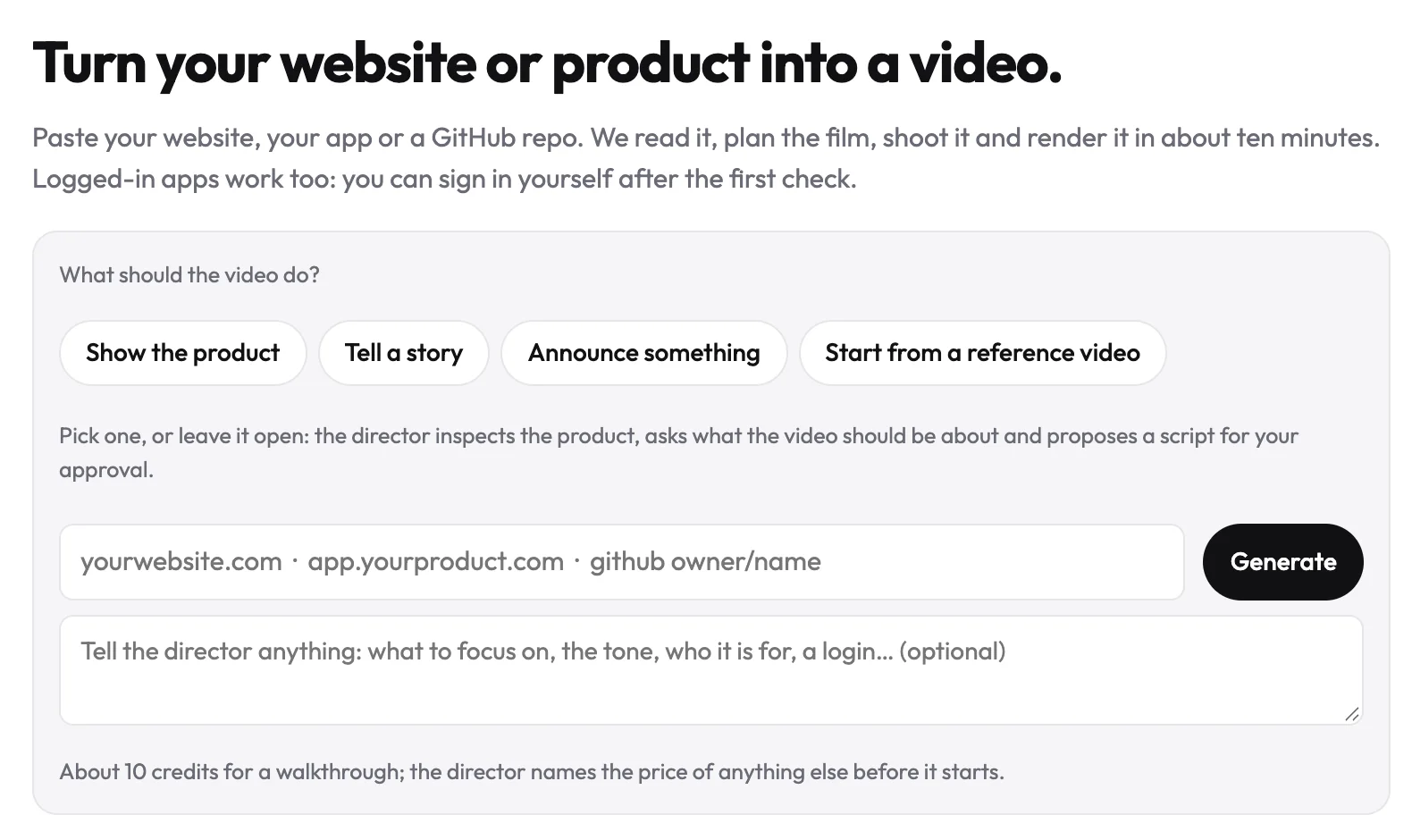
For a founder, the important detail is where the footage comes from. uscale starts from the repo or the live app, so the film shows the product you shipped, not the version in a screen recording from weeks ago. A screen recording starts aging the day you ship the next release. A film made from the live product can simply be made again. You approve a storyboard with every narration line before anything is filmed. To change something, you ask the director in a chat instead of moving clips on a timeline.
What it costs
You buy credits once. There is no subscription.
| Plan | Price | Credits |
|---|---|---|
| Free | $0 | 10 on sign-up, 20 with a work email |
| Lite | $29 | 25 |
| Starter | $49 | 50 |
| Growth | $129 | 150 |
A product walkthrough costs about 10 credits, and a revision costs 1–3 credits. Cinematic cuts with AI film clips cost more. At those rates, Starter covers about 5 product walkthroughs or 5 launch films. The pricing page lists the cost of each step.
Versus CapCut
CapCut needs footage and your editing time. uscale needs a URL or a repo and returns a finished narrated film. If you don't have a clip yet, the real question is whether you want to record one at all, not which editor cuts faster.
The AI product video generator use case shows the kinds of films this fits. You can also watch example films made with uscale before pasting your own URL. The next section puts all six tools side by side, with each one's pricing model.
Try it: turn your live product into a narrated video: paste a URL or repo, approve the storyboard, get a captioned film.
CapCut Alternatives Compared: Price, Footage and Editing
uscale is our product, so keep that in mind as you read this. These six tools don't sit on one scale. CapCut, Descript, VEED, Filmora and Google Vids are editors, and they help you shape material you bring. uscale starts from your live product or repo and makes the film itself. Because they do different jobs, compare them on these four points:
- What you start from. A clip, a template, a URL or a repo. This decides whether you need a recording session first.
- Whether it shows your current product. A demo recorded weeks ago can show screens that have since changed.
- Who does the editing. You on a timeline, or a director you ask in a chat.
- How you pay. A monthly plan, per seat, or credits bought once.
| Tool | Built for | Needs footage already shot? | Starting price |
|---|---|---|---|
| CapCut | Editing clips, with 30+ AI templates, auto subtitles and text-to-speech | You bring the clips. Templates help shape them | Free Standard plan; Pro $19.99/mo or $179.99/yr; Ultra $79/mo |
| Descript | Cutting a recording by editing its transcript | Built around a recording you have | See their pricing page (Descript comparison) |
| VEED | Captions, resizing and quick social cuts in the browser | Built around a recording you have | See their pricing page (VEED comparison) |
| Filmora | Desktop timeline editing with effects and transitions | Built around footage you shot | See their pricing page (Filmora comparison) |
| Google Vids | Quick internal videos inside Workspace | Not the main use case | See their pricing page (Google Vids comparison) |
| uscale | A narrated film of your website, app or GitHub repo | No. It films the live product or reads the repo | Packs from $29 for 25 credits, paid once |
CapCut prices are from its pricing and Standard vs Pro pages. uscale prices are from its pricing page. Both were checked on 2026-11-02. We don't quote numbers we haven't sourced for the other four.
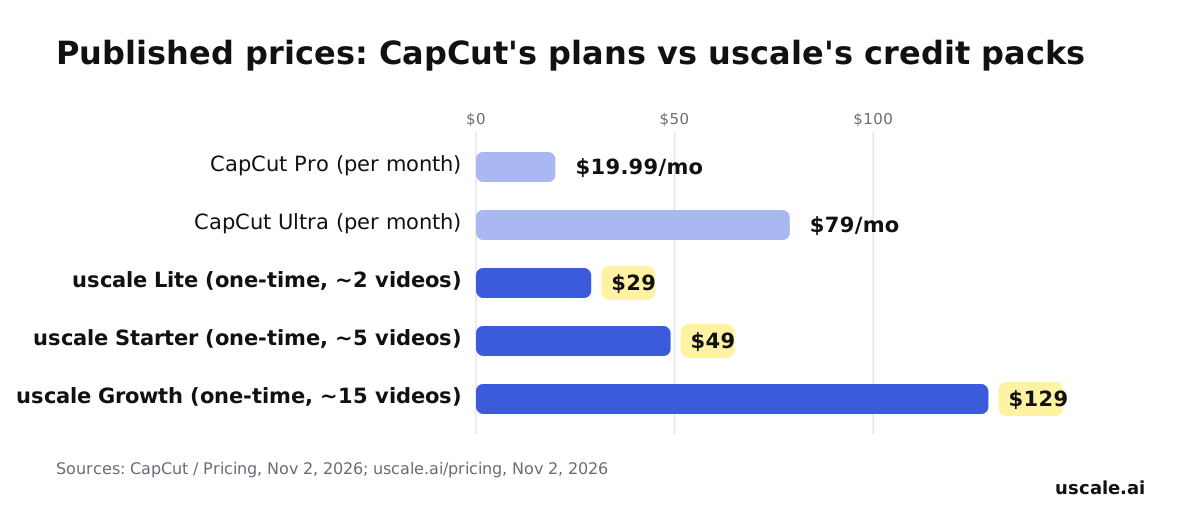
The chart puts the published prices side by side, but they don't measure the same thing. CapCut Pro renews monthly with 1,200 AI credits a month, and Ultra renews monthly with 8,645. uscale's packs are bought once, with no subscription. A product walkthrough costs about 10 credits and a revision 1–3, so Starter at $49 covers about 5 walkthroughs or launch films. Which costs less depends on how many videos you make and how often you edit.
Which one fits your situation
- Solo founder before launch, with a live site and nothing recorded: uscale. Paste the URL, approve the storyboard, and get a narrated film with captions and music.
- Developer-relations team with a repo and no live site yet: uscale can plan a film from the GitHub repo. CapCut and the other editors need a clip first.
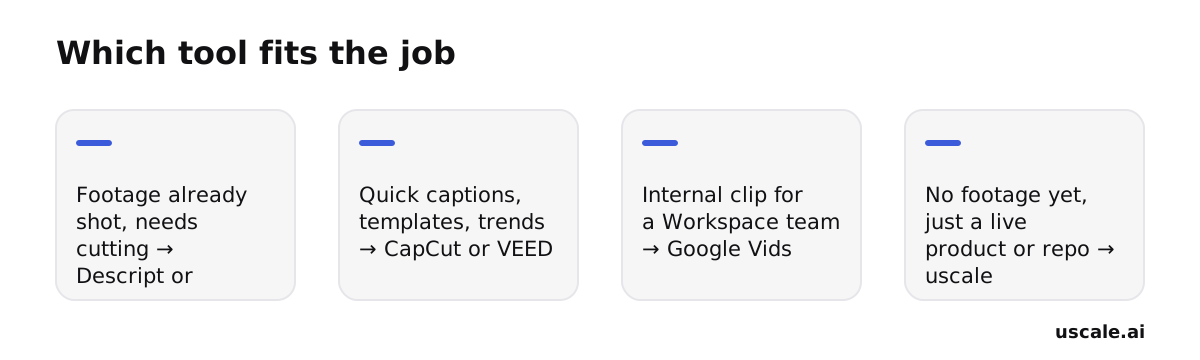
- Creator or social team with footage already shot: CapCut for templates and trends. Descript for trimming a long recording. Filmora for frame-by-frame control. VEED for fast resizes.
- Workspace team making internal updates: Google Vids, since it sits next to Docs and Slides.
- Agency with many clients: probably both. Use an editor for client footage. CapCut Teams typically starts at $15–$30 per seat per month, billed annually. Use uscale for client product films, each rendered in that client's own brand.
Rule of thumb: if you have footage, pick an editor. If all you have is a URL or a repo, start with a tool that films the product.
That rule leans toward uscale whenever nothing is recorded, so it's worth being just as clear about where it doesn't.
When CapCut (or Descript, VEED, Filmora) Is the Better Pick
The strongest objection to this post is simple: most video work is editing, not generating. A founder who already records demos, has a webinar on disk, or wants to join a trend does not need a tool that films the product. They need a good editor, and they probably already have one. Each alternative is the right tool for a specific job:
- CapCut when there is a clip to cut and a trend format fits it.
- Descript or Filmora when the footage is already shot and needs manual polish, by transcript or on a timeline.
- VEED when one recording has to become several quick social cuts in the browser.
- Google Vids when the video is an internal update for a team that already works in Workspace.
That objection holds. If the footage exists, an editor is the right tool, and uscale adds nothing to that job.
uscale is also the wrong pick in four other cases:
- Buyers need to click through the product themselves. An interactive demo lets them explore at their own pace, while a film shows one path. Our comparison of interactive demos and demo videos covers when each one fits.
- A real person needs to speak in their own voice. uscale can turn a photo into a presenter, but the presenter speaks short lines in a uscale voice. A long talking-head in your own voice still needs a camera.
- The footage is already recorded and just needs cutting. Use the editor. Our guide to editing video you already shot covers that job.
- You need bulk generation through a REST API. uscale has no public REST API. It works inside Claude, ChatGPT, Cursor and other assistants through its MCP server, and nothing that costs credits runs until you approve it.
None of these cases is the one this post opened with: a live product, nothing recorded, and an empty timeline. No editor can start that job, because there is nothing to cut yet. Making the first footage from the live product is the job uscale is built for.
Before You Fill the Next Timeline
Back to that empty CapCut timeline. The editor was never the problem. The real question is whether there is anything to put on it yet. Your next step depends on the answer:
- If you have a clip to cut or a trend template to ride, stay with CapCut. If you want a different editor, pick Descript, VEED or Filmora. All of them are built for footage that already exists.
- If the recording is a long talk or webinar, trim it in a text-based editor like Descript first.
- If your only "footage" is a live website, web app or GitHub repo, skip the recording. Paste the address and get back a narrated film with captions and music, made from the product as it ships today.
- Before you start, write down the one screen a buyer must see. That makes the storyboard quick to approve.
For a software launch or demo film, start with the AI product video generator. Your first video is free, and no credit card is needed.
A product demo doesn't need a shoot. It needs the product doing what it was built to do.
Make your capcut alternatives from your website — it’s free →
Questions
What is CapCut used for?
CapCut is a video editor used to cut and polish footage you already have, especially short clips for social feeds. It is free on Desktop, iOS, Android and the web, and its free Standard plan covers essential basic editing. It offers over 30 AI templates, auto subtitles, AI background removal, text-to-speech and noise reduction. CapCut Pro costs $19.99 per month or $179.99 per year, and Ultra costs $79 per month.
Is there a free alternative to CapCut for product videos?
Yes, depending on what you start with. CapCut's own free Standard plan covers basic editing if footage already exists. If you have only a live website, web app or GitHub repo and nothing recorded, uscale gives every new account 10 credits, or 20 with a work email, which is enough for one full product walkthrough with narration, captions and music. No credit card is needed to start.
Can I switch from CapCut without re-editing everything?
It depends on what you switch to. Moving a project to another timeline editor such as Filmora, VEED or Descript usually means rebuilding the edit, because each editor has its own templates and timeline. Switching to uscale for product videos avoids that question: uscale does not import a CapCut project. It films your live site or app, or reads your GitHub repo, and makes a new narrated film from the product as it is today.
What does uscale cost?
uscale sells credits you buy once, with no subscription. The Free plan gives 10 credits on sign-up, 20 with a work email, enough for one full product walkthrough. Lite is $29 for 25 credits, Starter $49 for 50 credits and Growth $129 for 150 credits. A product walkthrough costs about 10 credits, a revision 1–3 credits, and cinematic cuts cost more. Done for you is $2,000 a month for 40 or more videos.
Which CapCut alternative fits a software launch video?
The right tool for a software launch video depends on whether the product has been recorded. If screen recordings already exist, CapCut, Descript or Filmora can cut them. If you have only a live website, web app or GitHub repo, uscale fits better: it films the live product or reads the repo and returns a narrated film with captions and music. You approve the storyboard before anything is filmed, and a launch film costs 10 credits.

The team behind uscale, which turns a website, web app or GitHub repo into a narrated product video.